When we deploy security solutions like Cortex XSIAM or centralize logs with Elasticsearch using Filebeat, one of the most common requirements is to ingest the name resolution activity of our Domain Controllers (DCs).
To achieve this, the first fundamental step is to enable DNS Debug Logging in the Windows DNS server configuration. However, this is not simply a matter of checking a box; There are critical technical and infrastructure considerations you should be aware of before implementing it in production.
Why is DNS debug logging disabled by default?
If you manage Windows servers, you’ve probably noticed that DNS debug logging is completely disabled by default. This is due to two main reasons:
Performance Impact (CPU and RAM): Logging every DNS query and response packet requires the DNS service to actively process and write each transaction to disk. In a corporate environment with thousands of endpoints, this creates a considerable additional workload for the server.
High I/O Generation (Disk Read/Write): The volume of logs generated by a DNS server is massive. If it were enabled by default, hard drives would fill up in a matter of hours or days, causing a catastrophic failure of the Domain Controller’s operating system.
Where are these logs usually viewed?
Unlike traditional Windows events that you review in the Event Viewer, DNS Debug Logging is written to a plain text file (.log).
You define the exact path where this file will be saved when you enable it. Administrators usually configure the path to:
C:\Windows\System32\dns\dns.log or a dedicated folder like D:\DNSLogs\dns_debug.log.
Once generated, it can be opened with any text editor (such as Notepad or Notepad++), although due to its large size, the common practice is to have an agent like Filebeat read it in real time and send it directly to Elasticsearch for parsing and indexing.
Critical Disk Space Considerations
Before enabling this option, it is mandatory to take these precautions to avoid crashing your Domain Controller:
Set a File Size Limit: Windows allows you to configure a maximum size for the log file (for example, 500 MB or 1 GB). When the file reaches this limit, the server overwrites the oldest events (circular buffering behavior). Never leave this option unlimited.
Use a Secondary Partition or Disk: If possible, do not store this log on the
C:\drive where the operating system resides. If the log grows uncontrollably and fills the system disk, the Windows server will crash (blue screen or services will fail).Filter What You Need: Do not select all the checkboxes unless absolutely necessary. Usually, for SIEM solutions, you only need to log “Queries/Transfers,” “Updates,” and “Request/Response” packets.
Enabling DNS Debug Logging on the Windows DNS Server
To enable this log and prepare it for Filebeat ingestion (depending on the tool that will consume the logs), follow these steps on your Domain Controller:
Open the DNS Manager on your Windows server (
dnsmgmt.msc).Right-click on your DNS server name and select Properties.
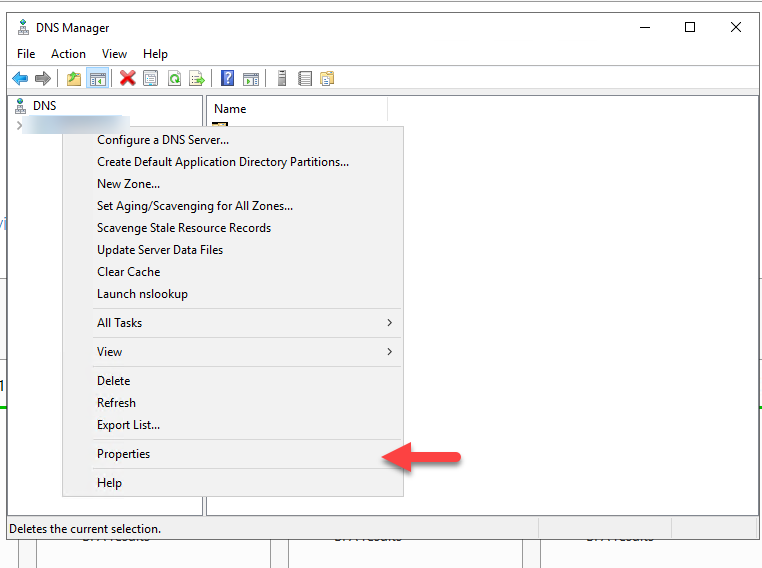
Go to the Debug Logging tab.
Check the box next to Log packets for debugging.
In the Packet direction section, select both Outgoing and Incoming.
In Packet contents, ensure that at least Queries/Transfers are selected. (Adjust the other fields according to your connector’s exact ingestion requirements.)
In the File and path section below, specify the full file path, for example:
c:\Windows\System32\dns\DNS.log.In Maximum size (bytes), enter a safe limit. For example, for 500 MB, enter
500000000.
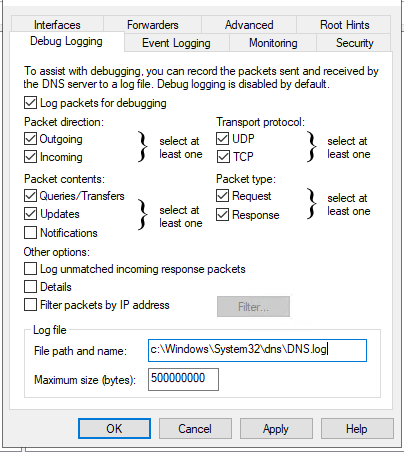
- Click Apply and then OK.
From this point on, the text file will begin to populate with DNS queries and will be ready for the Filebeat agent to read and send to your Elasticsearch cluster.
How to enable DNS Debug to the rest of the DCs with PowerShell
# 1. Import the Active Directory module (assumes your local machine has this for Get-ADComputer)
Import-Module ActiveDirectory

# 2. Define the Target OU for Domain Controllers
$SearchBase = "OU=Domain Controllers,DC=YOURDOMAIN,DC=com"

# 3. Fetch Domain Controllers, filtering for Windows OS only
$DCs = Get-ADComputer -SearchBase $SearchBase -Filter "OperatingSystem -like '*Windows*'"

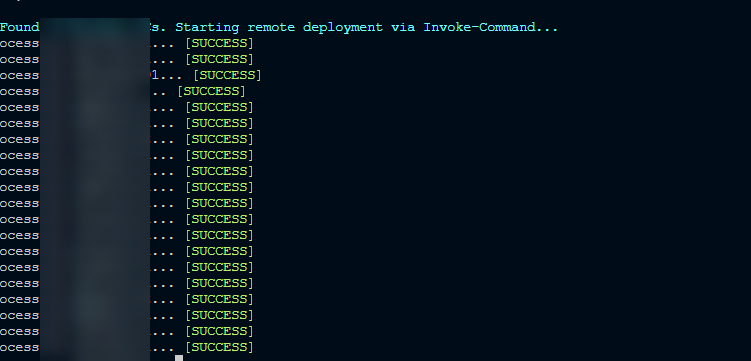
Write-Host "⚙️ Found $($DCs.Count) Windows DCs. Starting remote deployment via Invoke-Command..." -ForegroundColor Cyan

# 4. Iterate through each server and execute the ScriptBlock remotely
foreach ($DC in $DCs) {
    $Server = $DC.Name
    Write-Host "Processing $Server..." -NoNewline

    try {
        # Execute the DNS cmdlet directly on the target Domain Controller
        Invoke-Command -ComputerName $Server -ErrorAction Stop -ScriptBlock {
            Set-DnsServerDiagnostics `
                -SendPackets $true `
                -ReceivePackets $true `
                -UdpPackets $true `
                -TcpPackets $true `
                -Queries $true `
                -Updates $true `
                -QuestionTransactions $true `
                -Answers $true `
                -LogFilePath "c:\Windows\System32\dns\DNS.log" `
                -MaxMBFileSize 500000000
        }

        Write-Host " [SUCCESS]" -ForegroundColor Green
    }
    catch {
        Write-Host " [FAILED] - $($_.Exception.Message)" -ForegroundColor Red
    }
}
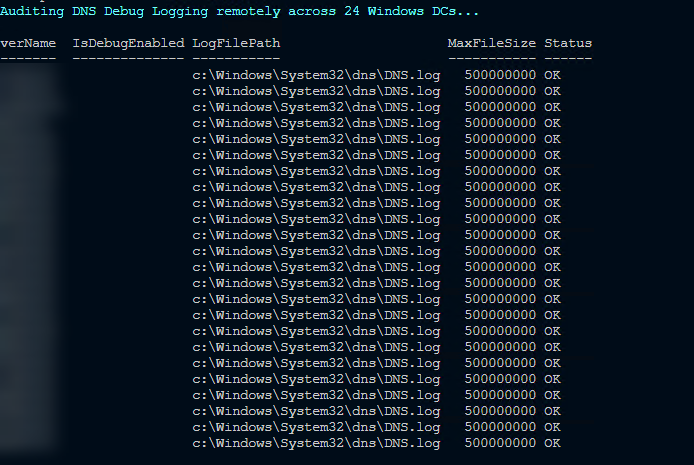
How to validate that the configuration has been applied?
# 1. Import the Active Directory module
Import-Module ActiveDirectory

# 2. Define the Target OU for Domain Controllers
$SearchBase = "OU=Domain Controllers,DC=YOURDOMAIN,DC=com"

# 3. Fetch only Windows-based Domain Controllers
$DCs = Get-ADComputer -SearchBase $SearchBase -Filter "OperatingSystem -like '*Windows*'"

Write-Host "🔍 Auditing DNS Debug Logging remotely across $($DCs.Count) Windows DCs..." -ForegroundColor Cyan

# 4. Iterate and build a custom report object for each server
$AuditReport = foreach ($DC in $DCs) {
    $Server = $DC.Name

    try {
        # Fetch DNS Diagnostics configuration using PowerShell Remoting
        $RemoteConfig = Invoke-Command -ComputerName $Server -ErrorAction Stop -ScriptBlock {
            $DNS = Get-DnsServerDiagnostics

            # Return a simple object from the remote session to the local session
            [PSCustomObject]@{
                IsDebugEnabled = $DNS.EnableLoggingForDebugging
                LogFilePath    = $DNS.LogFilePath
                MaxFileSize    = $DNS.MaxMBFileSize
            }
        }

        # Build the final output object in the local session
        [PSCustomObject]@{
            ServerName     = $Server
            IsDebugEnabled = $RemoteConfig.IsDebugEnabled
            LogFilePath    = $RemoteConfig.LogFilePath
            MaxFileSize    = $RemoteConfig.MaxFileSize
            Status         = "OK"
        }
    }
    catch {
        # Handle WinRM network issues or access denied errors
        [PSCustomObject]@{
            ServerName     = $Server
            IsDebugEnabled = "N/A"
            LogFilePath    = "N/A"
            MaxFileSize    = "N/A"
            Status         = "Failed"
        }
    }
}

# 5. Display the results in a formatted table
$AuditReport | Format-Table -AutoSize
Conclusion
Enabling DNS Debug Logging is an essential step to give your Security team visibility and feed analytical tools like Cortex XSIAM or Elasticsearch. However, as infrastructure administrators, our number one priority should always be the stability, performance, and availability of Domain Controllers.
By following best practices—setting strict size limits and placing the log on a controlled path—we achieve the perfect balance: we deliver vital data for the company’s cybersecurity without putting the network at risk. Once this is securely configured, it’s up to the Security team to deploy Filebeat and begin collection.
Final thought: If you manage a global infrastructure with dozens of DCs, remember that doing this manually through the graphical interface isn’t scalable. Leverage the power of PowerShell Remoting (Invoke-Command) to automate and standardize this configuration across your entire fleet in seconds. Work smarter, not harder!