Have you ever tried to migrate a Virtual Machine in vCenter and found that the Migrate… option is completely disabled (grayed out)?
Often, when trying to power it on or move it, vCenter displays a message indicating that the VM is pinned to a host (“The virtual machine is pinned to a host”). This usually happens when backup software (like Veeam) leaves a task hanging, or when a previous operation fails, leaving the VM in a locked or logically “locked” state.
Fortunately, there’s a little-known but very effective method using vCenter’s Managed Object Browser (MOB) to force the button to be enabled without having to restart services. Here’s a step-by-step guide.
Step-by-step: How to Re-enable the Migration Option
1. Obtain the Virtual Machine’s MOID
First, you need the Managed Object ID (MOID) of your VM.
The easiest way to find it is by selecting your VM in the vCenter web interface and looking at the URL in your browser. You’ll see something like VirtualMachine:vm-123456. Note that number (e.g., vm-383247).

2. Accessing the AuthorizationManager in the MOB
Open a new tab in your browser and go to the following URL, replacing tuvcenter.domain.com with the FQDN or IP address of your vCenter:
https://tuvcenter.domain.com/mob/?moid=AuthorizationManager&method=enableMethods
(Log in with your vSphere administrator credentials.)
3. Configuring the API Parameters
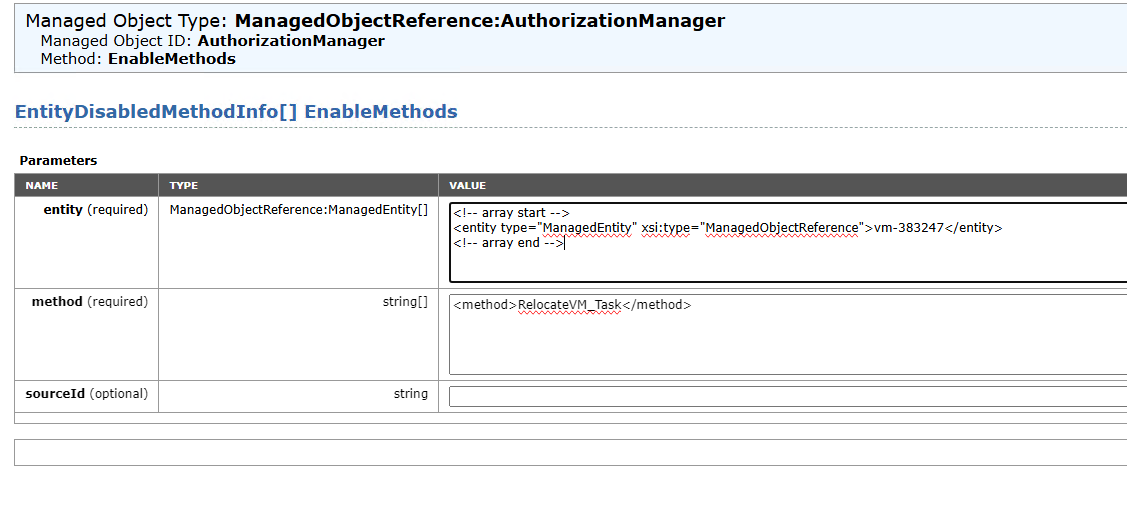
You will see a screen with a table called Parameters. Here we need to inject the XML code to point to our VM and enable the specific method.
In the value box for the first parameter, (entity), paste the following code. Make sure to replace vm-383247 with your VM’s actual MOID:
<entity type="ManagedEntity" xsi:type="ManagedObjectReference">vm-383247</entity>
<method>RelocateVM_Task</method>
4. Invoke the Method
Once both fields are filled, click the Invoke Method button located at the bottom or right of the table.
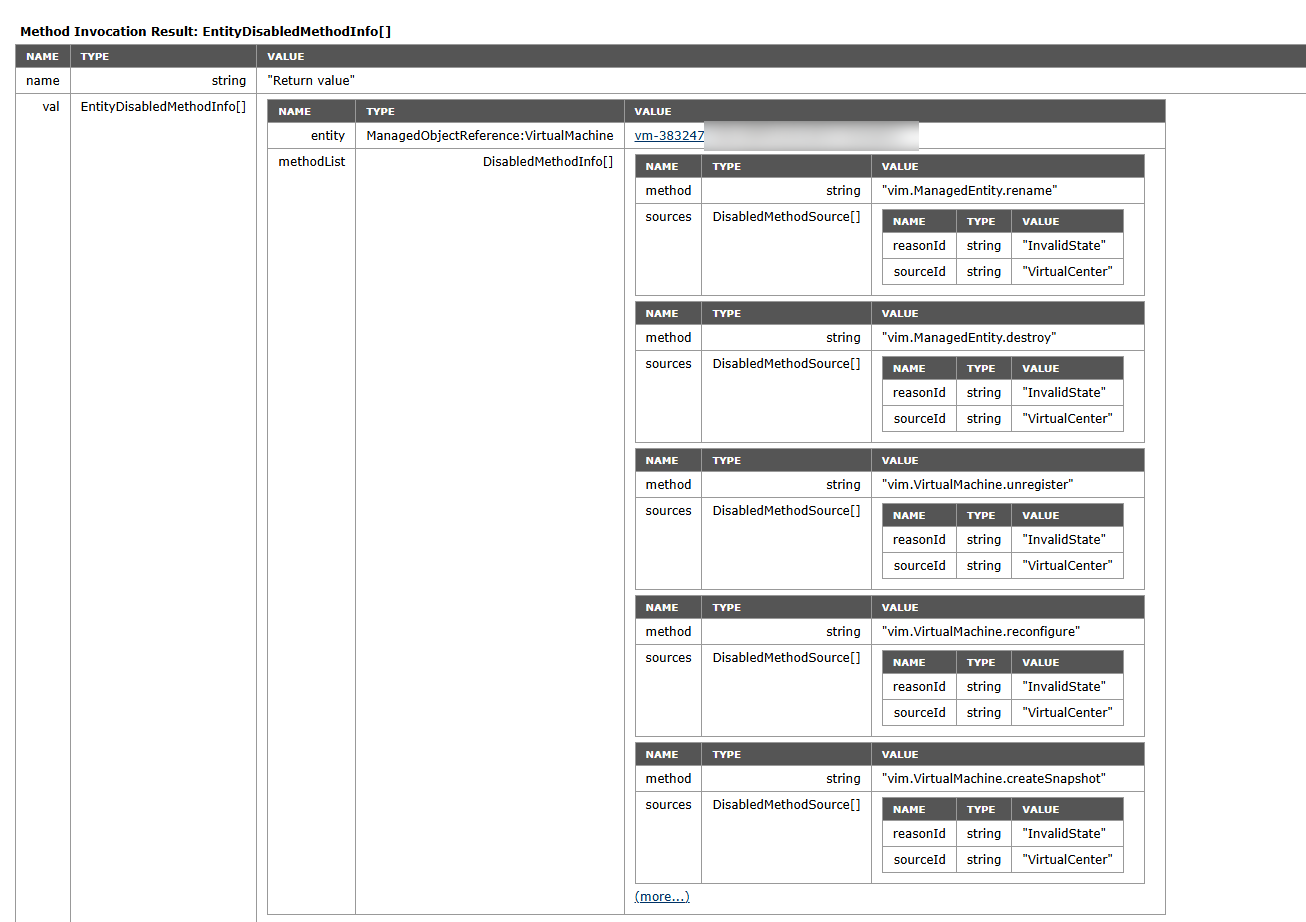
If everything went well, the screen will reload, displaying the invocation result (Method Invocation Result), detailing the methods associated with that entity.
5. Validate in vCenter
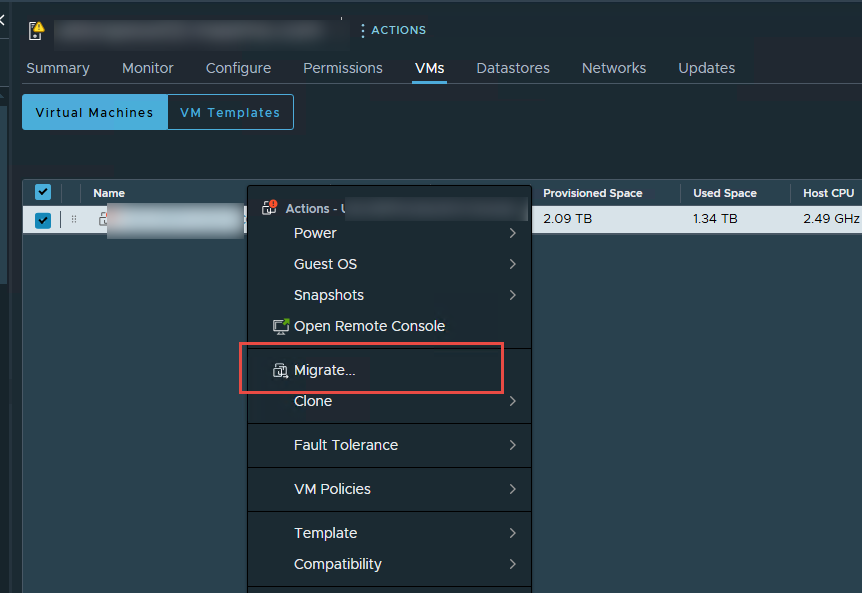
Return to your vSphere Client tab and reload the page (F5). Right-click on your Virtual Machine and you will see that the Migrate… option is enabled again and ready to use.
Note: This method interacts directly with the vCenter API. Make sure to enter the correct MOID to avoid accidentally altering the permissions of another virtual machine.