Upgrading a Windows Server traditionally involved standing up a brand-new virtual machine and meticulously migrating roles, data, and applications (a “clean install” migration). However, Microsoft’s In-Place Upgrade process has become phenomenally reliable, allowing you to upgrade the operating system of an existing server while keeping your files, settings, and complex applications completely intact.
This guide outlines exactly how to perform an in-place upgrade, the supported upgrade paths you must follow, and crucial compatibility warnings.
1. Supported Upgrade Paths
You cannot simply jump from an ancient operating system directly to the newest release in a single bound. Microsoft enforces specific, supported upgrade paths. Generally, prior to Windows Server 2025, you could jump a maximum of two versions at a time.
Here is a quick reference table for common upgrade paths:
| Current OS Version | Allowed Target (In-Place Upgrade) |
|---|---|
| Windows Server 2012 R2 | Windows Server 2016, Windows Server 2019 |
| Windows Server 2016 | Windows Server 2019, Windows Server 2022 |
| Windows Server 2019 | Windows Server 2022, Windows Server 2025 |
| Windows Server 2022 | Windows Server 2025 |
Note: If you are running Windows Server 2012 R2 and want to reach 2022, you must perform two separate upgrades (e.g., 2012 R2 -> 2019 -> 2022).
2. Before You Begin: Check Application Compatibility!
CRITICAL WARNING: Before inserting the ISO, you must verify that the third-party or Microsoft applications currently running on your server are officially supported by the target operating system.
The most classic trap system administrators fall into involves SQL Server. For example, SQL Server 2012 is NOT supported on Windows Server 2022. If you perform an in-place upgrade on a DB server from 2016 to 2022 without upgrading SQL first, your database engine will fail to start on the new OS. Always check vendor documentation for your critical payloads!
3. Performing the In-Place Upgrade
The process itself is heavily automated. Ensure you have taken a full virtual machine snapshot or bare-metal backup before proceeding!
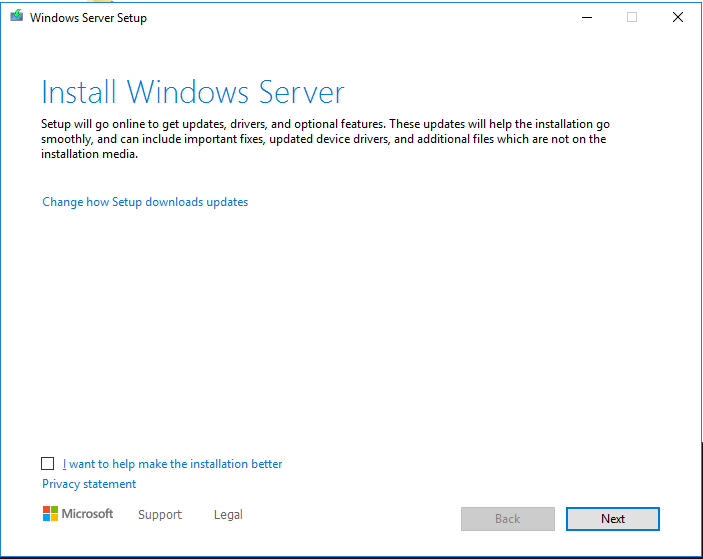
- Mount the ISO of the target Windows Server version to the machine and run
setup.exe.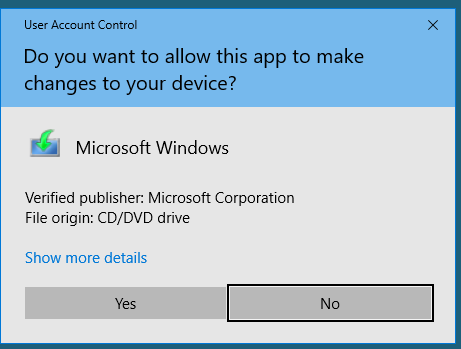
Special Note for Windows Server 2025
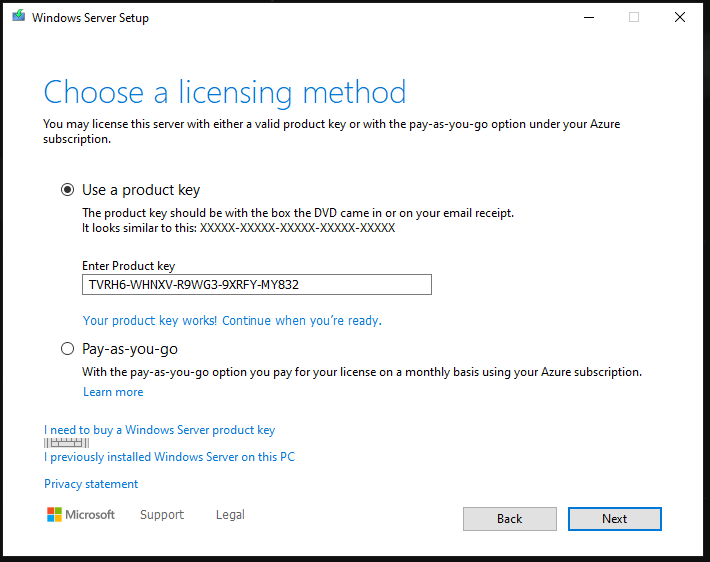
If you are upgrading directly to Windows Server 2025, the installer will immediately prompt you for your product key before proceeding. Enter your valid KMS, MAK, or Retail key:
(Example KMS Key for 2025 Standard: TVRH6-WHNXV-R9WG3-9XRFY-MY832)
Continuing the Setup (General)
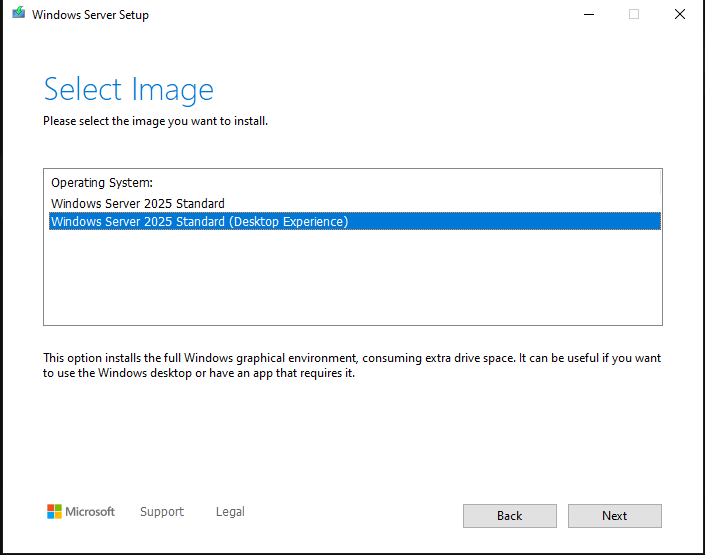
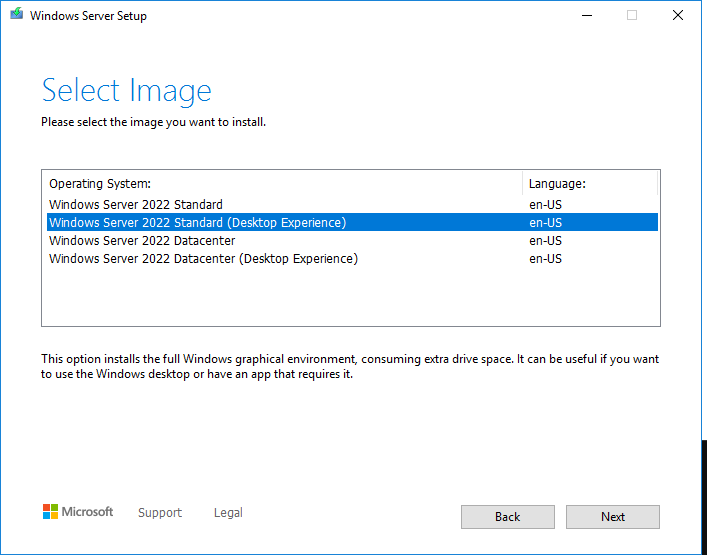
Select the edition you wish to install. Critically, you must select the “Desktop Experience” option if your current server has a GUI. If you accidentally select the Core version, you will lose your graphic interface!
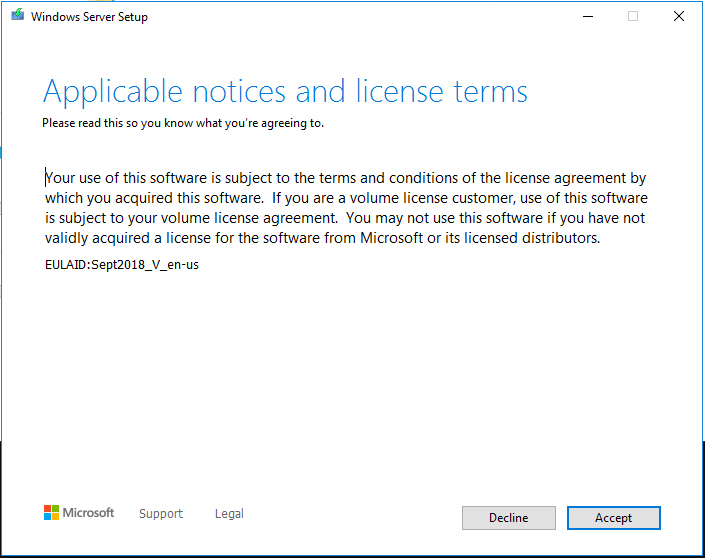
Accept the applicable notices and license terms.
The most important step: When asked what to keep, you MUST select “Keep files, settings, and apps”. If this option is grayed out, your current OS language, base edition (Standard vs Datacenter), or architecture does not match the ISO you mounted.
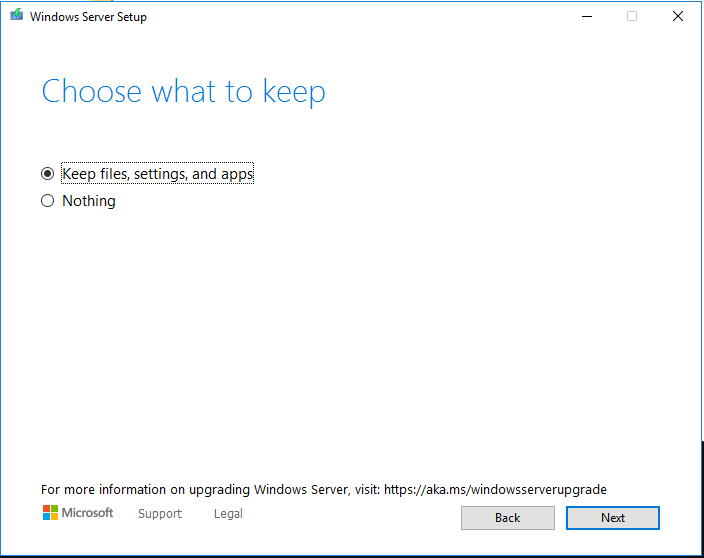
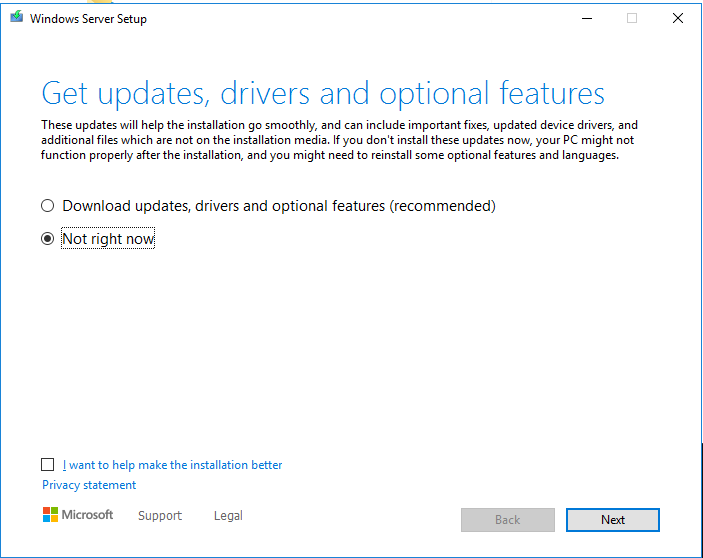
Setup will check for updates and analyze your system for any blocking compatibility issues.
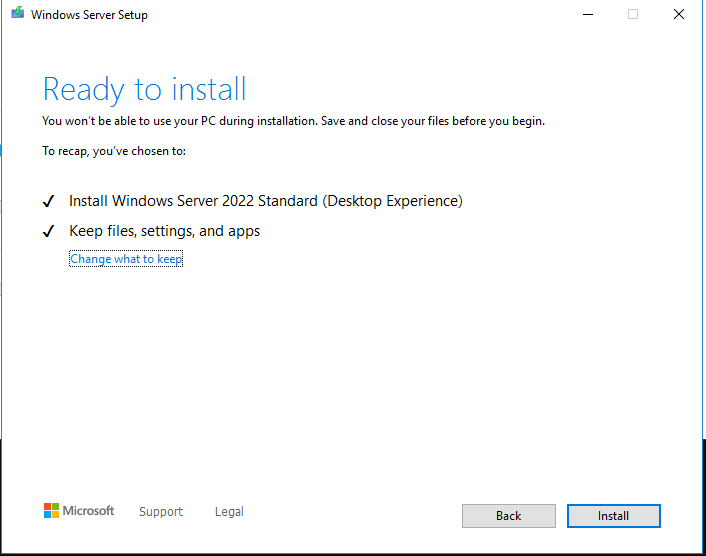
Confirm the summary screen. It should explicitly confirm that it will “Keep personal files and apps”. Click Install.
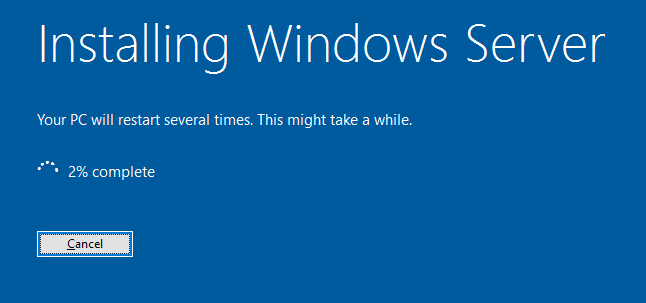
4. The Upgrade Process
From here, the process is entirely hands-off. The blue installation screen will take over.
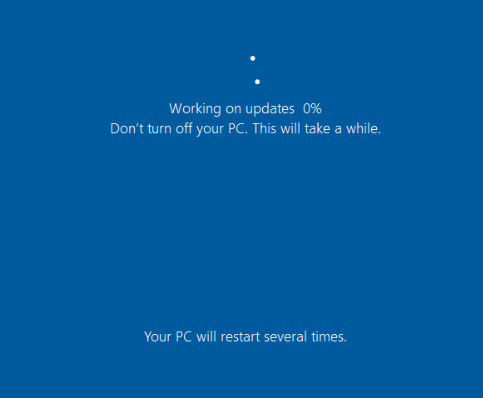
The server will reboot itself several times as it migrates the registry, drivers, and application hooks into the new kernel structure.

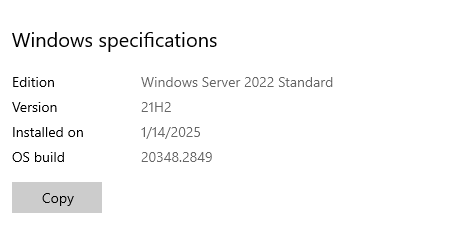
Eventually, you will be presented with the standard Windows Server lock screen. Upon logging in, all your applications, domain joins, IP configurations, and files will be exactly where you left them, running on a brand-new OS!
Conclusion
The Windows Server In-Place Upgrade is a masterclass in migration engineering, saving endless hours of rebuilding servers from scratch. As long as you respect the jump-path limits (don’t skip too many generations), strictly validate your application compatibility (like SQL Server or legacy IIS apps), and always take a snapshot beforehand, performing an in-place upgrade is one of the most satisfying modernization tasks in IT.