
When deploying TrueNAS in an enterprise environment, integrating it with a central Windows Server Active Directory (AD) domain is essential. Joining the domain allows TrueNAS to directly query your domain controllers for users and groups, eliminating the need to recreate local accounts. You can then assign NTFS-style permissions (ACLs) to your SMB shares seamlessly.
This guide details the procedure for joining your TrueNAS storage server into an Active Directory domain.
Step-by-Step Guide
1. Verify Networking and DNS
The absolute most critical prerequisite for joining an Active Directory domain is ensuring your TrueNAS system is using your Domain Controllers (DCs) for DNS resolution. If TrueNAS cannot resolve the domain name to the DCs, the join process will fail immediately.
Navigate to Network > Global Configuration in the left menu.
Verify that the Nameserver 1 (and Nameserver 2 if applicable) fields point directly to the IP addresses of your internal Domain Controllers.
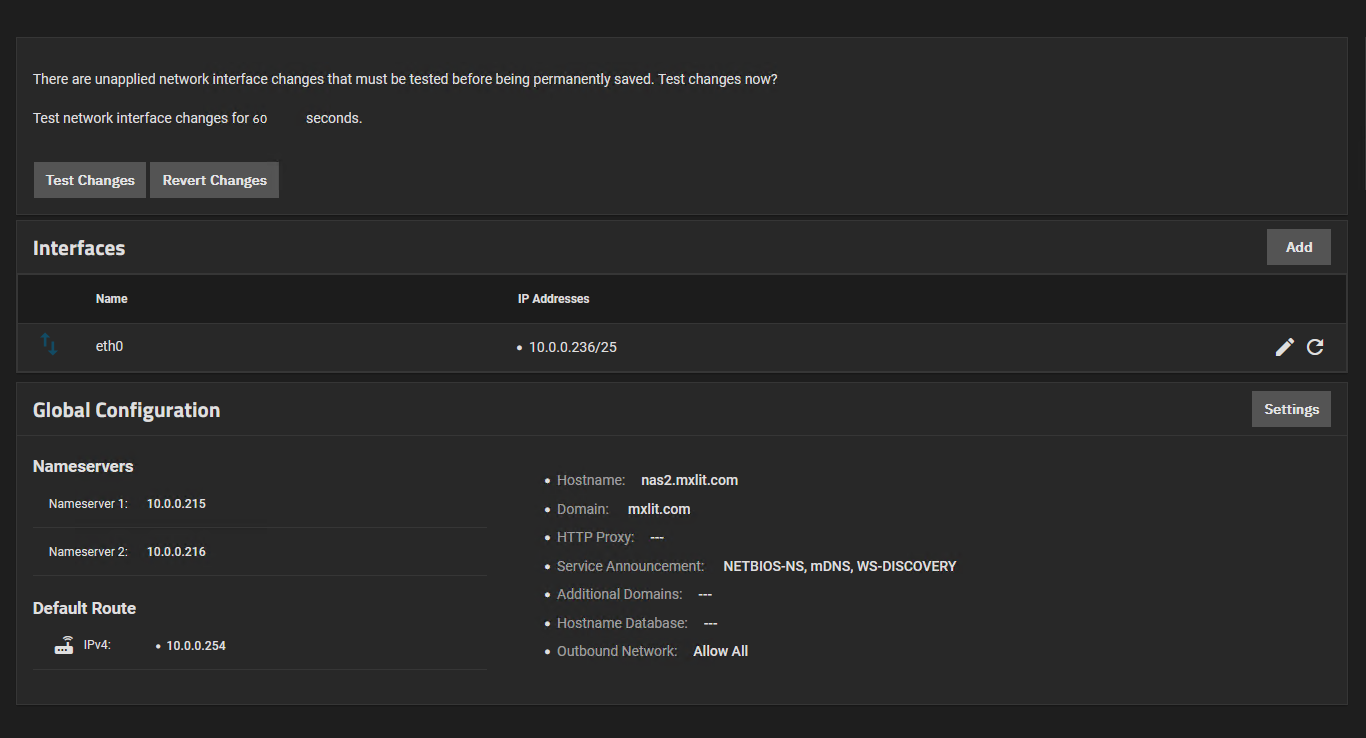
 Save any changes made to the networking configuration.
2. Configure Active Directory Settings
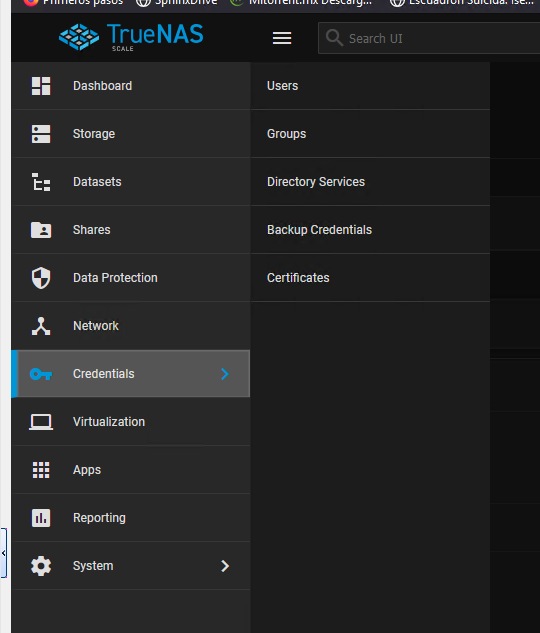
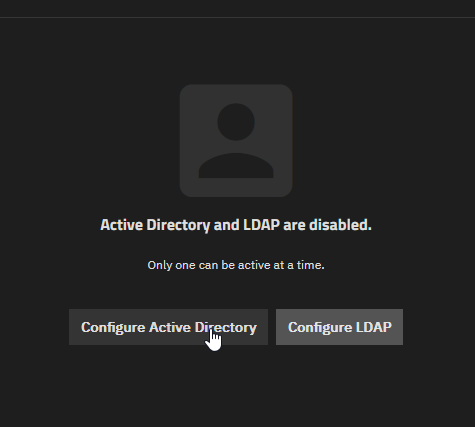
With DNS correctly routed, navigate to Directory Services > Active Directory on the side menu to begin the join process.
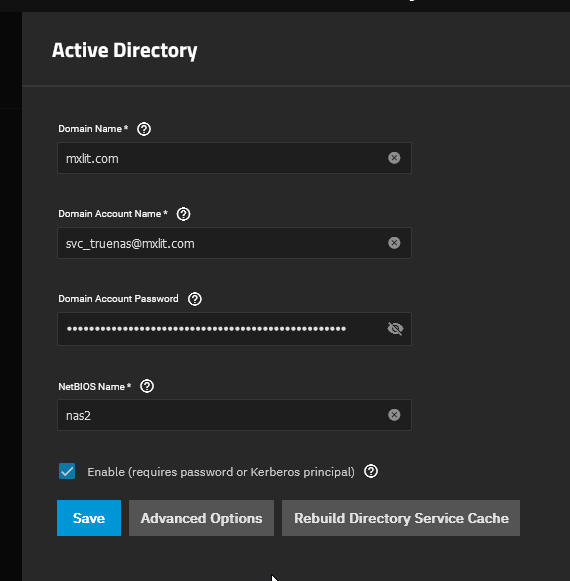
A configuration window will appear. Fill in the required parameters:
- Domain Name: Enter your full FQDN (e.g.,
corp.example.com). - Domain Account Name: Enter an administrator account with permission to join computers to the domain (e.g.,
Administratoror a dedicated service account). - Domain Account Password: The password for the aforementioned account.
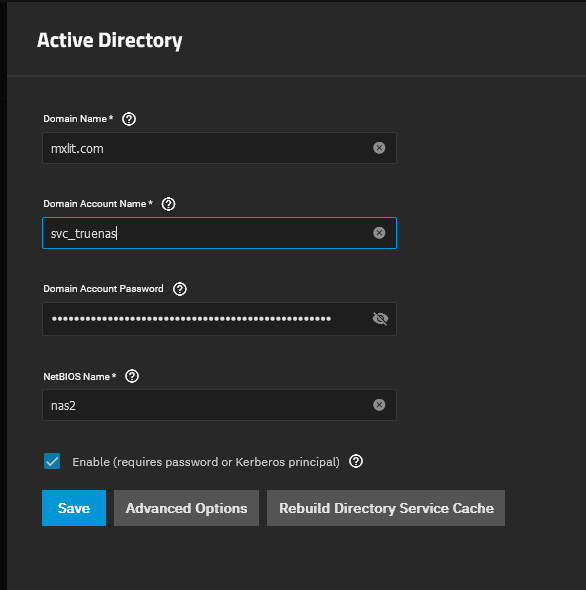
Before clicking Save, click the Advanced Options button to expose further settings if you need to specify a specific Organizational Unit (OU) for the computer object. Otherwise, check the Enable box at the top.

Click Save to initiate the binding process. TrueNAS will reach out to the specified Domain Name using the credentials provided to negotiate the trust relationship and create its computer object in AD.
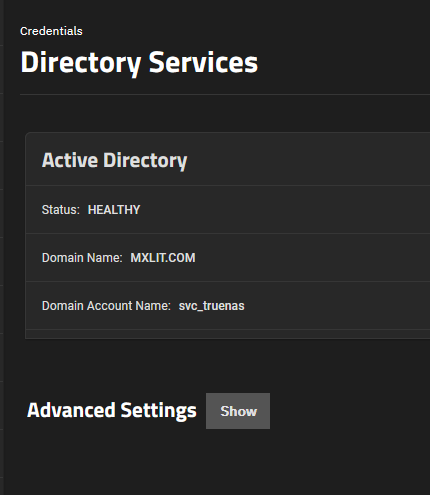
3. Verify the Join
Depending on your TrueNAS version, the system may briefly show a loading spinner. Once complete, the Active Directory status toggles should show as successfully connected and enabled.

If you navigate to your TrueNAS Shell and type wbinfo -u or browse the TrueNAS graphical permission menus, you should now visibly see your domain users populated in the lists!
Conclusion
Joining a TrueNAS system to an Active Directory domain is surprisingly quick, provided the foundational DNS infrastructure is configured correctly. A vast majority of failed AD joins on TrueNAS stem strictly from incorrect DNS pointers or time-sync (NTP) issues between the storage server and the Domain Controller. With the system successfully bound, your path to creating highly granular, enterprise-grade SMB shares for your users is fully unlocked.