
Introduction: The Evolution of a Pipeline
In the previous posts of this series, I detailed my journey from a broken, 25-minute SFTP deployment bottleneck to a hyper-optimized Rsync pipeline that completes in mere seconds. But optimization is only half the battle in Enterprise Architecture. The other half is Resiliency.
Currently, my pipeline relies entirely on Microsoft’s GitHub Cloud infrastructure. While GitHub Actions provides 2,000 free CI/CD minutes per month, relying 100% on external compute resources violates a core principle of self-hosting: Control. What happens if I burn through my free tier limits during intense development weeks? What if GitHub’s shared runner queues are experiencing an outage?
I have a Proxmox cluster sitting essentially idle in my Homelab. Why am I outsourcing my compute to the cloud and risking hard limits when I own the hardware?
In this post, I will explore the final evolution of my deployment architecture: The Hybrid Cloud Pipeline. We will implement a GitHub Self-Hosted Runner on a local virtual machine, offload 99% of our compute to the Homelab, and intelligently configure the original GitHub Cloud runners to act strictly as an automated disaster-recovery “Fallback.”
Step 1: Deploying the Self-Hosted LXC Runner
A GitHub Self-Hosted Runner is essentially a small agent (a listening daemon) that you install on your own infrastructure. When you push code, GitHub doesn’t spin up an Ubuntu container on their servers. Instead, it sends an encrypted webhook to your agent: “I have an integration job for you.” Your local server does the heavy lifting (like compiling Hugo and running Rsync) and reports the status back to GitHub.
Setting it Up:
- In your GitHub repository, navigate to Settings > Actions > Runners.
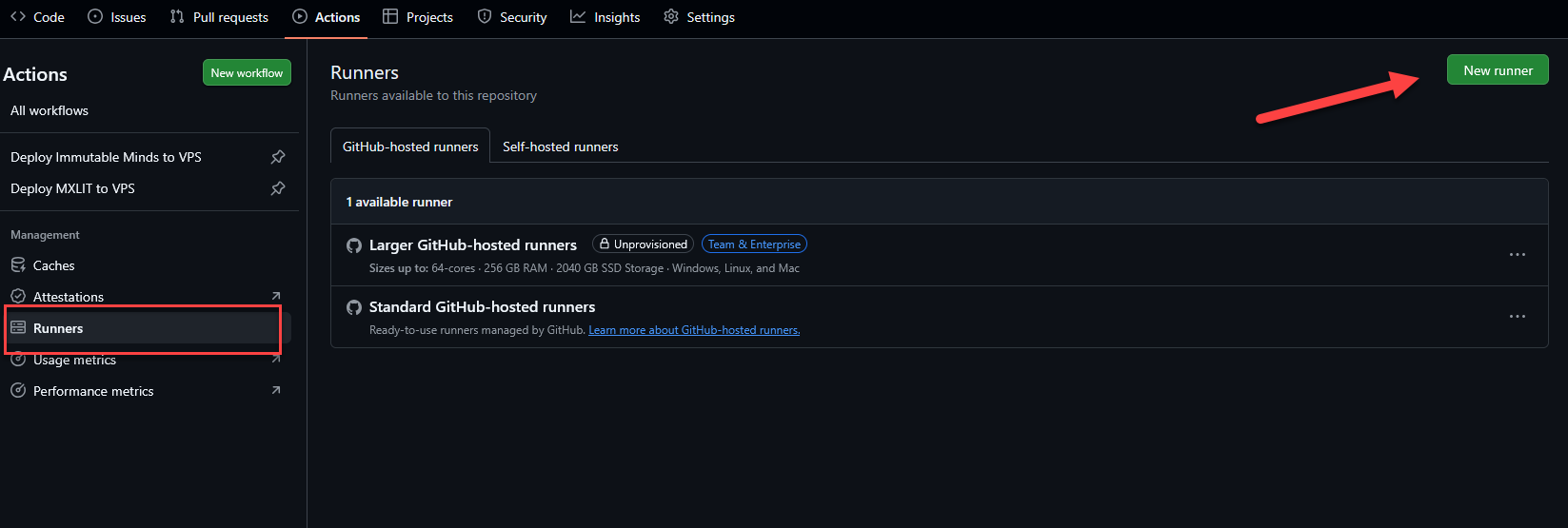
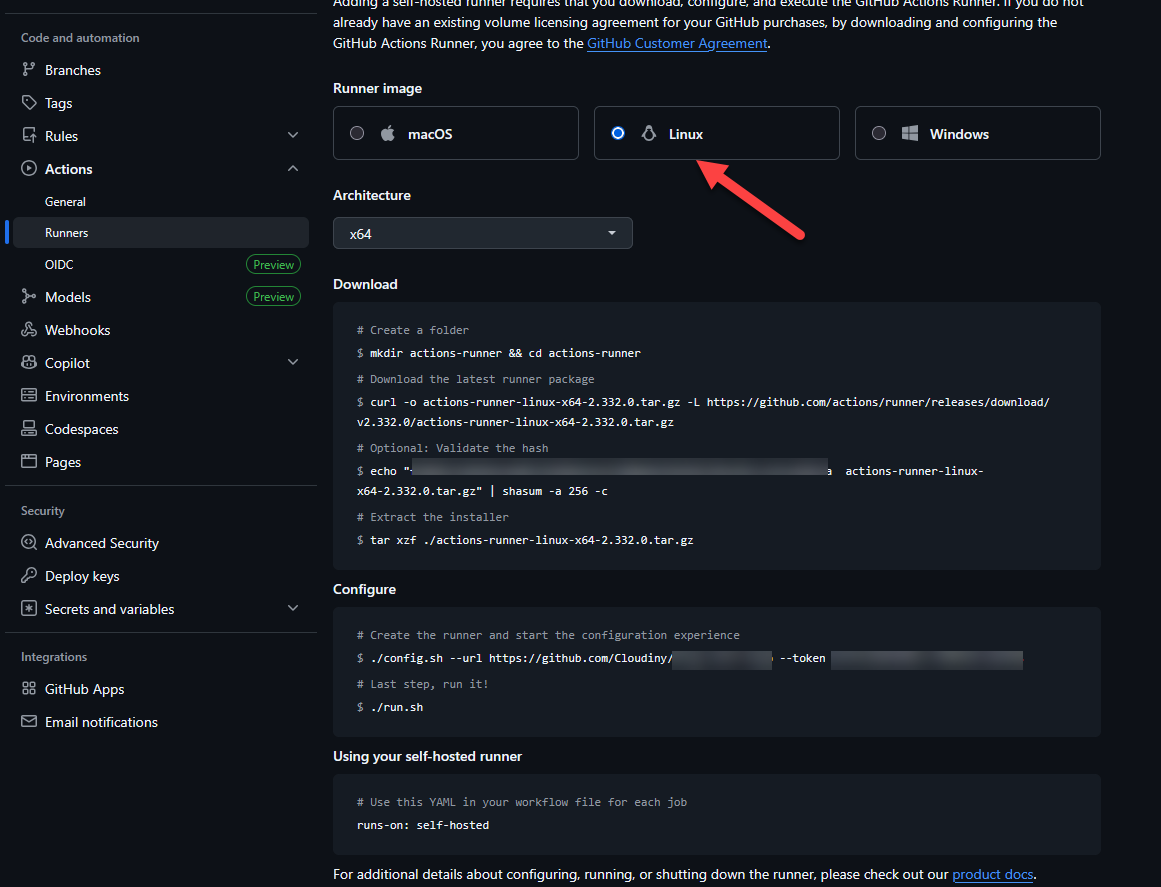
- Click New self-hosted runner and select Linux (x64).

- I spun up an LXC container (Ubuntu 22.04) on my Proxmox cluster specifically for this task to keep the overhead minimal.
Prerequisites on LXC Container
Why we can’t run the runner as root:
GitHub Actions runners are explicitly designed to block execution under the root account for critical security reasons. Running as root violates the principle of Least Privilege: any workflow step or third-party action executed by the runner would have unrestricted access to your entire host system or LXC container. This creates a massive attack surface where a single compromised dependency could lead to a full system takeover. By using a dedicated github user, we ensure that the runner operates within a “sandbox” where its permissions are limited only to what is necessary for building and deploying your code.
# Update package lists and install essential tools
apt-get update && apt-get upgrade -y
apt-get install -y curl git tar libicu-dev

# Create a dedicated user named 'github' with a home directory and bash shell
useradd -m -s /bin/bash github

# Add the user to the sudoers group (needed for service installation)
usermod -aG sudo github
- Run the bash commands provided by GitHub to download and configure the agent:
Download and Extract
# Switch to the github user
su - github

# Create a folder and enter it
mkdir actions-runner && cd actions-runner

# Download the latest runner package
curl -o actions-runner-linux-x64-2.332.0.tar.gz -L https://github.com/actions/runner/releases/download/v2.332.0/actions-runner-linux-x64-2.332.0.tar.gz

# Extract the installer
tar xzf ./actions-runner-linux-x64-2.332.0.tar.gz

Configure
# Start the configuration experience
./config.sh --url https://github.com/YourUser/YourRepo --token YOUR_SECRET_TOKEN

# Last step: Run it manually for the first test
./run.sh
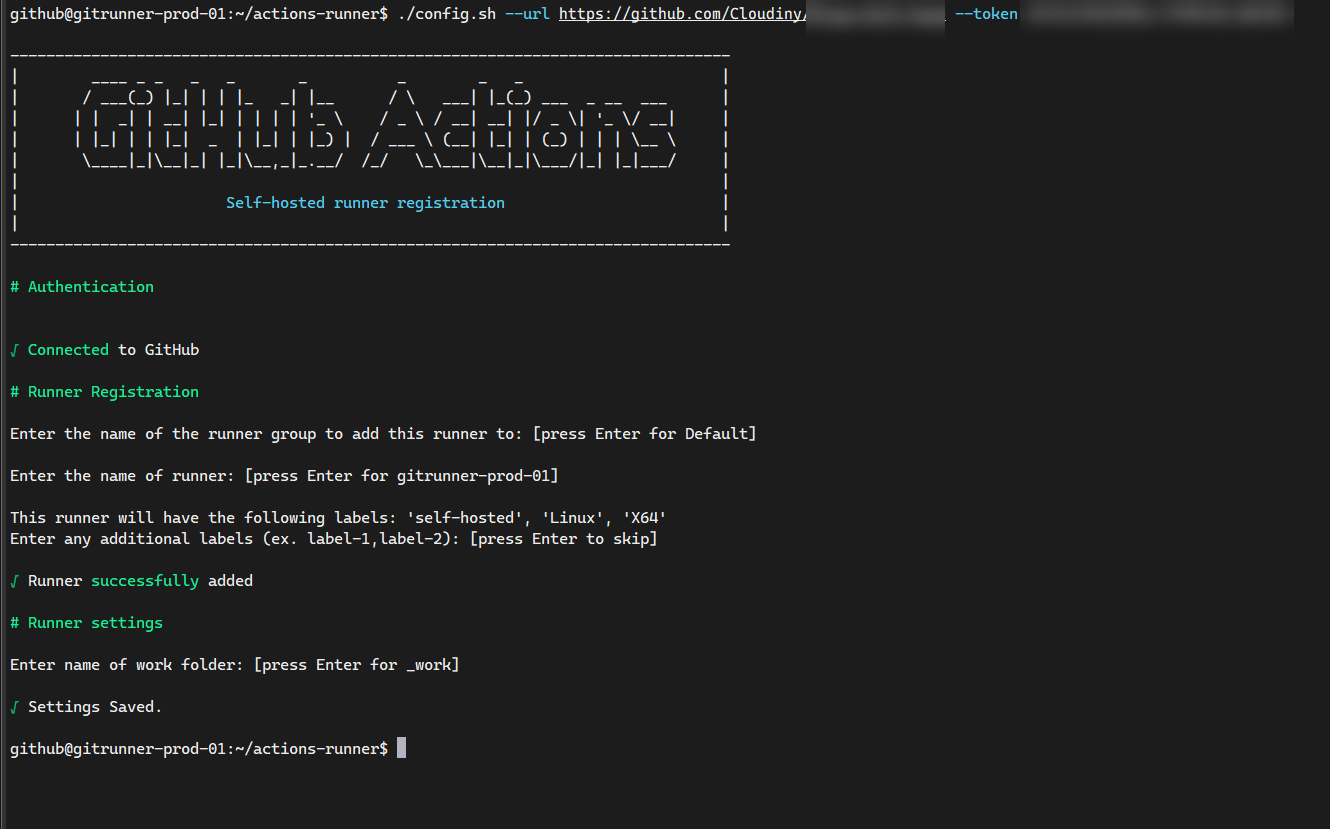
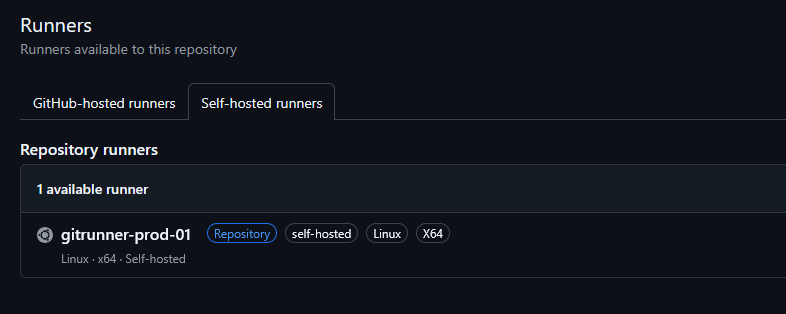
Return to GitHub and your runner should now be visible as “Idle”
- Install it as a systemd service so it survives reboots:
# Install and start the background service
sudo ./svc.sh install
sudo ./svc.sh start
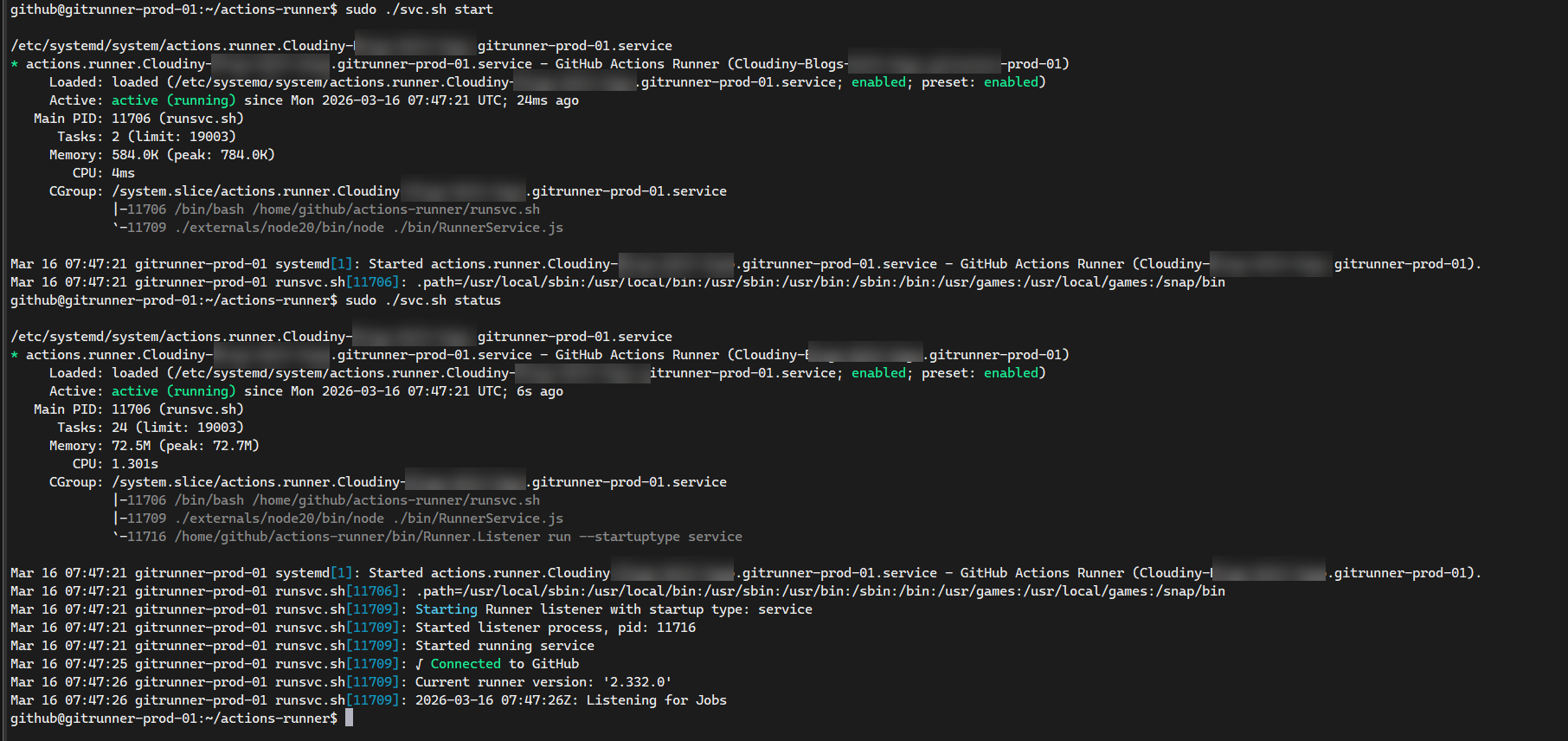
Your runner will now show up as “Idle” (with a green dot) in your GitHub repository settings, ready to handle jobs even after a container restart.
Step 2: Architecting the Fallback Logic
This is where the High Availability (HA) magic happens. It is not enough to just switch from runs-on: ubuntu-latest to runs-on: self-hosted.
If my internet service provider goes down, or if I am performing maintenance on my Proxmox cluster, my local Runner will be offline. If I push code during that window, the pipeline will fail. To achieve true Enterprise resiliency, we must design a Fallback mechanism.
We want the pipeline to try the Homelab first (Priority 1, zero cost), and only if the Homelab is unreachable, failover to the GitHub Cloud (Priority 2, consumes minutes).
To achieve a “True HA” (High Availability) state, we must ensure our pipeline can detect failures instantly and switch to the cloud without human intervention. This is achieved by removing the continue-on-error flag (so GitHub correctly detects failure) and implementing a timeout-minutes: 5 limit, which prevents the pipeline from staying in a “Queued” limbo if the local runner is offline.
The Hybrid Pipeline Code
Here is the orchestrated logic inside our .github/workflows/deploy.yml:
name: Deploy MXLIT to VPS

on:
  push:
    branches:
      - main
    paths:
      - 'mxlit-site/mxlit-blog/**'
  schedule:
    - cron: '0 * * * *'

jobs:
  # Priority 1: Do the heavy lifting using my Proxmox Homelab
  deploy-homelab:
    runs-on: self-hosted
    # Fail fast if the self-hosted runner is offline or hangs
    timeout-minutes: 5

    steps:
      - name: Checkout repository
        uses: actions/checkout@v4
        with:
          submodules: true
          fetch-depth: 0

      - name: Setup Hugo & Build
        uses: peaceiris/actions-hugo@v3
        with:
          hugo-version: 'latest'
          extended: true
      - run: hugo --source mxlit-site/mxlit-blog --minify

      - name: Deploy via Rsync to VPS
        uses: easingthemes/ssh-deploy@main
        env:
          SSH_PRIVATE_KEY: ${{ secrets.FTP_SSH_KEY }}
          REMOTE_HOST: ${{ secrets.FTP_SERVER }}
          REMOTE_USER: ${{ secrets.FTP_USERNAME }}
          REMOTE_PORT: ${{ secrets.FTP_PORT }}
          SOURCE: 'mxlit-site/mxlit-blog/public/'
          TARGET: '/home/deploy-mxlit/mxlit-site/public/'
          ARGS: "-rltgoDzvO --delete"

  # Priority 2: Disaster Recovery via GitHub Cloud
  deploy-github-cloud:
    runs-on: ubuntu-latest
    needs: deploy-homelab
    # CRITICAL: This job ONLY spawns if the homelab failed to respond or crashed
    if: failure()

    steps:
      - name: Checkout repository
        uses: actions/checkout@v4
        with:
          submodules: true
          fetch-depth: 0

      - name: Setup Hugo & Build
        uses: peaceiris/actions-hugo@v3
        with:
          hugo-version: 'latest'
          extended: true
      - run: hugo --source mxlit-site/mxlit-blog --minify

      - name: Deploy via Rsync to VPS
        uses: easingthemes/ssh-deploy@main
        env:
          SSH_PRIVATE_KEY: ${{ secrets.FTP_SSH_KEY }}
          REMOTE_HOST: ${{ secrets.FTP_SERVER }}
          REMOTE_USER: ${{ secrets.FTP_USERNAME }}
          REMOTE_PORT: ${{ secrets.FTP_PORT }}
          SOURCE: 'mxlit-site/mxlit-blog/public/'
          TARGET: '/home/deploy-mxlit/mxlit-site/public/'
          ARGS: "-rltgoDzvO --delete"
Understanding the Failover Flow
The elegance of this structure lies in the intentional removal of the continue-on-error flag, combined with the if: failure() flag in the second job.
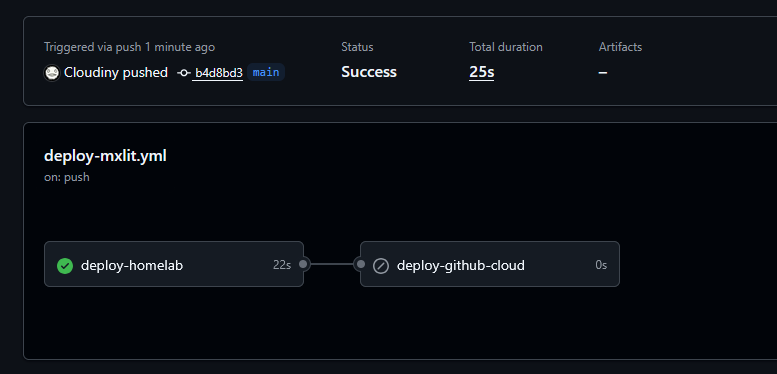
- Scenario A (Happy Path): I push code. My Proxmox runner is online. It intercepts the job, uses its local RAM/CPU to compile the code, uses Rsync to push the HTML to my VPS in France, and reports a “Success”. Job 2 spots the Success, realizes
if: failure()is mathematically false, and skips execution. Cost: 0 GitHub Minutes. - Scenario B (Disaster): A storm knocks out the power to my Homelab. I push code from my laptop at a coffee shop. GitHub tries to reach the
self-hostedrunner, but it doesn’t respond. Because we set atimeout-minutes: 5, Job 1 “Fails” quickly. Job 2 evaluatesif: failure(), sees that it is true, instantly spawns a Microsoft Azure container (ubuntu-latest), compiles my code, deploys to France, and saves the day. Cost: 1 GitHub Minute.
To verify if everything is working as expected, you can check the action status in the GitHub repository.
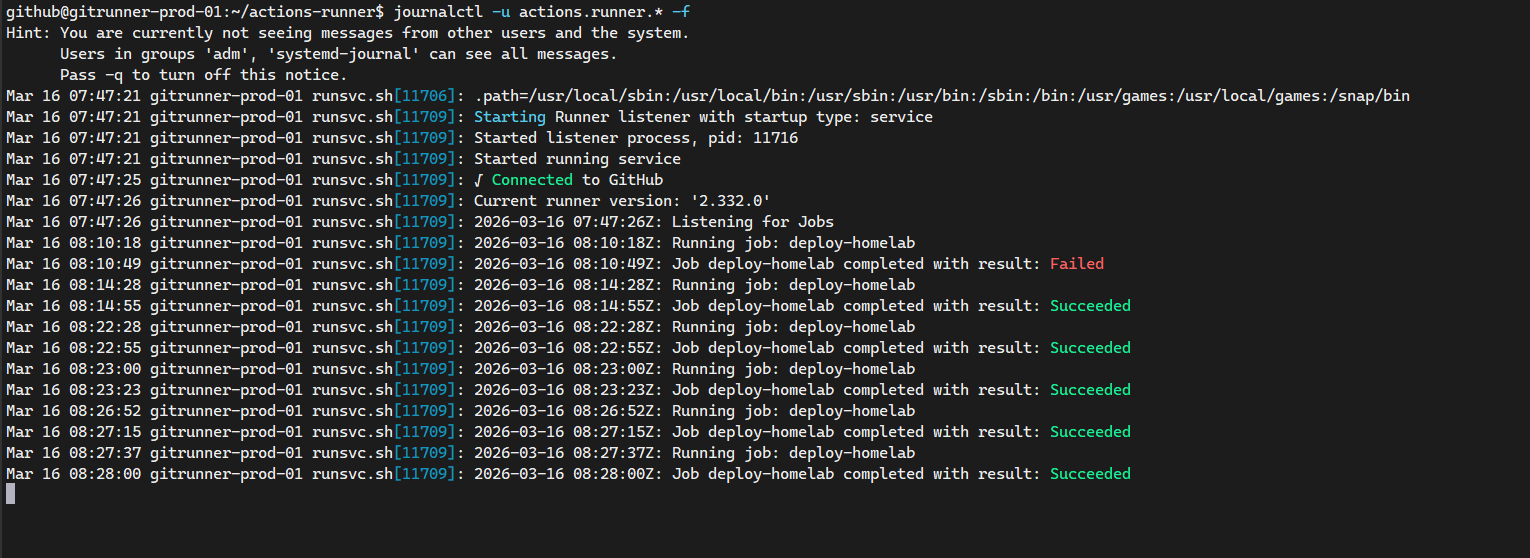
Also you can verify the logs of the self-hosted runner in the Proxmox cluster by running the following command:
journalctl -u actions.runner.* -f
Step 3: Automated Maintenance (Logrotate)
To keep your Proxmox node optimized and avoid surprises with LXC storage in the long term, automating log cleanup is a fundamental infrastructure step. The GitHub runner is quite “noisy” and generates a new text file for every job and session in its _diag folder.
Here are the steps to create a rotation rule that will keep only the history of the last 7 days, compressing old files to save space.
1. Create the configuration file
Let’s create a dedicated file for the runner within the logrotate directory. Run this as root or using sudo in your Ubuntu terminal:
# Create and edit the new logrotate configuration file
sudo nano /etc/logrotate.d/github-runner
2. Add the rotation rules
Paste the following configuration block inside the editor. Note the usage of an asterisk (actions-runner*) in the path so that if you add more folders for other repositories under the github user in the future, this rule will automatically cover all of them.
# Target the diagnostic logs for all runner instances under the github user
/home/github/actions-runner*/_diag/*.log {
    # Rotate the logs daily
    daily

    # Do not output an error if the log file is missing
    missingok

    # Keep 7 days of backlogs
    rotate 7

    # Compress the rotated files (gzip by default)
    compress

    # Postpone compression of the previous log file to the next rotation cycle
    delaycompress

    # Do not rotate the log if it is empty
    notifempty

    # Switch to the github user and group to avoid permission issues
    su github github

    # Create new empty log files with these specific permissions
    create 0644 github github
}
Save the changes and exit the editor (Ctrl+O, Enter, Ctrl+X in nano).
3. Verify the syntax (Dry Run)
It is always good practice to test that logrotate understands the rule without issues before leaving it on autopilot. You can run a “simulation” with the following command:
# Run a debug/dry-run test to verify the configuration syntax
sudo logrotate -d /etc/logrotate.d/github-runner
If everything is correct, you will see in the terminal output how logrotate reads the path, detects the current .log files, and explains what it would do with them (without actually deleting or compressing anything). From this moment on, the Ubuntu cron daemon will take care of executing this rule silently every day.
Conclusion
By integrating a Self-Hosted Runner into your workflow, you reclaim ownership over your processing power and eliminate the anxiety of artificial quotas. More importantly, by wrapping that local runner in a cloud-fallback configuration, you create an un-killable, highly available deployment pipeline.
This is no longer just a script copying files; it is an intelligent, self-healing system worthy of an Enterprise environment.