
When building a Dell EMC Isilon (OneFS) laboratory on Proxmox or VMware, you may notice that by default, many advanced features in the web interface—such as replication, deduplication, or quotas—appear locked or inactive.
To truly simulate a production environment, you need access to the full suite of enterprise tools. In this guide, we will look at how to activate these features directly from the command line for your homelab, bypassing the need for corporate license files.
The Default State: Locked Features
Upon initial installation, the OneFS simulator comes with a base set of features. Advanced modules like SyncIQ (for replication) or SnapshotIQ are restricted until a valid license is applied.
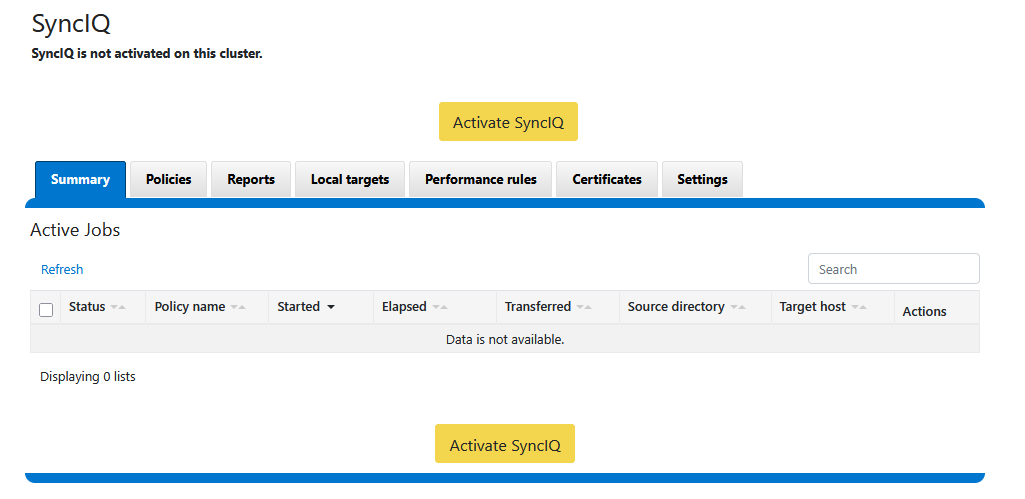
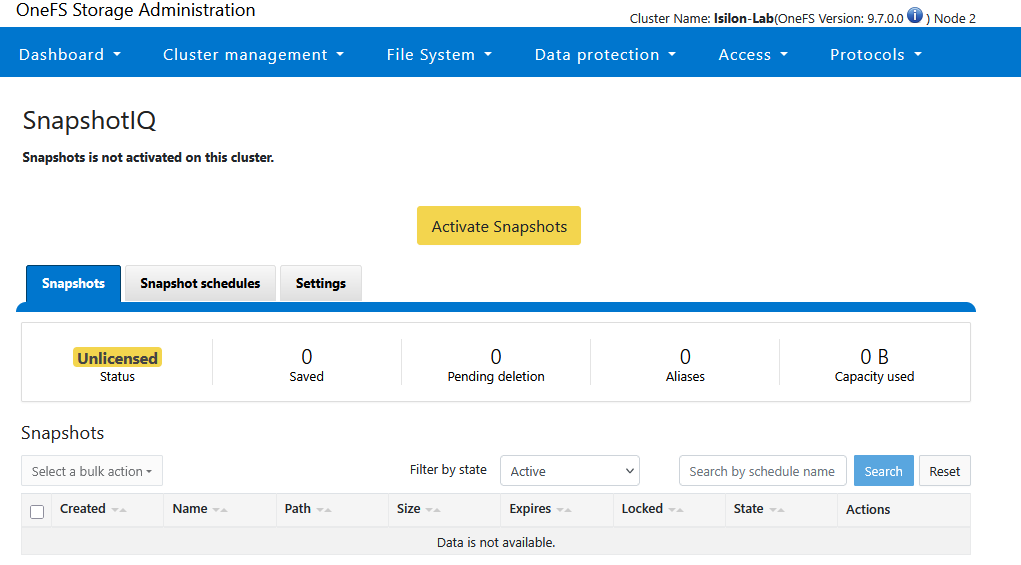
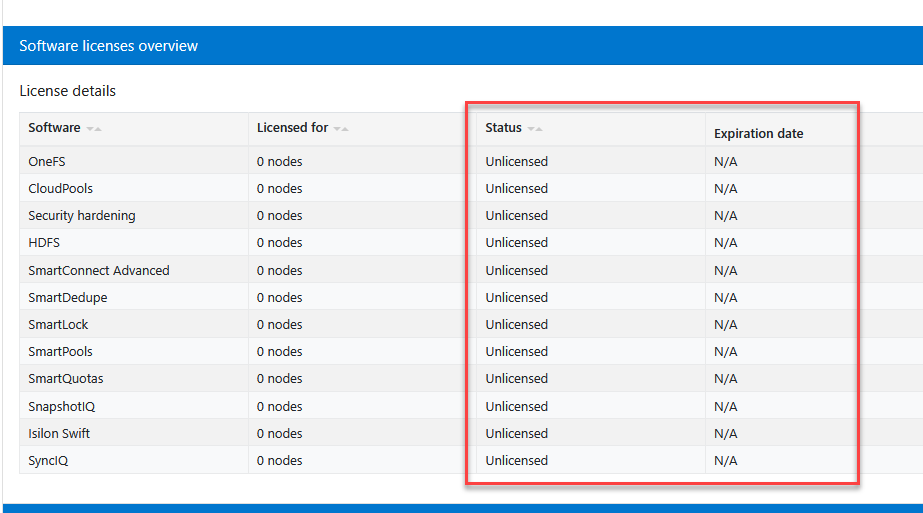
Evaluation Licenses: The Official vs. Lab Path
Official PowerScale/Isilon documentation for the simulator typically states that you must contact your account representative or sales engineer to receive a 90-day evaluation license key in .xml format.
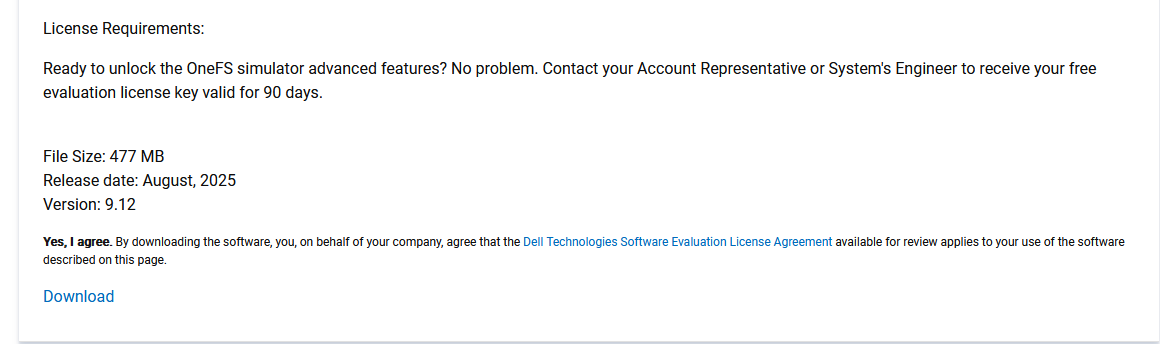
While this is the official path for corporate Proof of Concepts (PoC), the OneFS engine includes an internal mechanism that allows you to self-generate these evaluation licenses for study and personal testing purposes without needing external files or internet connectivity.
Activating the Enterprise Suite (SyncIQ, Snapshots, SmartQuotas)
To unlock the full potential of your cluster—including SyncIQ, SmartConnect Advanced, and SnapshotIQ—connect via SSH to any node in your cluster as the root user. The configuration will automatically propagate to all nodes.
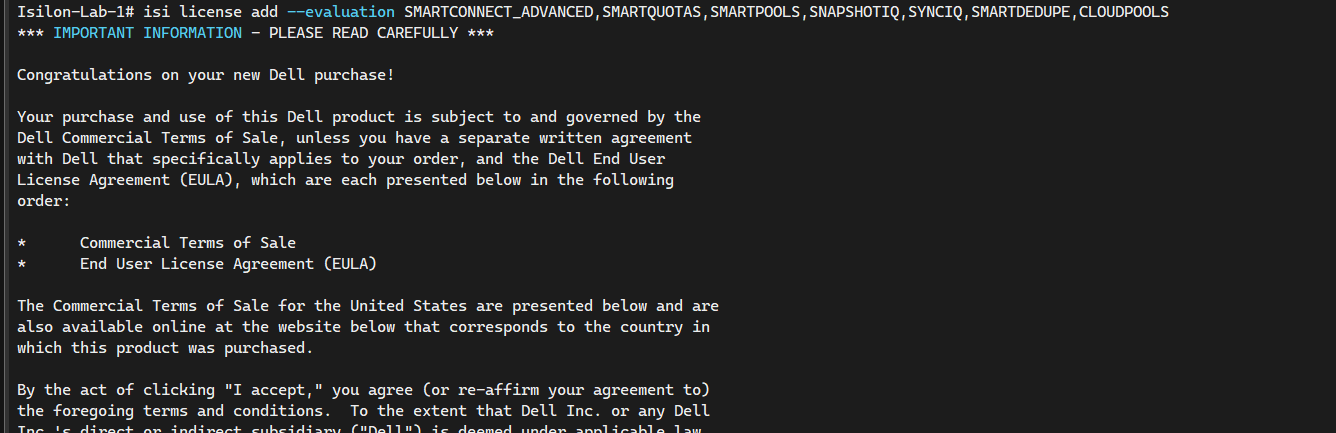
Run the following command to add 90-day evaluation licenses for all major enterprise features:
# Add 90-day evaluation licenses for all major OneFS enterprise features
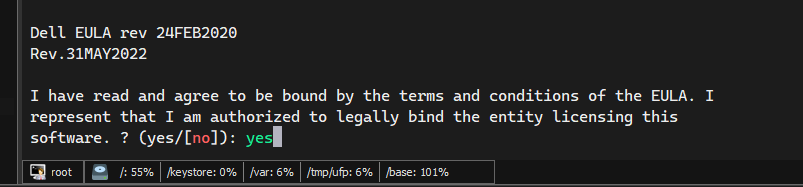
isi license add --evaluation SMARTCONNECT_ADVANCED,SMARTQUOTAS,SMARTPOOLS,SNAPSHOTIQ,SYNCIQ,SMARTDEDUPE,CLOUDPOOLS
Once executed, the system will apply the licenses immediately and silently.
Verifying License Status
To confirm that the licenses were applied correctly and to check their expiration dates, use the following command:
# Verify the status and expiration date of all active licenses in the cluster
isi license list
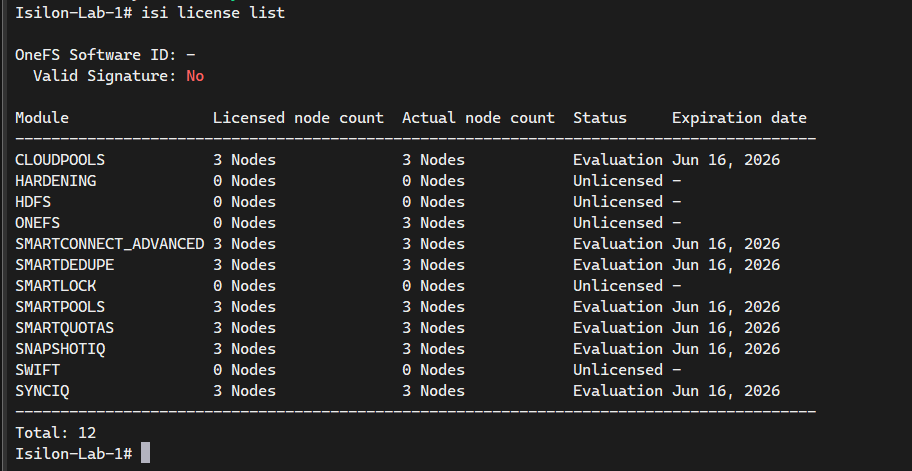
You will see that the status of all listed features has changed to “Evaluation”.
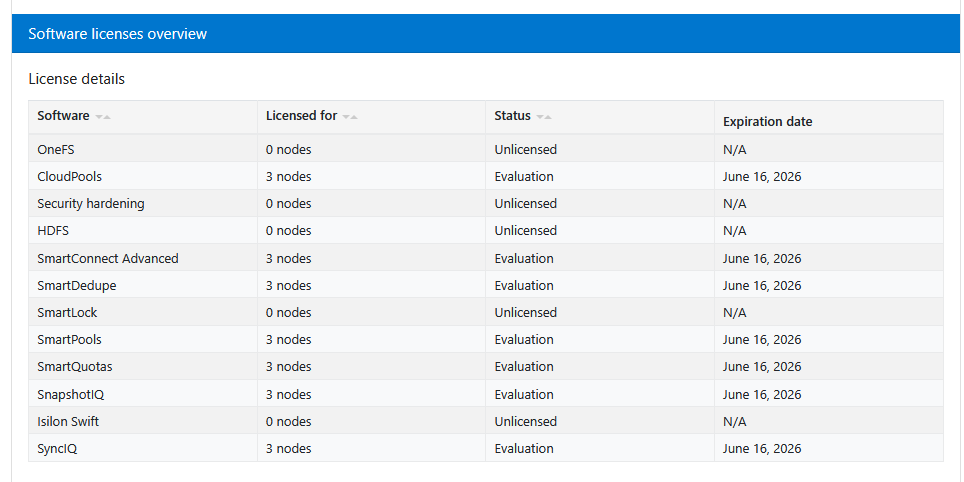
If you log in to the WebUI now, you will find that the Data Protection (SyncIQ, SnapshotIQ) and Cluster Management tabs are fully operational and ready for you to start creating production-grade policies in your lab environment.
Conclusion and License Management
Unlocking these features is the final step in transforming your basic Isilon simulator into a powerful, enterprise-grade storage testbed. By having access to SyncIQ and SmartQuotas, you can master the same tools used in the world’s largest data centers.
Important Note: These are 90-day evaluation licenses. While they are perfect for lab work and certification study, they will expire. Always keep an eye on the isi license list output to ensure your data protection policies (like replication) remain active and your storage management remains uninterrupted.
.