
We have successfully joined our cluster to Active Directory and established a robust NTFS permission architecture. Now, we must ensure our storage environment remains stable and is not saturated through uncontrolled usage. In Isilon, this is managed through the SmartQuotas license.
SmartQuotas allows us to limit space at three distinct levels (Directory, User, or Group) and offers several types of limits:
- Advisory (Informational): Only generates alerts; does not block usage. Ideal for transparent monitoring.
- Soft Limit: Allows users to temporarily exceed the threshold (useful for heavy rendering or month-end processes) but generates critical notifications and, after a grace period, becomes a block.
- Hard Limit: Upon reaching the threshold, the file system returns a “Disk Full” error to the user. Not a single additional kilobyte is allowed.
In this guide, we will implement a Directory-level Hard Limit for our departmental production folder.
The “Secret” of Witnessing Capacity in Windows
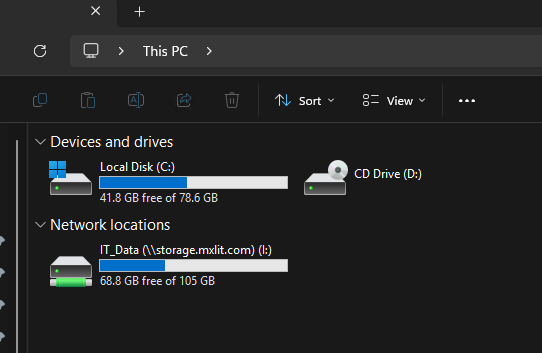
Before creating the quota, there is a vital architectural detail. If you have a 100 TB Isilon cluster and grant a user access to a shared folder, when that user maps the network drive in Windows, their operating system will report: “You have 100 TB free.”
This often generates panic or, conversely, a false sense of infinite storage. To prevent this, Isilon includes a feature that “tricks” Windows into reporting the Hard Limit size as the total drive capacity.
Step 1: Create a Directory Quota (Via WebUI)
We will limit the space for the public folder created in the previous post, assigning a strict 50 GB threshold.
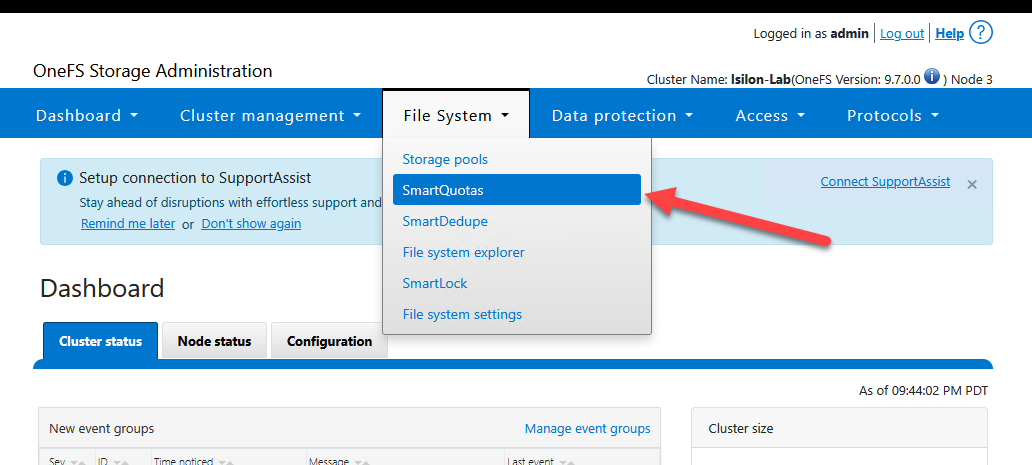
Navigating to SmartQuotas:
- Navigate to File System > SmartQuotas > Quotas and Usage.
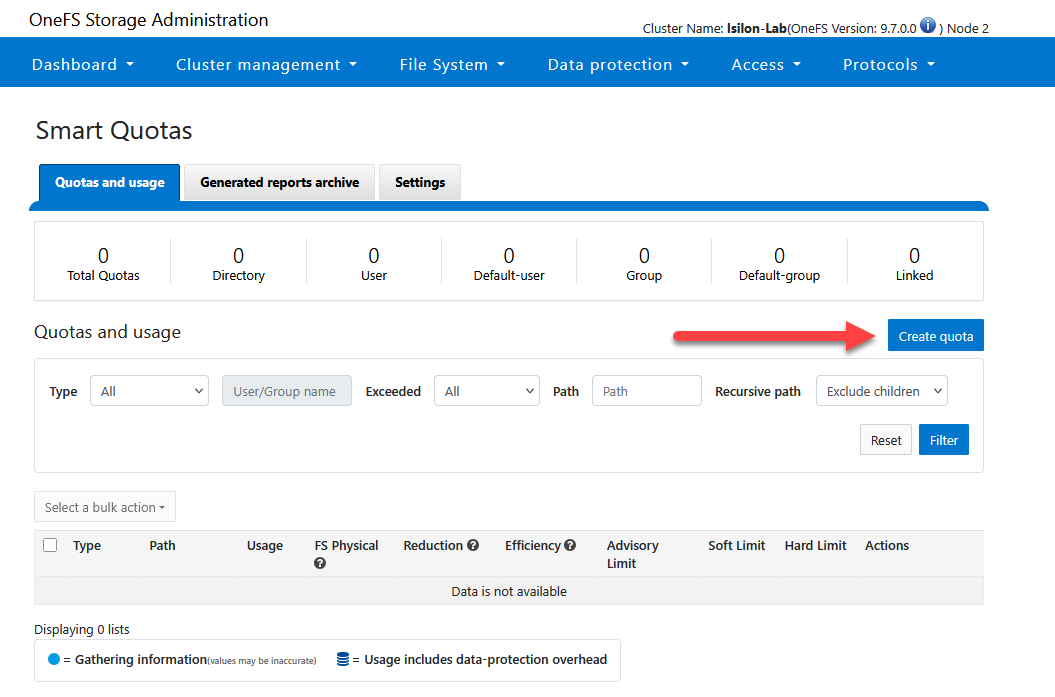
- Click Create a Quota.
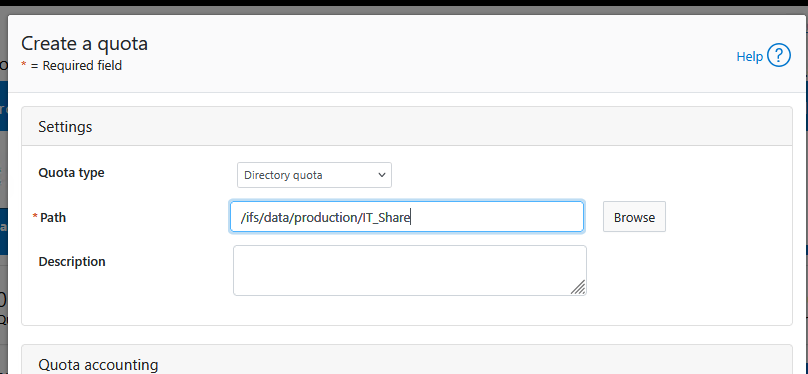
- Quota type: Select
Directory quota. - Path: Navigate and select the exact directory:
/ifs/data/production/IT_Share.
Quota Accounting Configuration:
- In the Quota accounting section:
- Leave “Include snapshots in the storage quota” unchecked.
- Select Application logical size. This ensures the quota calculation matches exactly what the user sees in Windows, preventing confusion caused by Isilon’s data protection overhead.
- Physical size: Calculates the real total space occupied on the physical disks (includes metadata and protection overhead).
- File system logical size: Calculates file size and metadata, excluding protection overhead.
- Application logical size (Recommended): This is the pure file size as seen by the application/OS. We recommend this for user shares to avoid reporting discrepancies.
Setting Limits:
- In the Quota Limits section, check the Hard limit box.
- Set the limit:
5and selectGB(you can choose any value, but for practical purposes in this lab due to simulator limits, we will use 5 GB). - Display Configuration: Below the limits, check the box “Show available space as size of hard or soft threshold” (or “Container”, depending on the OneFS version). This is fundamental for the client OS (Windows) to report the quota as the total drive size.
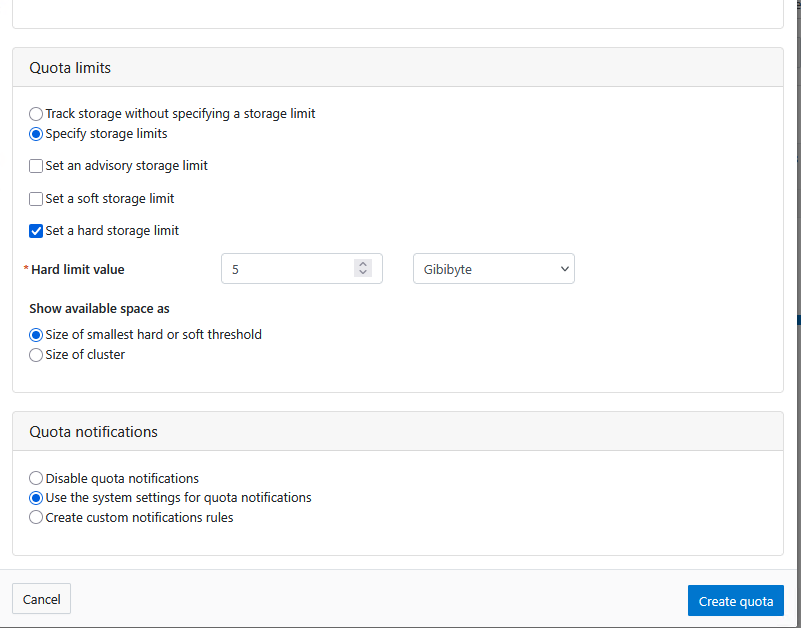
- Save the changes by clicking Create quota.
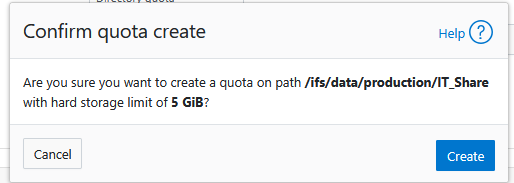
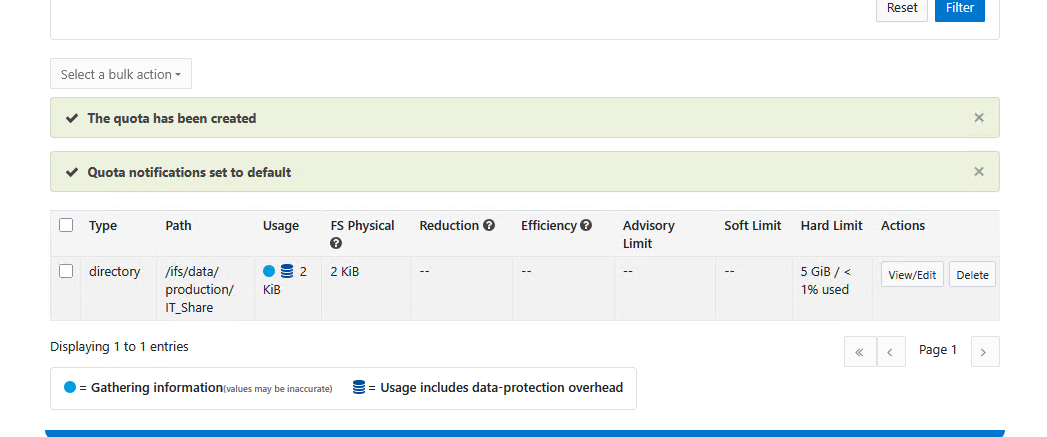
Step 2: Create the Quota (Via CLI)
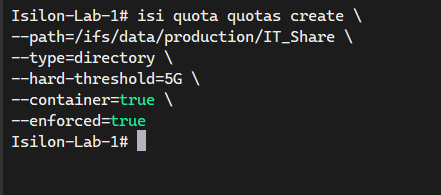
If you are building a script for automated departmental provisioning (Zero-Touch), use the following command to apply a strict quota and force the capacity view in Windows:
# Create a 5GB Hard Quota on the IT_Share directory
# The --container=true flag is what tells Windows to report 5GB as the total drive size
isi quota quotas create \
--path=/ifs/data/production/IT_Share/ \
--type=directory \
--hard-threshold=5G \
--container=true \
--enforced=true
Verification from the End User
To confirm our architecture is functioning as expected:
- From a Windows workstation, access the network path
\\storage.mxlit.com\IT_Data. - Right-click on the
Publicfolder (or the mapped drive) and select Properties. - In the General tab, regardless of any free space remaining on the cluster, Windows will report exactly: Capacity: 5.0 GB.
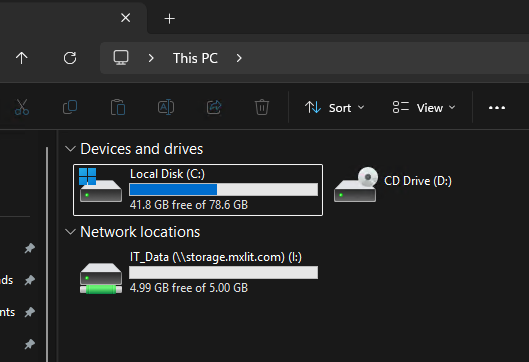
Conclusion
With this configuration, you have a truly multi-tenant NAS. You have successfully encapsulated the network, security (NTFS), and now capacity management. SmartQuotas not only protects the cluster from exhaustion but also provides a professional and predictable experience for end-users, aligning IT resources with departmental requirements.
End of transmission.