
With our authentication, access zones, and capacity limits in place, our Isilon cluster is functionally ready for production. However, a production environment is only as good as its recovery strategy. In the world of Scale-Out NAS, the first line of defense against accidental file deletion or corruption is SnapshotIQ.
SnapshotIQ allows for virtually unlimited snapshots (up to 1,024 per directory) with negligible performance impact. In this article, we will configure an automated retention strategy and explore how users can recover their own files without IT intervention.
The Architecture: Redirect-on-Write (RoW)
Unlike traditional storage systems that often use “Copy-on-Write” (which requires three I/O operations for every change: Read, Write Old, Write New), Isilon uses Redirect-on-Write.
When a snapshot is active, any new data is simply written to a new block, while the snapshot pointer continues to reference the original block. This makes SnapshotIQ incredibly efficient, both in terms of performance and storage space.
Step 1: Create a Snapshot Schedule (WebUI)
Automating snapshots is critical. We will set up a daily rotation for our production data.
Navigating to SnapshotIQ:
Navigate to Data Protection > SnapshotIQ > Snapshot Schedules.
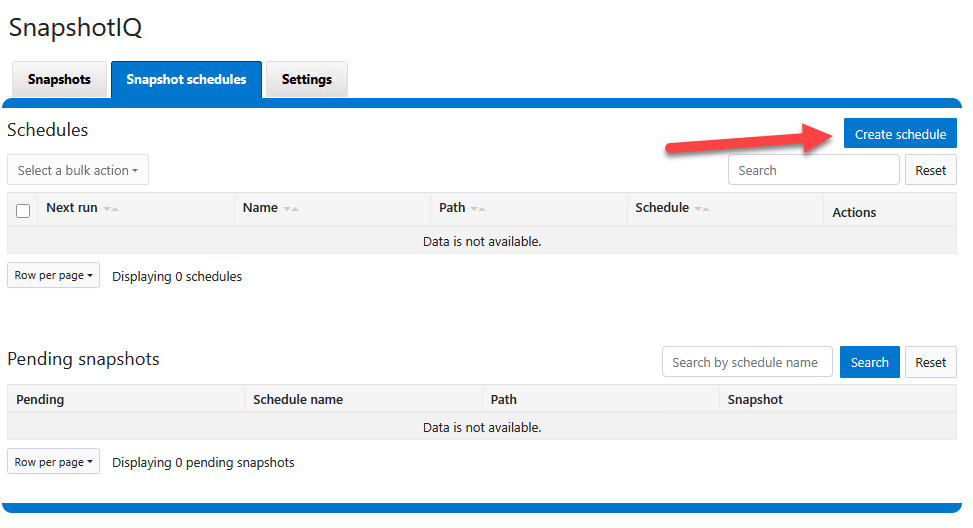
Click Create a Snapshot Schedule.
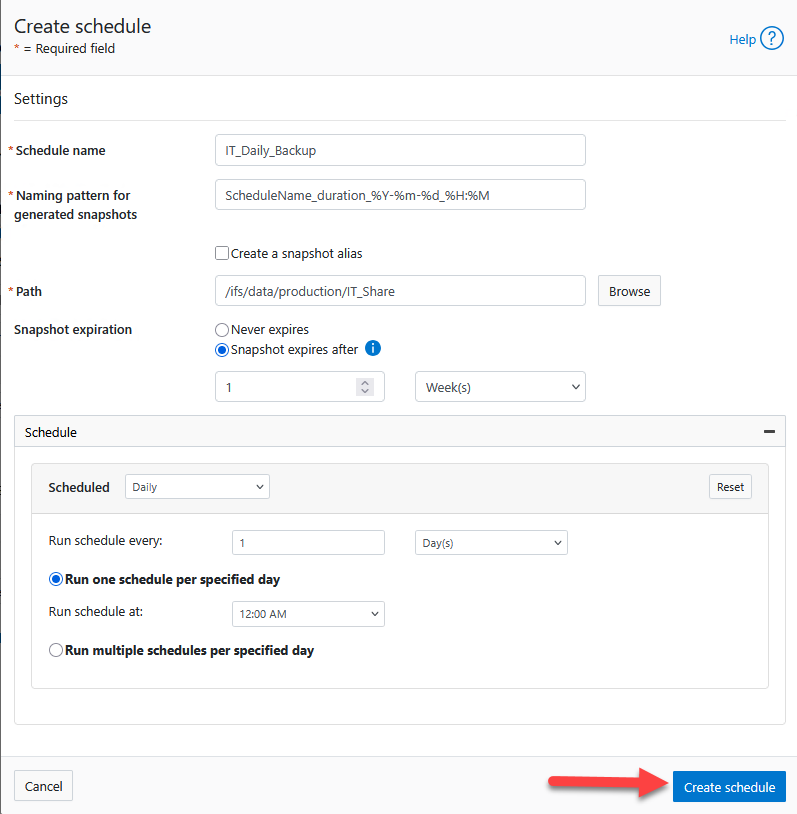
Configuring the Schedule:
Schedule Name:
IT_Daily_Backup.Naming Pattern:
ScheduleName_%Y-%m-%d_%H:%M.Path: Choose the specific directory:
/ifs/data/production/IT_Share.Snapshot Expiration: Select Snapshot expires after and set it to 1 Week(s).
NoteWhile a 30-day retention is typically recommended for production environments to align with monthly backup cycles, for this laboratory we will use a 1-week expiration to optimize simulator resources.
Schedule (Run schedule at): Set to
12:00 AM(Daily).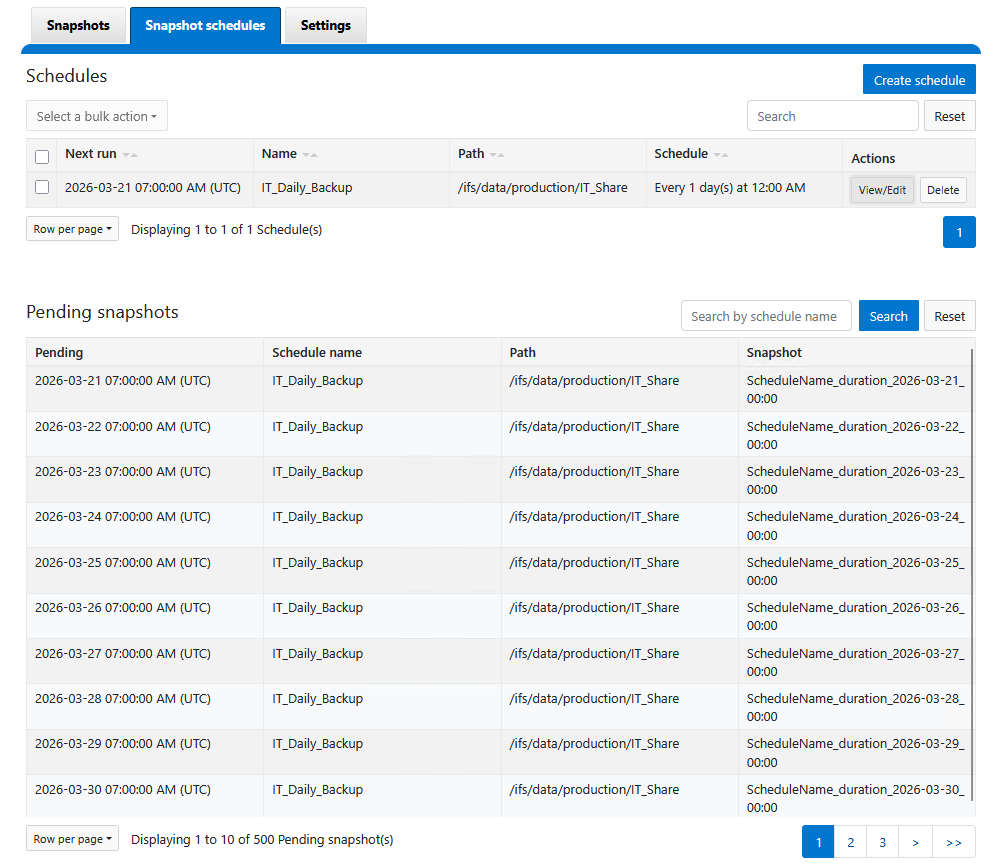
Click Create schedule.
Step 2: Create the Schedule via CLI
For those building automated deployment scripts, the following command creates the same daily schedule with a 1-week retention period:
# Create a daily snapshot schedule for the IT Share
# Positional arguments: <name> <path> <pattern> <schedule>
isi snapshot schedules create IT_Daily_Backup_CLI /ifs/data/production/IT_Share "IT_Daily_Backup_%Y-%m-%d_%H:%M" "every 1 days at 00:00" \
--duration=7D \
--alias=IT_Daily_Latest_CLI

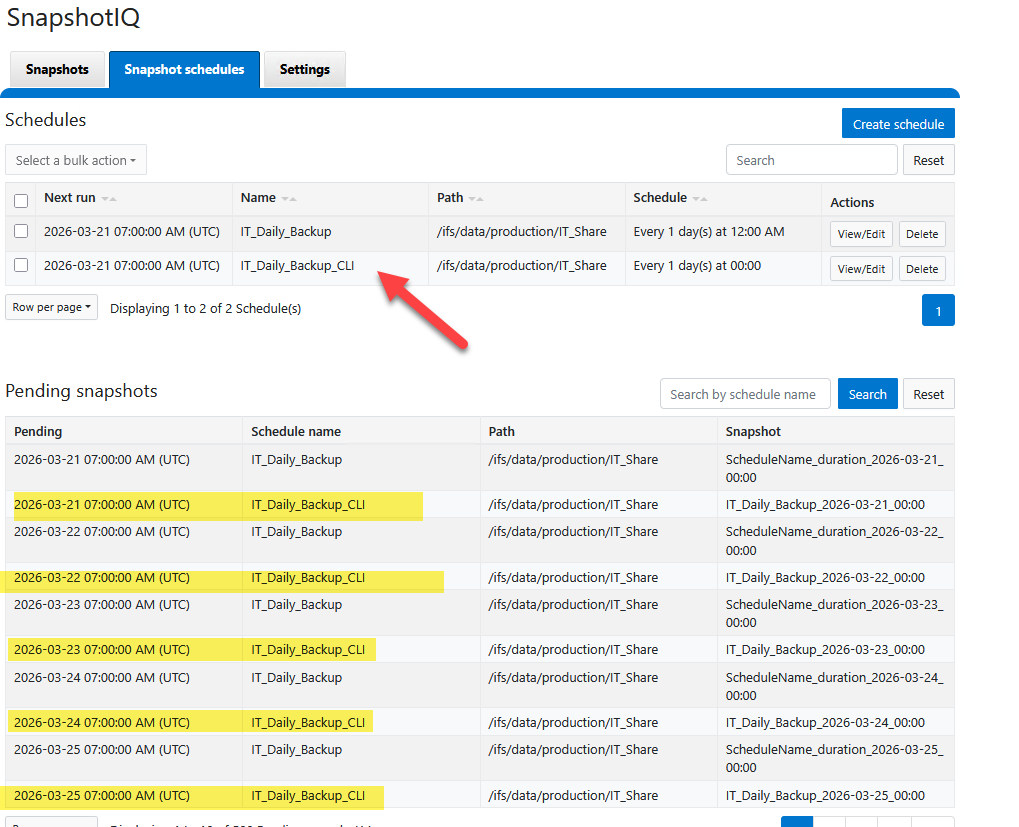
Step 3: Manual Snapshots (For Critical Transitions)
Before performing a massive migration or a risky update, it is best to take a manual snapshot that does not depend on a schedule.
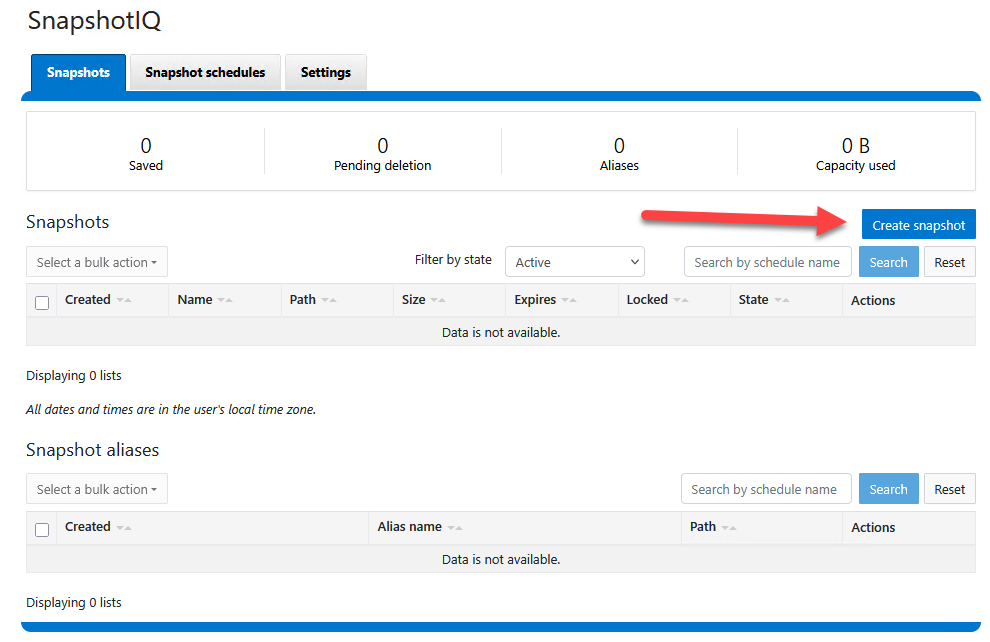
Navigate to Data Protection > SnapshotIQ > Snapshots.
Click Create a Snapshot.
Select the directory and give it a descriptive name (e.g.,
Pre_Migration_Backup), define the path, and set an expiration date if necessary (or leave it as “No expiration” for permanent holds).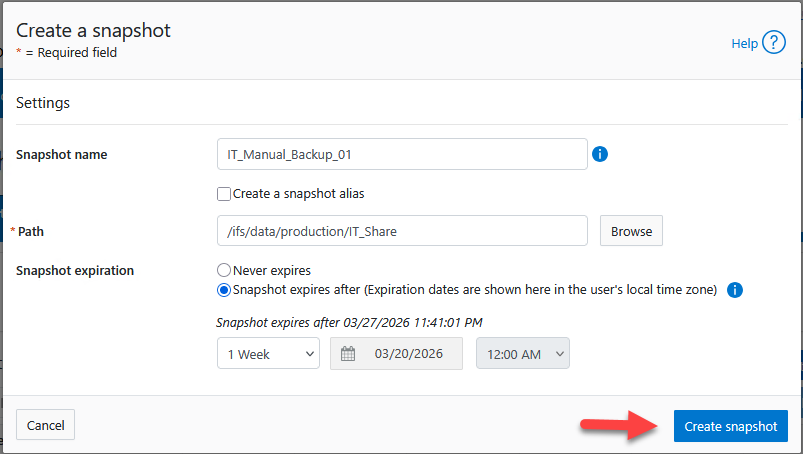
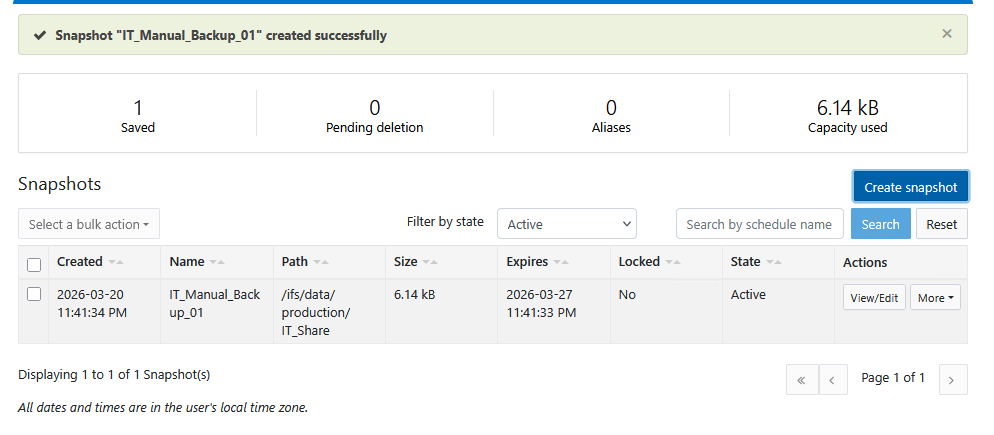
Click Create snapshot and verify the result in the active snapshots list.
Self-Service Recovery: Windows “Previous Versions”
One of the most powerful features of Isilon is its native integration with Windows Explorer. This allows users to recover their own data without opening a support ticket.
From a Windows client, navigate to the mapped drive (e.g.,
\\storage.mxlit.com\IT_Data).Right-click on any folder or file and select Restore previous versions.
The user will see a list of all available snapshots for that specific path.
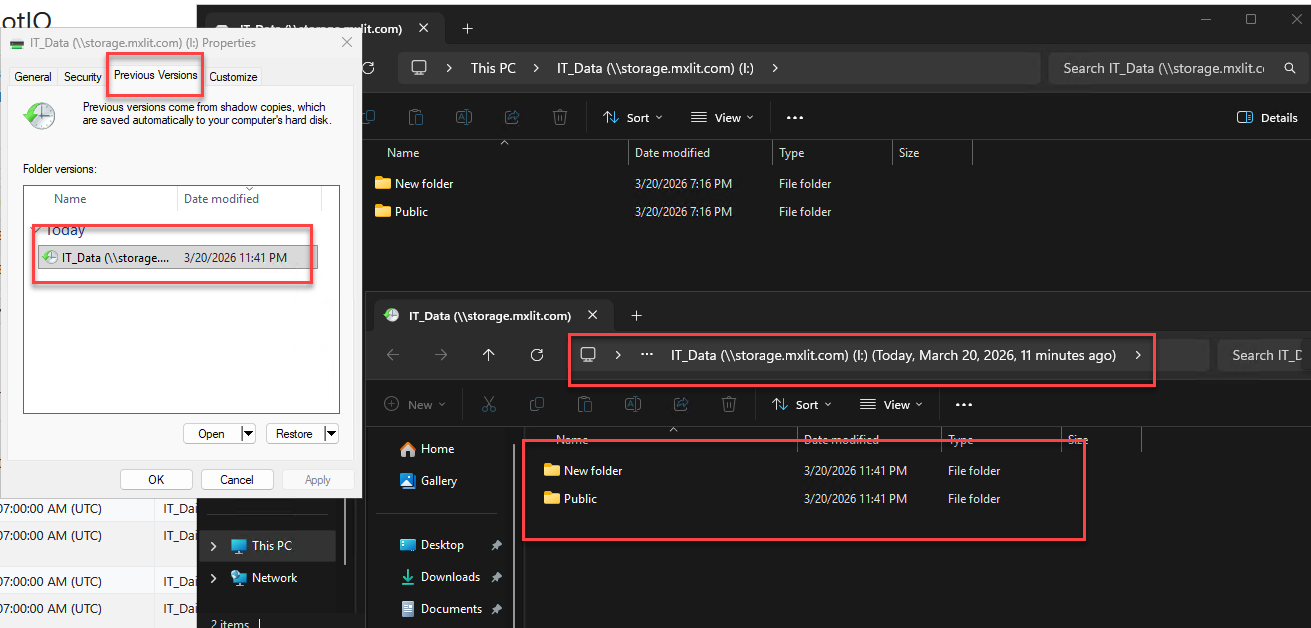
The user can then Open the snapshot to copy specific files or Restore to roll back the entire directory.
Conclusion
Implementing a robust local protection strategy with SnapshotIQ transforms your storage from a simple repository into a resilient data platform. By automating schedules and empowering users with self-service recovery through Windows “Previous Versions,” you significantly reduce the administrative burden on the IT team while providing instant restoration capabilities. Local protection is the essential foundation for any business continuity plan in the Isilon ecosystem.
End of transmission.