
As data volumes continue to grow explosively, a significant percentage inevitably becomes “cold data”—historical files that are rarely accessed. Keeping this inactive data sitting on high-performance primary storage is extremely cost-inefficient.
To solve this, OneFS integrates CloudPools, a powerful tiering feature that allows you to seamlessly move inactive data blocks to an external object storage platform like Amazon S3, Azure Blob, or a local ECS. When data is tiered, OneFS leaves behind a reference file (a SmartLink, or stub) on the local file system. To end-users connected via SMB or NFS, the file still appears in its original location as normal; however, when they try to open it, the cluster retrieves the payload from the cloud transparently.
In this guide, we will configure CloudPools to archive aged data out to an Amazon S3 bucket.
Prerequisites
Before digging into the OneFS configuration, your cloud infrastructure needs to securely support the connection:
- A dedicated Amazon S3 Bucket built explicitly for Isilon telemetry housing.

- An IAM (Identity and Access Management) user equipped with granular read/write permissions directly scoped to that bucket.
{
	"Version": "2012-10-17",
	"Statement": [
		{
			"Sid": "AllowBucketManagement",
			"Effect": "Allow",
			"Action": [
				"s3:ListAllMyBuckets",
				"s3:CreateBucket",
				"s3:DeleteBucket"
			],
			"Resource": "*"
		},
		{
			"Sid": "AllowIsilonBucketOperations",
			"Effect": "Allow",
			"Action": [
				"s3:ListBucket",
				"s3:GetBucketLocation",
				"s3:ListBucketMultipartUploads"
			],
			"Resource": "*"
		},
		{
			"Sid": "AllowIsilonReadWriteDelete",
			"Effect": "Allow",
			"Action": [
				"s3:PutObject",
				"s3:GetObject",
				"s3:DeleteObject",
				"s3:AbortMultipartUpload",
				"s3:ListMultipartUploadParts"
			],
			"Resource": "*"
		}
	]
}
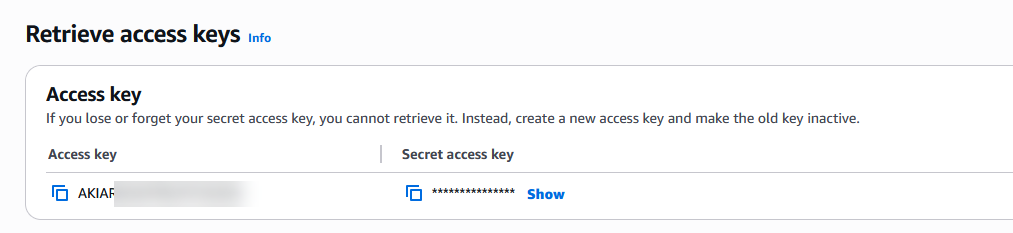
- The programmatic access credentials for the IAM user: Access Key ID and Secret Access Key.
Step 1: Configure the Cloud Storage Account
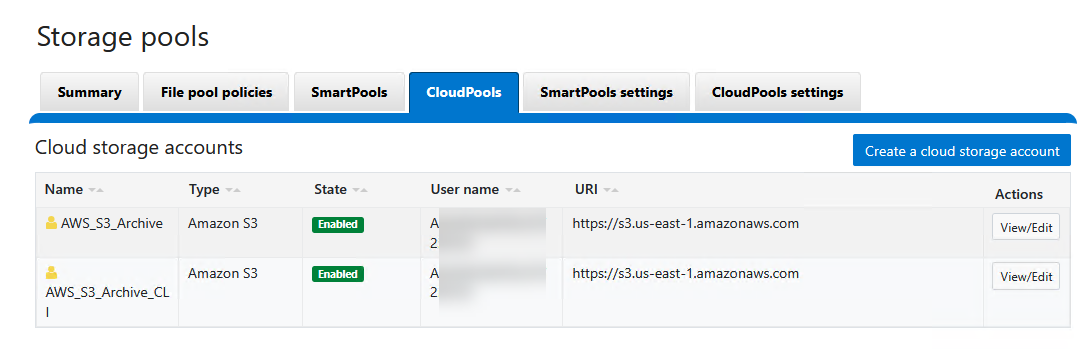
The first phase involves registering your AWS programmatic credentials deep inside Isilon to establish a secure, authenticated channel.
Via WebUI:
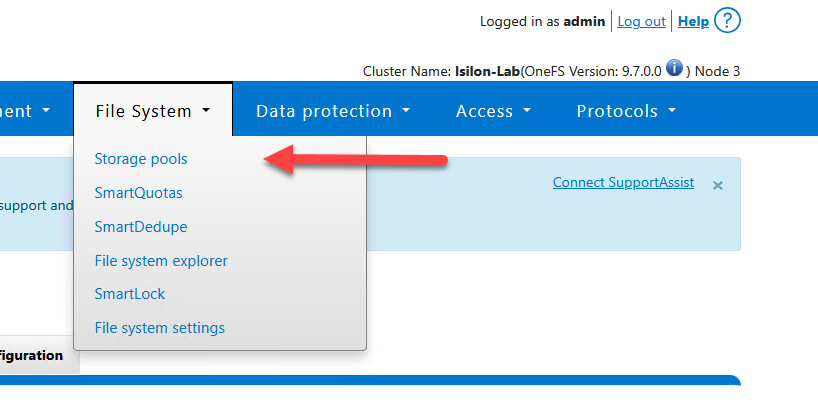
- Navigate to File System > Storage Pools > CloudPools.
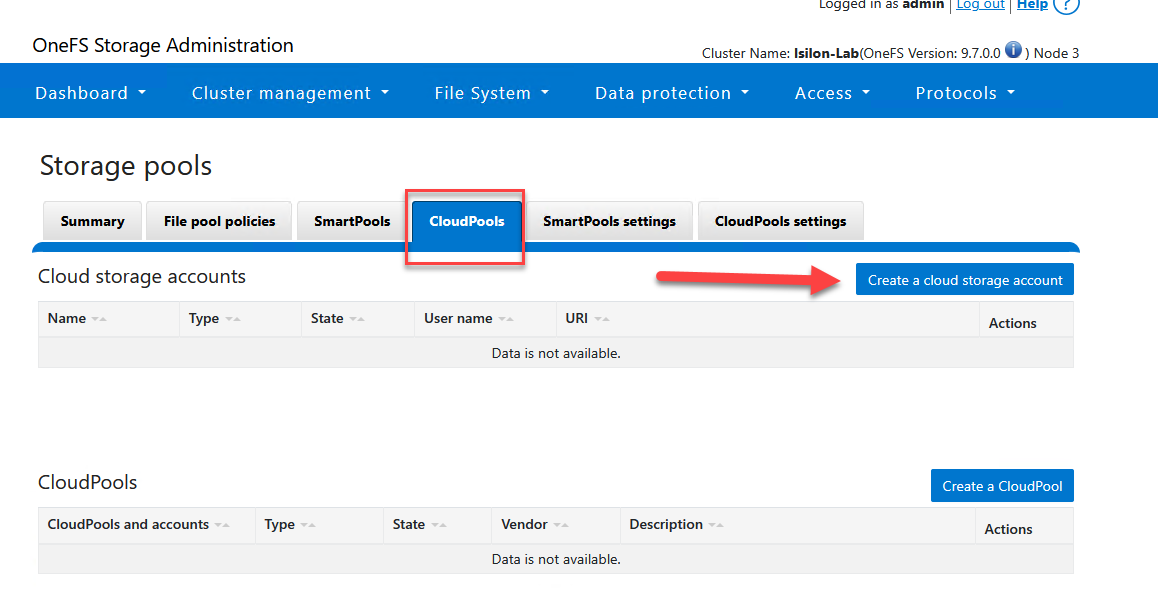
- Under the Cloud Accounts tab, click on Create a Cloud Account.
- Configure your endpoint metadata appropriately:
Account Details
- Name or alias:
AWS_S3_Archive- Type: Select
Amazon S3- URI: Provide the S3 regional endpoint (e.g.,
https://s3.us-east-1.amazonaws.com)- User name (key): Input your AWS IAM Access Key ID.
- Key (secret key): Input your AWS Secret Access Key.
- Account ID: Provide your AWS Account ID (the 12-digit footprint found in your console, hyphen-free).
- Telemetry reporting bucket: Provide the exact string-name of your S3 target bucket (e.g.,
isilon-lab-mxlit-test).
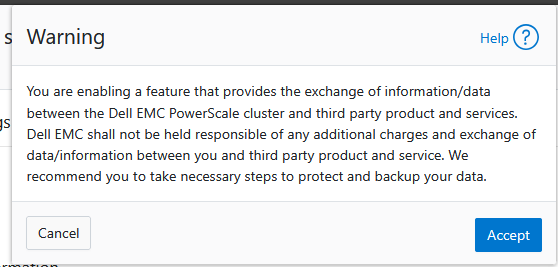
- Click Connect account to ping AWS, validate credentials, and submit the configuration.
Via CLI:
# Create the AWS S3 cloud account using programmatic credentials
# Ensure you replace the placeholders with your actual AWS IAM and account details
isi cloud accounts create AWS_S3_Archive_CLI \
--type=s3 \
--uri=https://s3.us-east-1.amazonaws.com \
--account-username=<YOUR_AWS_ACCESS_KEY> \
--key=<YOUR_AWS_SECRET_KEY> \
--account-id=<YOUR_12_DIGIT_AWS_ACCOUNT_ID> \
--telemetry-bucket=<YOUR_S3_BUCKET_NAME>
Step 2: Create the CloudPool
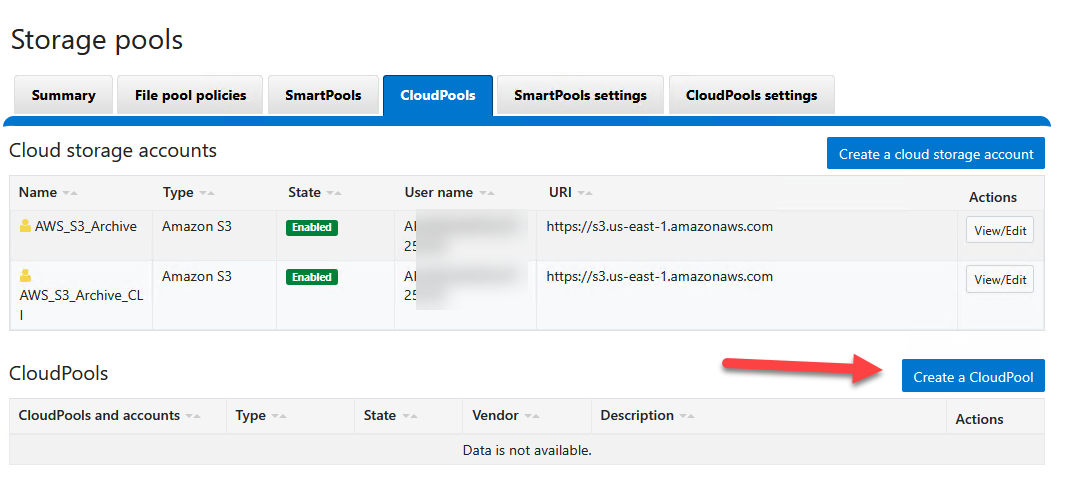
Once the isolated AWS account object is verified in the system, it must be bound to a “CloudPool”. This logical container layers encryption, compression, and aggregation controls before packets ever hit the wire.
Via WebUI:
- Within the CloudPools menu, select the CloudPools tab.
- Click Create a CloudPool.
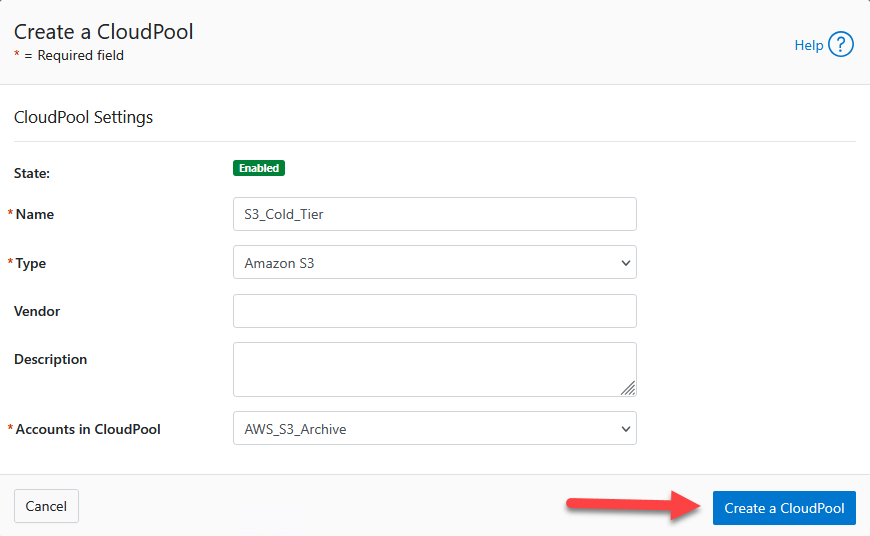
- Assign a name:
S3_Cold_Tier. - In Type, choose
Amazon S3. - Under Account, pick the AWS account mapping generated previously (
AWS_S3_Archive). - (The Vendor and Description slots can safely remain empty.)
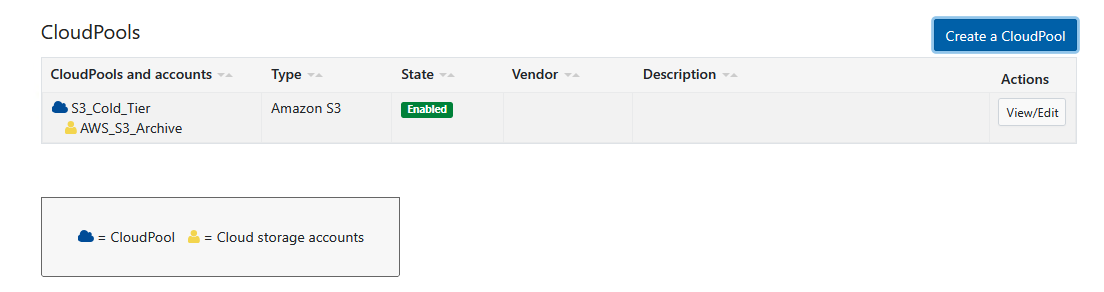
- Click Create CloudPool.
Step 3: Configure the Archival Policy (FilePool Policy)
With the transport established, we must dictate to the cluster which unique files are permitted to cross the cloud boundary. We do this through a FilePool Policy.
In our scenario, we will command Isilon to push all target files nested within the IT directory that haven’t registered an access timestamp in over 6 months directly to Amazon S3.
Via WebUI:
- Navigate to File System > Storage Pools > FilePool Policies.
- Click Create a FilePool Policy.
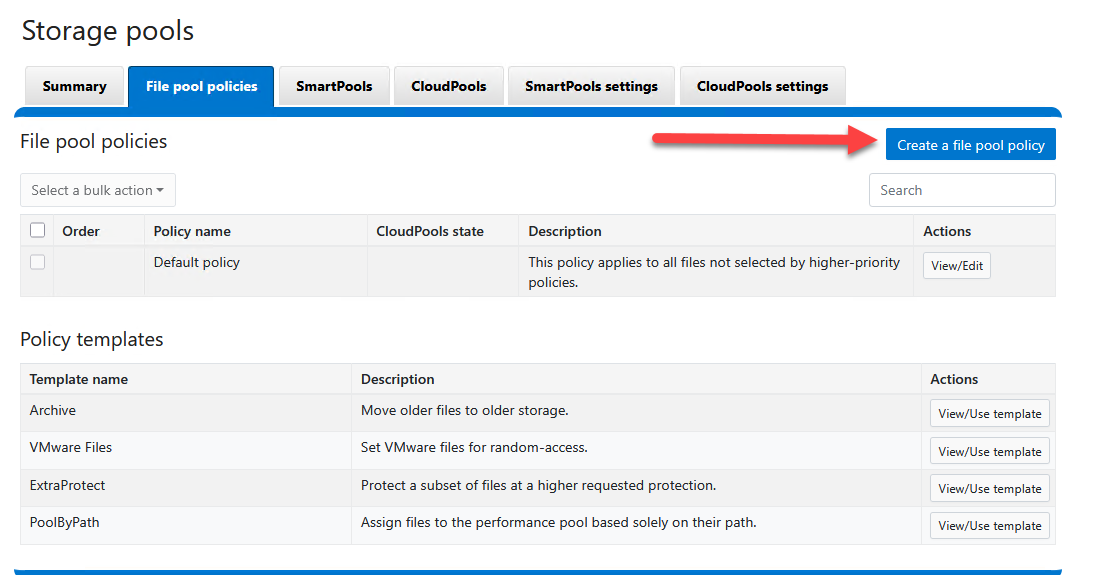
- Craft the behavior constraints:
Policy Settings
- Policy name:
Archive_IT_Cold_DataFile matching criteria
- Set your conditional filters (AND logic):
- Select
Path|contains|/ifs/data/production/IT_Share- Click Add an “And” condition.
- Select
Accessed|is older than|6|Month(Note: Leave the “Apply SmartPools actions to selected files” frame blank for this exercise)
Apply CloudPools actions to selected files
- Check the box labeled Move to cloud storage.
- CloudPool storage target: Pick
S3_Cold_Tier.
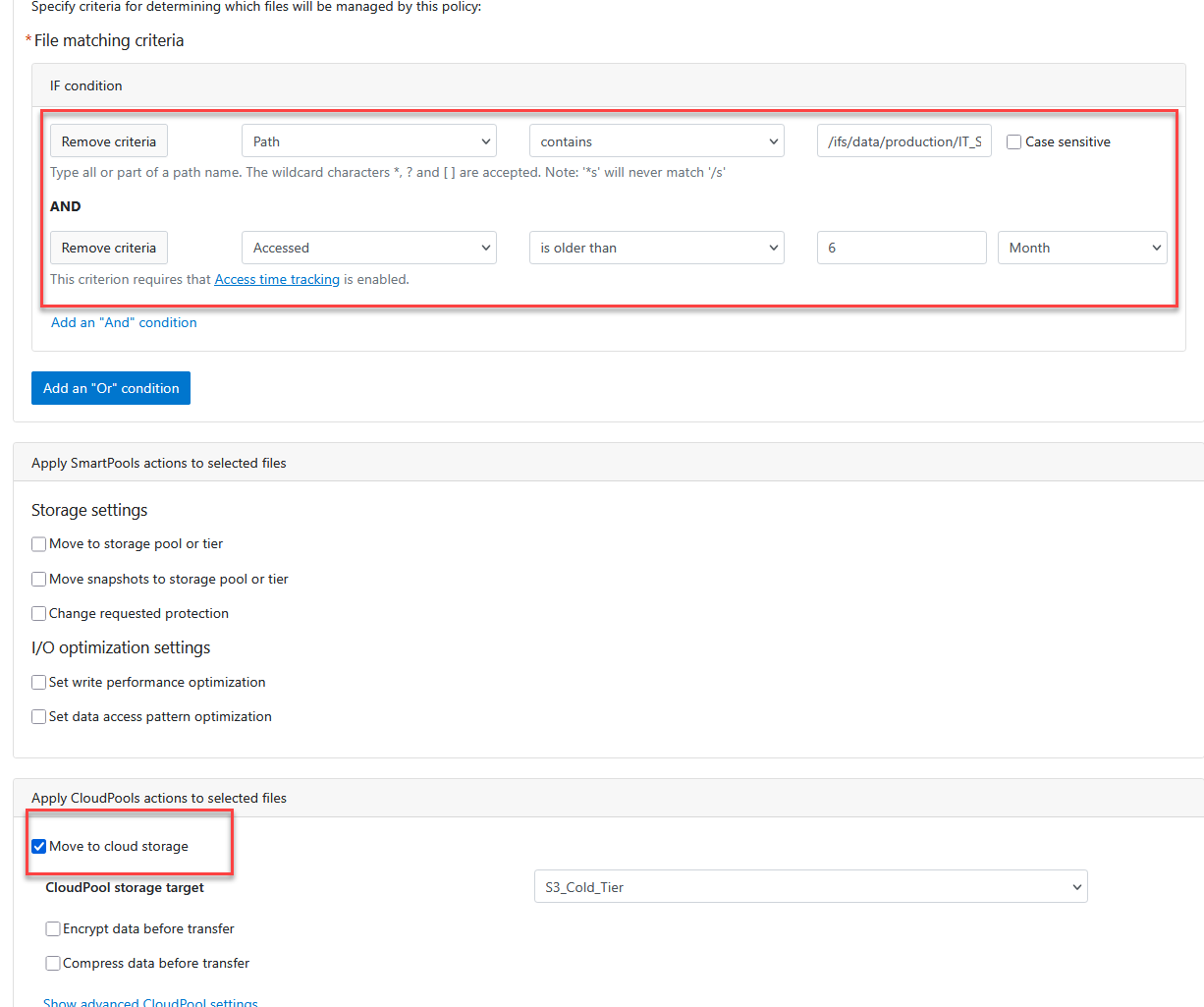
- Click Create policy.
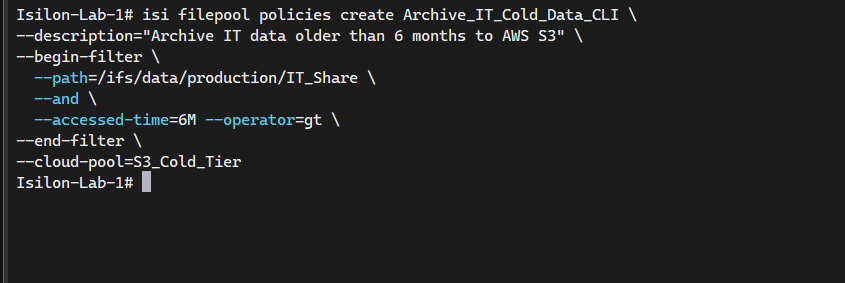
Via CLI:
For automation-heavy labs, build out tracking policies utilizing the native REST backend terminal commands:
# Create a FilePool policy to archive files in IT_Share older than 6 months to S3
isi filepool policies create Archive_IT_Cold_Data_CLI \
--description="Archive IT data older than 6 months to AWS S3" \
--begin-filter \
  --path=/ifs/data/production/IT_Share \
  --and \
  --accessed-time=6M --operator=gt \
--end-filter \
--cloud-pool=S3_Cold_Tier
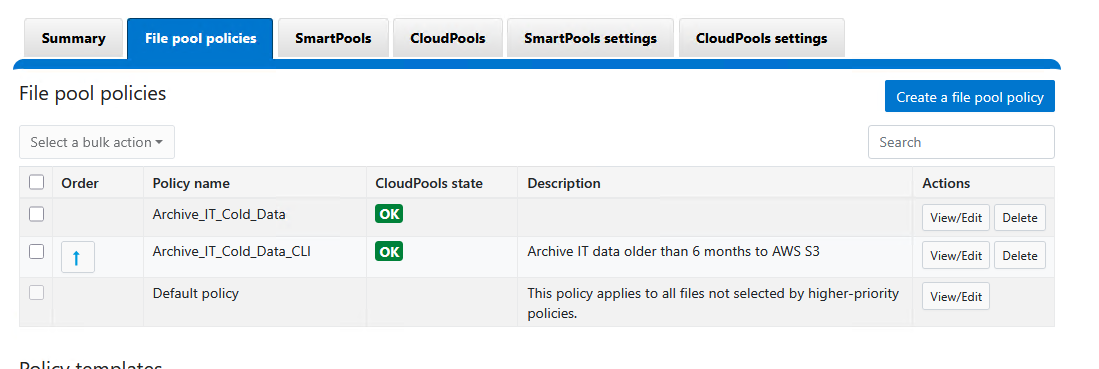
Step 4: Execute the Processing Engine (SmartPools Job)
FilePool policies are not executed live. They are systematically evaluated and enforced by a sweeping background daemon task named SmartPools. By default, this task runs on a system schedule. To force immediate cluster evaluation and boot S3 tiering execution:
Via WebUI:
- Navigate over to Cluster Management > Job Operations > Job Types.
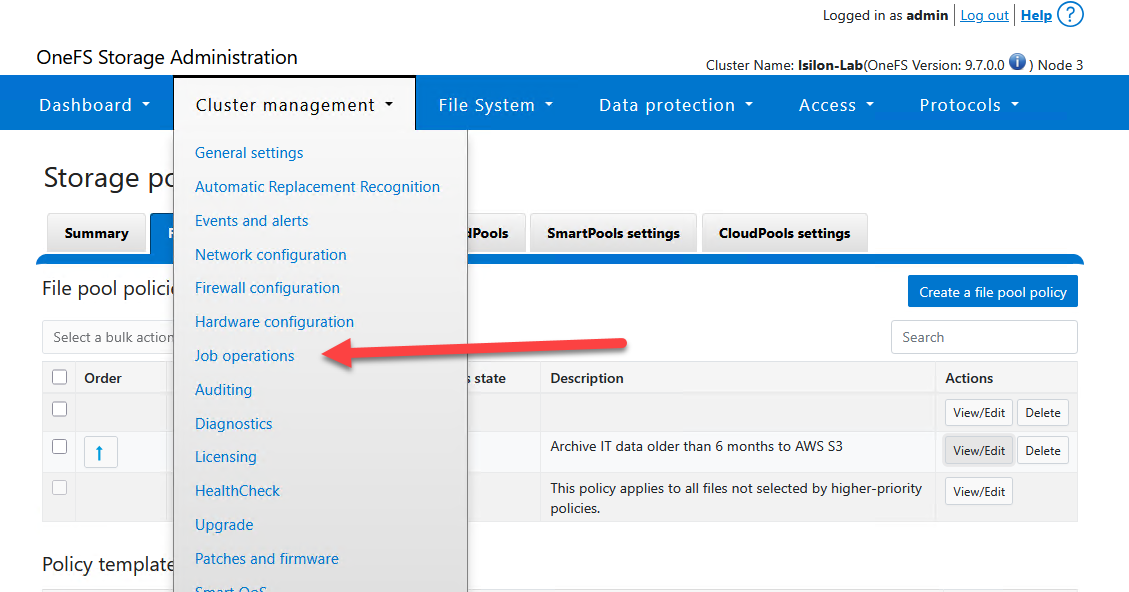
- Scan for the SmartPools job entity and command a Start Job.
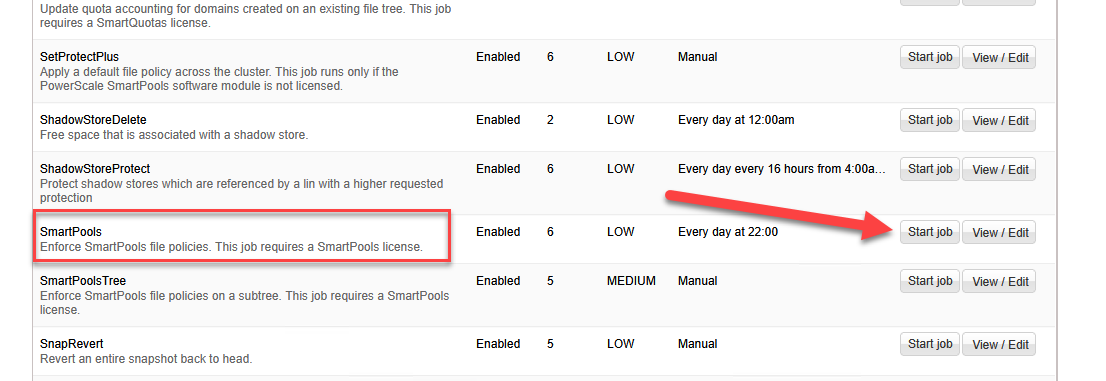
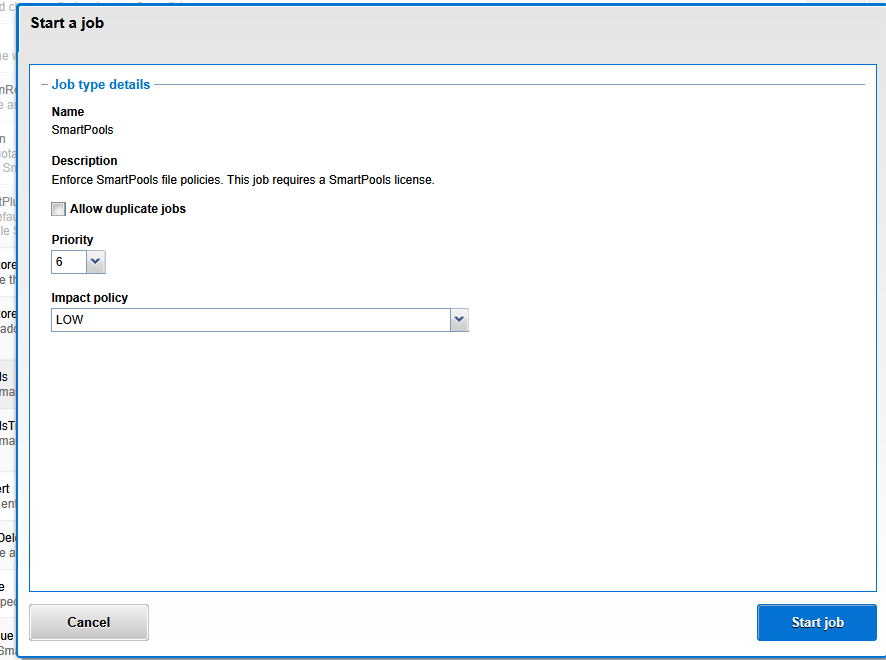
Via CLI:
# Start the SmartPools job to evaluate FilePool policies and move data to S3
isi job jobs start SmartPools

# Check the status of the job
isi job jobs list
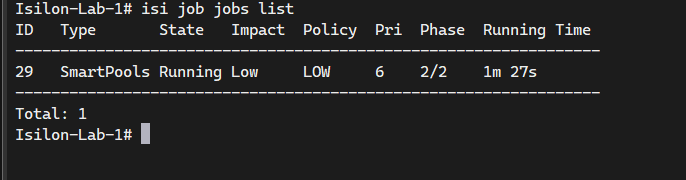
Result Validation
Once the intense IO metrics of the SmartPools job finally settle, sweeping through the targeted tree should physically display alterations. The bloated, aged payloads get stripped, and files are officially replaced by structural SmartLinks. Through standard CLI or an SMB Windows Explorer that detects extended NTFS attributes, you will see a “Size on disk” variable crashing dramatically towards 0 bytes. That’s proof the high-weight payload rests safely off-site now.
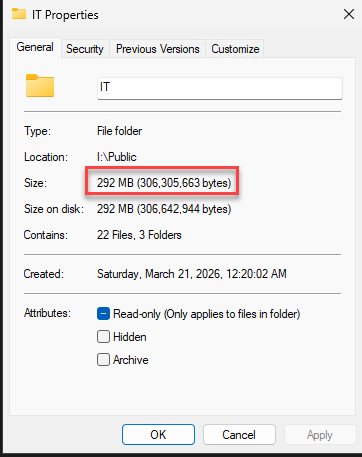
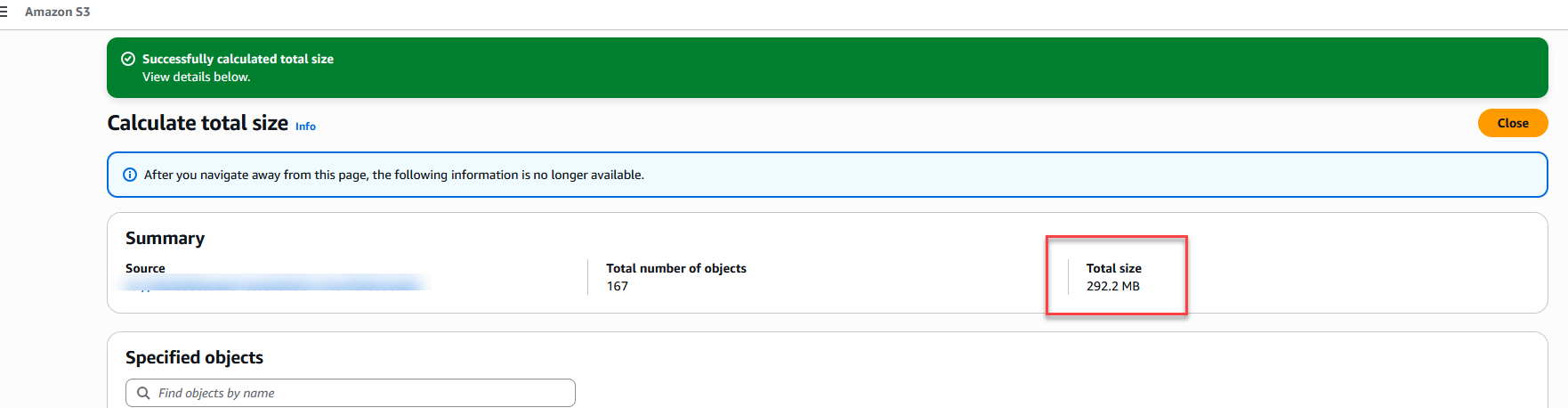
The “Size on Disk” Gotcha
Particularly operating under early OneFS distributions or virtualized node simulations, Windows Explorer occasionally suffers from a caching hallucination: it outright refuses to rapidly refresh the Size on disk metric downstream toward zero bytes unless the SMB cache cycles gracefully or the metadata flags are distinctly flipped “Offline”.
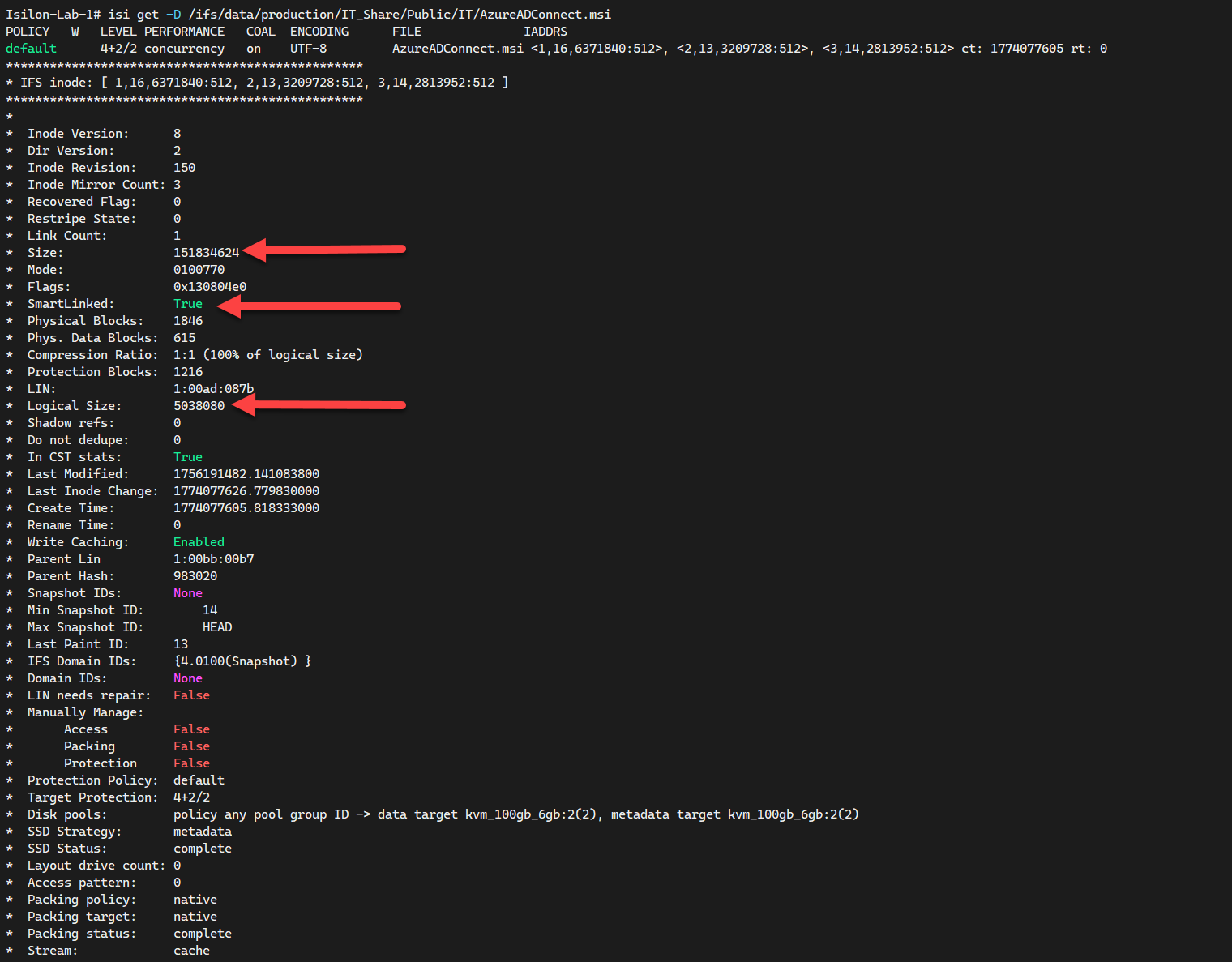
To guarantee your cloud-spill deployment was an absolute triumph, staring at an S3 bucket is insufficient; we must natively interrogate the core OneFS filesystem in-line to validate the raw inode manipulation. Launch the isi get deep probe against a known payload.
# Analyze the specific file inode to verify SmartLink status
isi get -D /ifs/data/production/IT_Share/Public/IT/yourfile.extention
What exactly are we hunting for in the terminal dump?
SmartLinked: True: This boolean is your holy grail. It guarantees the core engine decoupled the primary physical data block and exiled it to AWS S3, leaving behind only the lightweight referral pointer.Logical SizevsSize: You will notice an authentic anomaly here.Sizestrictly illustrates the native logical footprint of the file payload, whereasLogical Size(the true physical sector layout retained locally) reads spectacularly smaller, quantifying your actual primary node savings.BCM metadata: If you spot Backup Content Mode traces scattered across the lower metadata logs, it signifies OneFS is successfully synchronizing the remote payload ID matrix up into Amazon S3 for transparent recovery polling.
Cost Analysis & The S3 “Cold Data” Gotcha
When OneFS streams “cold data” outward into your AWS boundary via CloudPools, it natively binds the objects to the standard S3 Standard tier by default upon upload. This is an absolutely critical architectural “gotcha”: you are forcibly tiering data explicitly because it is “cold” and non-essential, yet, unmodified, you could end up paying premium “hot storage” cloud rates ($0.023 per GB) to preserve it.
Is the basic strategy economically viable? Let’s chart the structural monthly financial damage scaling unmanaged S3 Standard workloads:
- 1 TB: ~$23 USD / month
- 5 TB: ~$115 USD / month
- 10 TB: ~$230 USD / month
S3 Intelligent-Tiering to the Rescue
To secure maximum cost avoidance without breaking transparent access, the best practice is to configure your AWS bucket with the S3 Intelligent-Tiering storage class. AWS will meticulously monitor the thousands of fragmented objects generated by Isilon. If users don’t request them for 30 consecutive days, AWS automatically moves them to a lower-cost access tier (like Infrequent Access), and after 90 days, down to Archive Instant Access. Let’s re-run the numbers under the Archive Instant Access tier ($0.004 per GB):
- 1 TB: ~$4 USD / month (82% savings)
- 5 TB: ~$20 USD / month
- 10 TB: ~$40 USD / month
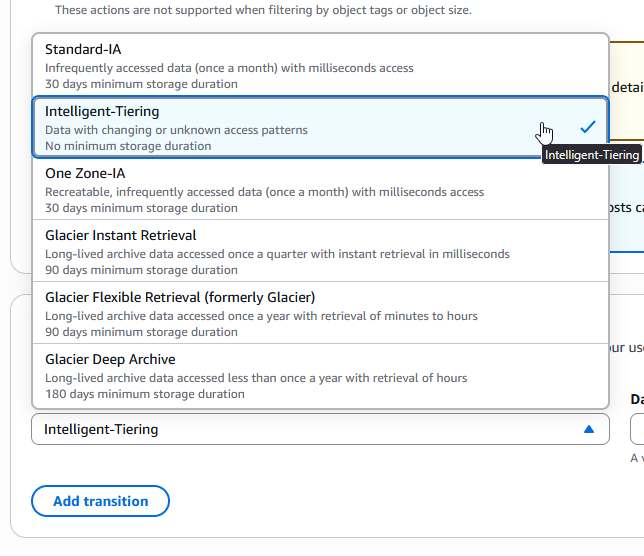
Will it break the connection? Will there be delays? The most critical requirement for Isilon CloudPools is synchronous, millisecond retrieval so that a user double-clicking a file in Windows Explorer doesn’t suffer a timeout. The beauty of Intelligent-Tiering’s automatic tiers (Frequent, Infrequent, and Archive Instant Access) is that they all deliver the exact same millisecond latency as S3 Standard. There are absolutely zero delays, zero broken connections, and zero “I/O Errors”—all while slashing your monthly bill by up to 82%. (Note: This only applies to the native automatic tiers; do NOT manually enable the “Archive Access” or “Deep Archive Access” opt-in tiers within Intelligent-Tiering configuration, as those are asynchronous and will break OneFS).
Pro-Tip: The Danger of AWS Lifecycle Policies (Glacier) Caution: Do not enable aggressive AWS Lifecycle rules that blindly transition Isilon data into S3 Glacier (Flexible Retrieval or Deep Archive).
Isilon CloudPools fragments files into thousands of microscopic Cloud Data Objects (CDOs) and inherently expects to retrieve them in milliseconds when a user double-clicks a stub via SMB. If AWS moves these underlying objects to Glacier, the asynchronous retrieval time (from 1 to 12 hours) will cause a violent Timeout. Isilon simply does not know how to halt a Windows Explorer session for hours; it will drop the connection and throw an “I/O Error” or “File Not Found” directly to the end-user.
Conclusion
CloudPools shines as an incredible engineering tool designed to dynamically maximize investments locked in expensive primary Scale-Out NAS implementations. By seamlessly displacing “dead file” gravity out toward elastic cloud storage without triggering chaotic end-user disruption, cluster lifecycles extend dramatically, saving massive high-tier IOP resources for essential production operations. Through careful orchestration against hyperscaler economics—leveraging robust mechanisms like S3 Intelligent-Tiering—you yield a fully modernized, relentlessly resilient, and exceptionally low-cost hybrid architecture.
End of transmission.