In today’s cybersecurity landscape, traditional storage defenses are no longer sufficient to contain advanced attacks. When a threat actor compromises administrator credentials, standard backups and storage snapshots can be easily deleted or aggressively encrypted. This is where SmartLock for Dell Isilon (PowerScale) comes into play.
SmartLock provides true file-system-level immutability using WORM (Write-Once, Read-Many) technology. Once a file is deliberately locked (committed) inside a SmartLock domain, it cannot be modified, overwritten, or deleted by anyone (not even by a sophisticated ransomware attack deploying root privileges) until its retention period securely expires.
Why Implement SmartLock? (Use Cases)
Beyond being a profound technical storage feature, WORM infrastructure addresses three critical business drivers directly:
- Ransomware Defense: It represents the ultimate safety net. If the operating system actively rejects all write/delete I/O operations directly at the Kernel level, malware physically cannot encrypt the data.
- Regulatory Compliance: Financial sectors (e.g., SEC 17a-4), healthcare (HIPAA), and government entities legally require holding audit logs, transactions, and “legal holds” in an absolute, unalterable state.
- Rogue Admin Prevention: It thoroughly protects the organization against disgruntled IT administrators or stolen credentials attempting to sabotage the network and wipe out backups.
Understanding SmartLock: Enterprise vs. Compliance
Before configuring immutability zones, it is crucial to understand the two vastly different rigor modes OneFS provides:
SmartLock Enterprise: Protects data against modifications from standard network users and general storage administrators. However, it allows an administrator possessing a highly specific, privileged role (
ISI_PRIV_SMARTLOCK) to forcefully destroy the domain in extreme emergencies (ideal for standard enterprise backups, IT labs, or non-regulated internal data).SmartLock Compliance: The maximum security mode, rigidly designed to comply with uncompromising legal regulations (like SEC 17a-4). In this mode, nobody wields the power to wipe the data prematurely before retention expires. Not the end-user, not the root global administrator, and not even Dell technical support. The literal only way to eliminate the data prematurely is physically destroying the magnetic drives with a hammer.
Caution: For standard production environments and proof-of-concept labs, it is highly recommended to stick exclusively to the Enterprise mode.
Step 1: Create a SmartLock Directory (Domain)
The golden rule in Isilon for data immutability is that the targeted directory must be utterly empty when converting it into a WORM domain. The correct architectural workflow is: create the physical folder, apply the WORM policy to it, and finally build the SMB Share endpoint for users to interact with.
Note: If you are practicing within the OneFS simulator, activate SmartLock by executing the following terminal command first:
isi license add --evaluation SmartLock
Via WebUI
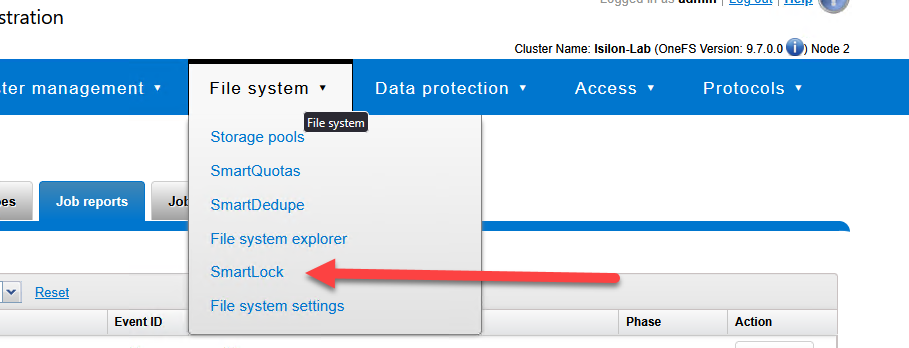
- Navigate over to File System > SmartLock > Domains.
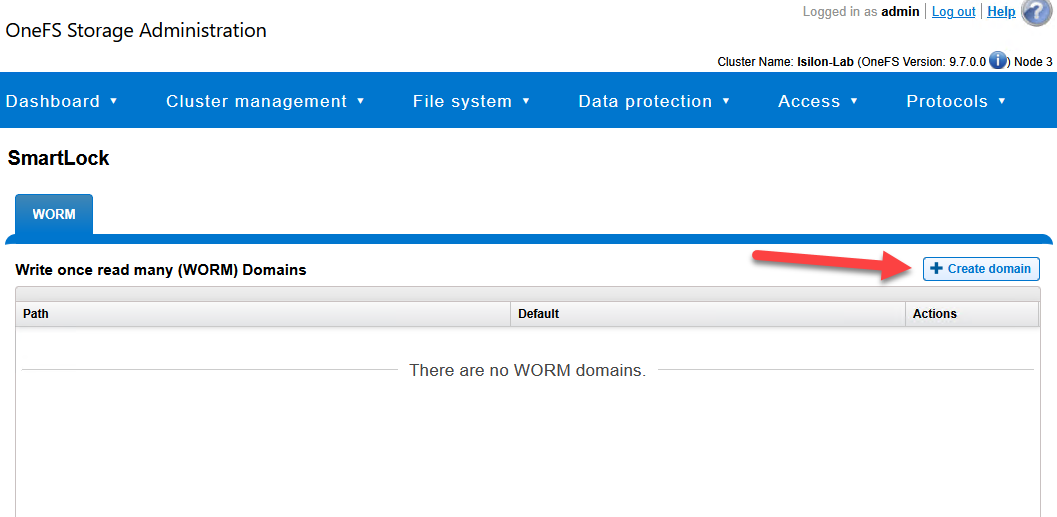
- Click on Create a SmartLock Domain.
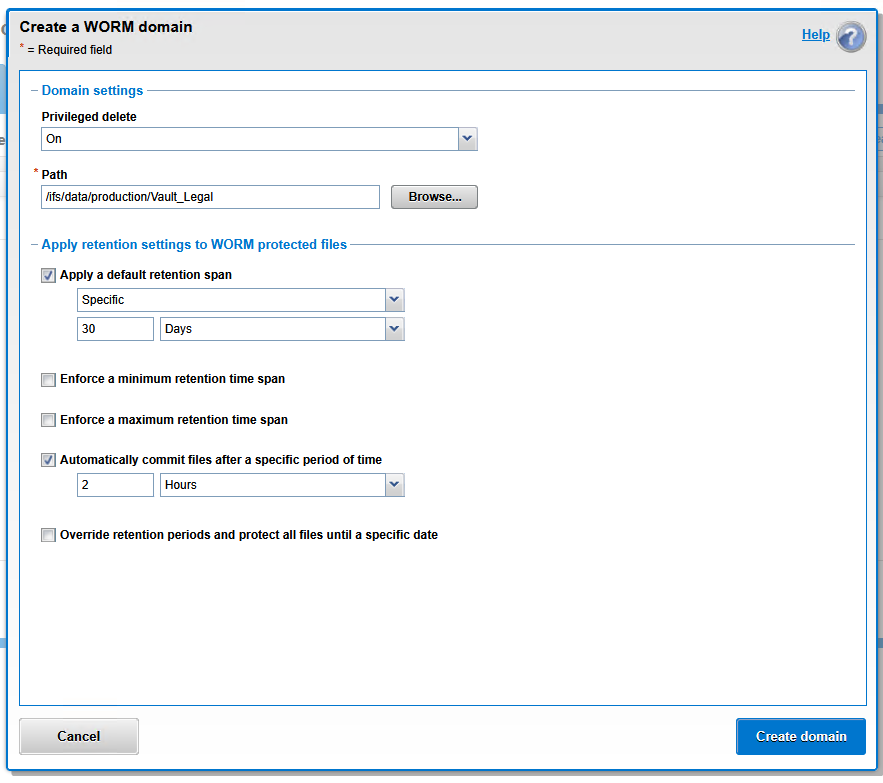
Configure the following parameters based firmly on your corporate security posture:
Privileged delete: Toggle this to On for standard enterprise networks or labs. This allows an admin holding the
ISI_PRIV_SMARTLOCKrole to destroy the domain during a major incident. If you select Off (Strict Compliance mode), absolutely nothing will remove that data until time expires, protecting you entirely from weaponized admin credentials.Path: Utilize the Browse button or manually input an empty target path (e.g.,
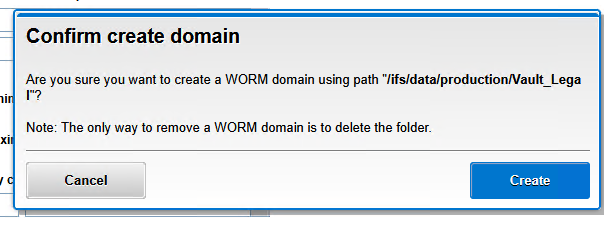
/ifs/data/production/Vault_Legal).Apply a default retention span: Check this box and define a baseline locking timetable (e.g.,
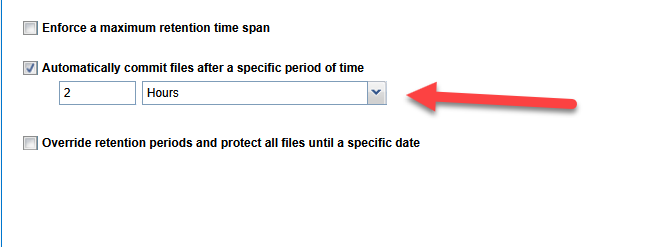
Specific|30|Days). This is the universal duration a file remains immutable by default the instant a commit is triggered.(Optional Pro-Tip) Automatically commit files after a specific period of time: Pure anti-ransomware automation! If this is checked, OneFS will actively monitor the folder and automatically, irreversibly lock any file that experiences zero modification activity during a set window (e.g., 2 hours). This eliminates the perilous need for users or applications to manually lock the files.
Click Create domain.
Via CLI
To script and automate the creation of secure vaults, leverage the OneFS terminal. Guarantee you generate the empty physical directory layout first:
# Create the physical directory for the vault
mkdir -p /ifs/data/production/Vault_Legal

# Create the SmartLock domain with privileged delete enabled and a 30-day default retention
isi smartlock domains create /ifs/data/production/Vault_Legal \
--privileged-delete=on \
--default-retention="30D"
Step 2: The “Commit” Process (Activating WORM State)
Depositing a file inside a SmartLock domain directory does not magically make it immutable immediately. The file must forcefully transition into a Committed state. This crucial mechanism prevents the system from locking corrupted, temporary, or half-copied files while network transfers are still ongoing.
Manual Commit (User or Script Intervention)
The universally straightforward method to manually commit a file is stripping away its write permissions (flagging it strictly as “Read-only”).
From Windows (SMB): The user copies a file into the mapped share, right-clicks the object > Properties > toggles the Read-only checkbox > OK.
From Linux/CLI: Ordinary permission revocation commands are executed.
# Copy a critical backup file to the SmartLock vault
cp /ifs/data/production/IT_Share/critical_backup.zip /ifs/data/production/Vault_Legal/

# Commit the file to an immutable WORM state by removing write permissions
chmod -w /ifs/data/production/Vault_Legal/critical_backup.zip
Automatic Commit (Autocommit)
For robotic pipelines or environments where users cannot be trusted to manually flag items as “Read-only,” SmartLock permits administrators to configure Autocommit. The cluster monitors all objects, and if zero write changes are detected during a defined cool-down window (e.g., 2 hours), OneFS systematically drops the hammer and locks the file permanently.
If you checked the (“Automatically commit files”) option natively inside the GUI when building the WORM domain, you do not need to execute the API command below.
# Optional: Enable autocommit for the domain after 2 hours of inactivity
isi worm domains modify /ifs/data/production/Vault_Legal \
--autocommit-offset="2H"
Step 3: Validating Immutability (The Acid Test)
The moment the file is engulfed into the Committed state, the unalterable retention clock begins ticking, and the file acts shielded at the absolute Kernel level within OneFS.
To verify that your infrastructure is genuinely impenetrable to Ransomware, attempt to delete the file.
Testing from Windows (SMB)
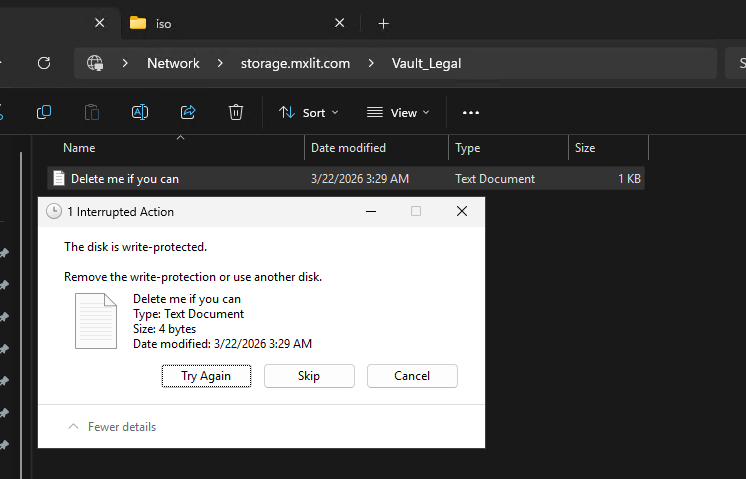
If an angry user, an infected administrator account, or an automated malicious script attempts to obliterate or modify the protected artifact through the network share, Windows will be stonewalled with an I/O system error firmly blocking the activity: “The disk is write-protected”.
Testing from the Isilon CLI
WORM deterrence is not simply an illusion applied to network protocols. Even if a highly advanced threat actor fully compromises global administrator credentials across the Isilon cluster, the actual filesystem will laugh at demolition attempts:
# Attempt to forcibly delete the committed file as the root user
rm -rf "/ifs/data/production/Vault_Legal/Delete me if you can.txt"

# Expected Output:
# rm: /ifs/data/production/Vault_Legal/Delete me if you can.txt: Read-only file system

The cluster furiously rejects the operation entirely at the deep Kernel tier. The file is officially shielded and mathematically un-erasable.
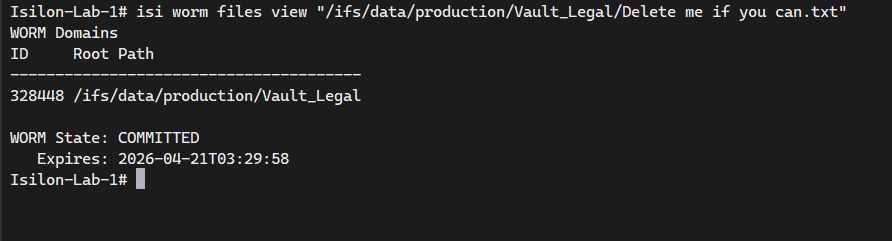
To inspect the precise technical anatomy of a WORM file—and to check exactly the minute its fierce retention lock will expire—simply query its SmartLock properties using:
# Check the SmartLock status and expiration date of a specific file
isi worm files view "/ifs/data/production/Vault_Legal/Delete me if you can.txt"
Conclusion
Implementing CloudPools systematically solves your long-term storage consumption costs, but enabling SmartLock solves the terrifying issue of absolute business survival against a modern cyberattack. By deploying strategic WORM vaults nestled deep within your Scale-Out NAS infrastructure, you guarantee that mission-critical databases, foundational backups, and legal compliance documents endure completely untouched—even if your entire active directory ecosystem and virtualization layers are catastrophically breached.
End of transmission.