
In vSphere environments, the error Unable to access file since it is locked often appears when attempting to power on a virtual machine or perform a vMotion migration. Although frustrating, this issue is usually a VMFS clustered file system protection mechanism designed to prevent data corruption.
Below, we detail the technical analysis and exact steps to release these locks, specifically when they occur in Read‑Only mode.
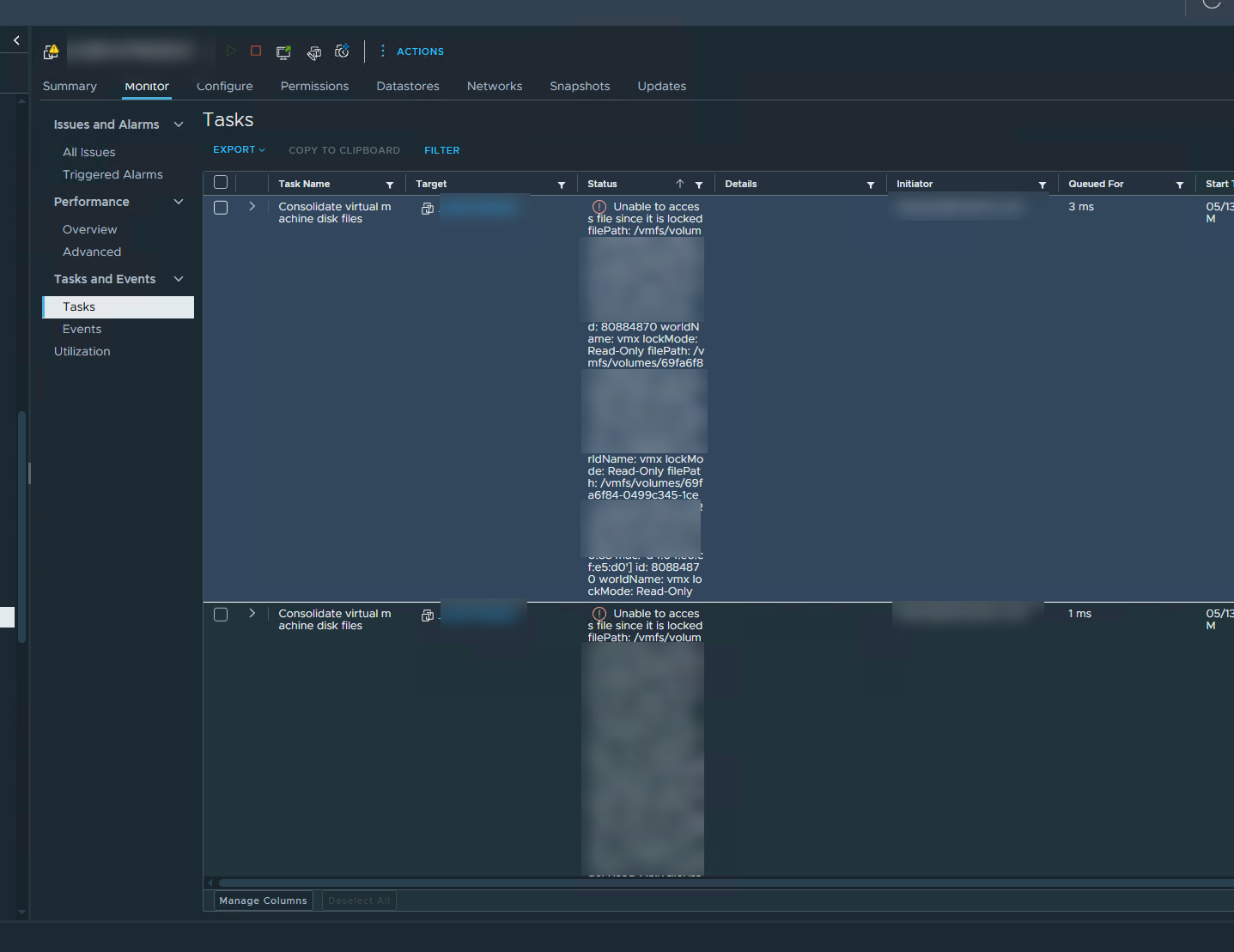
Technical Diagnosis of the Error
Analyzing ESXi logs is essential to identify which host and process are holding the file lock. In a typical scenario, the logs show information similar to this:
- Locked Files:
VM_NAME-flat.vmdk(flat files contain the actual raw binary data). - Locking Host: Identified by IP and MAC address.
- World ID: The internal ESXi process identifier holding the lock.
- Lock Mode: Read‑Only.
A Read‑Only lock almost always indicates that the virtual disk is being read by an external process—such as a backup agent or replication task—rather than the normal execution of the VM.
Root Cause: Backup Proxy Failure
The most common cause of this error is the Hot‑Add transport mode used by backup solutions such as Veeam, Commvault, or Veritas.
When a backup job runs, the Backup Proxy (a dedicated virtual machine) mounts (maps) the target VM’s disks to itself to read blocks directly through the SCSI bus, bypassing management network overhead. If the backup job fails or is aborted abruptly, the software fails to send the “unmount” instruction. This leaves the disk locked by the Backup Proxy VM, rendering it inaccessible to the original VM.
The Danger of Unconsolidated Snapshots
A file lock typically blocks virtual machine snapshot consolidation. Ignoring a “Need Consolidation” warning carries serious operational risks:
- I/O Degradation: Each additional snapshot forces the host to query multiple metadata files before reading a block, heavily increasing storage latency.
- Datastore Saturation: Snapshots grow continuously. If the datastore reaches 100%, all VMs residing on that volume will halt immediately.
- Prolonged Stun Time: The longer a snapshot remains unconsolidated, the larger the delta file becomes. When you finally attempt to consolidate, the VM’s “stun time” (temporary freeze) can be so long that it causes critical application timeouts or network disconnections.
Step‑by‑Step Resolution Guide
1. Clean Up Disks on the Backup Proxy
This is the mandatory first step. Do not attempt to force-power on the VM before verifying this.
- Locate your backup proxies in vCenter.
- Select Edit Settings on the active Backup Proxy.
- Identify disks that do not belong to the Proxy itself (cross-reference the
.vmdkfile paths).
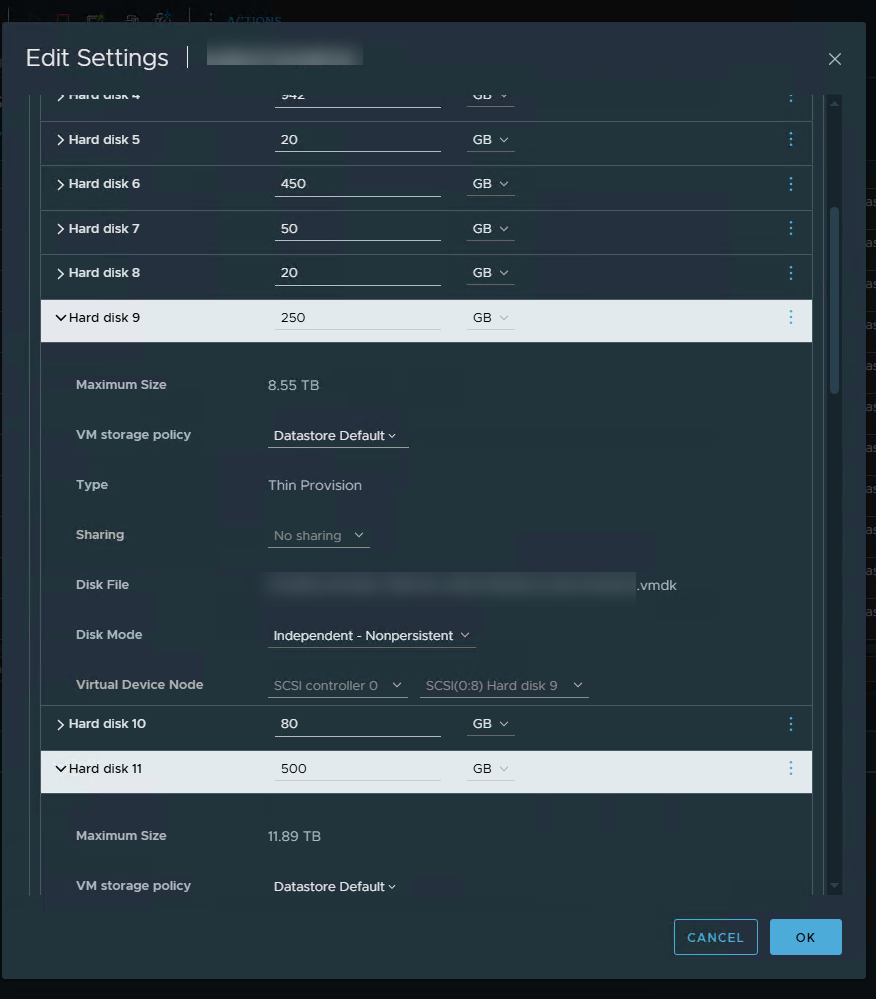
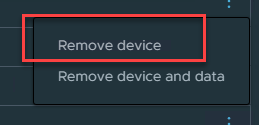
Critical Action: Remove the disk by selecting “Remove device” only. Never choose “Remove device and data”, as this will permanently delete the base production disk of your active virtual machine.
2. Terminate Orphan Processes (World ID)
If the lock persists after cleaning up the proxy, it is highly likely that the vmx process on the ESXi host is hung (a zombie process).
- Connect via SSH to the ESXi host holding the lock.
- Identify the process matching the World ID retrieved from the logs:
esxcli vm process list - Force-kill the process (replace
IDwith your actual World ID):esxcli vm process kill --type=force --world-id=ID
3. Restart Management Agents
As a last resort, if the file system continues reporting the lock, restart the host’s management agents to clear the in-memory locking tables.
/etc/init.d/hostd restart
/etc/init.d/vpxa restart
Note: This will not power off running virtual machines; it only refreshes host communication with vCenter.
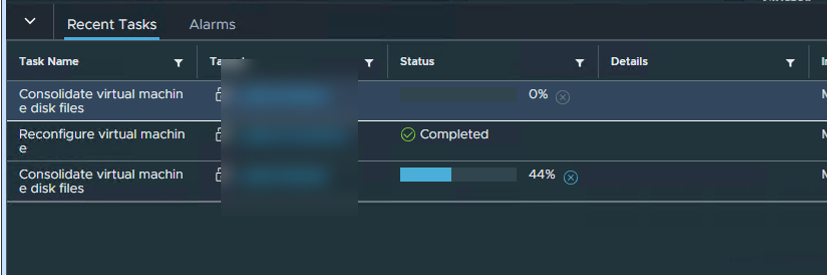
4. Consolidate the Virtual Machine
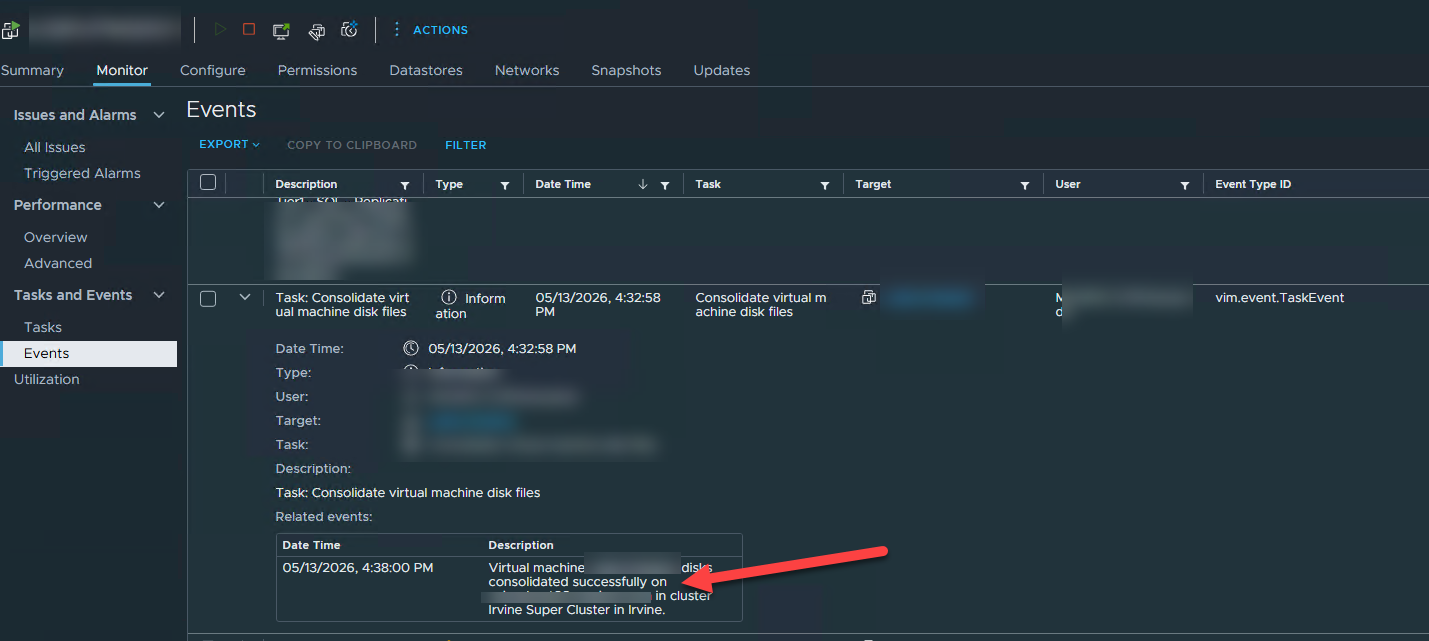
Releasing the file lock on the host or proxy does not automatically clean up the orphaned delta disks left behind by the failed backup. vCenter will continue to show a VM consolidation warning. You must run a manual consolidation to merge these files.
- In vCenter, right-click the affected VM.
- Navigate to Snapshots > Consolidate.
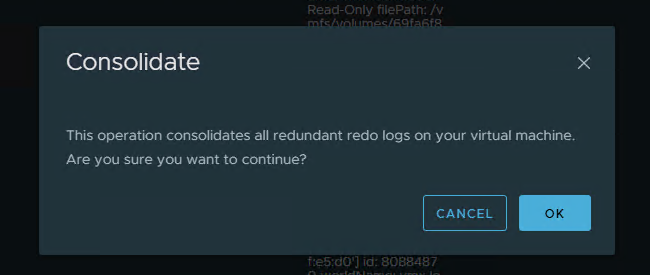
- Monitor the task in the events panel until it finishes successfully.
Conclusion
A VMDK lock is a symptom, not the root issue. If this error occurs frequently, it points to storage network degradation or under-resourced Backup Proxies. A saturated proxy is the leading cause of failed disk unmounts, resulting in technical debt in the form of orphaned snapshots.