Situation.
This is something I’ve seen in different places: sometimes, certain users with administrator privileges on a domain-joined computer delete the Domain Admins group or other groups required by the organization, whether for checking the computer’s status or for deploying software like SCCM.
One of the basic rules is: Never make users local administrators. However, if it’s necessary and you want to ensure that the desired group always has local administrator privileges on your computer, the solution is to apply a Group Policy Object (GPO) to handle this automatically. It doesn’t matter if the user deletes the local administrator group(s) from their computer; when a GPO is applied, it will automatically add the required groups back to the computer’s administrators group.
The solution is as follows:
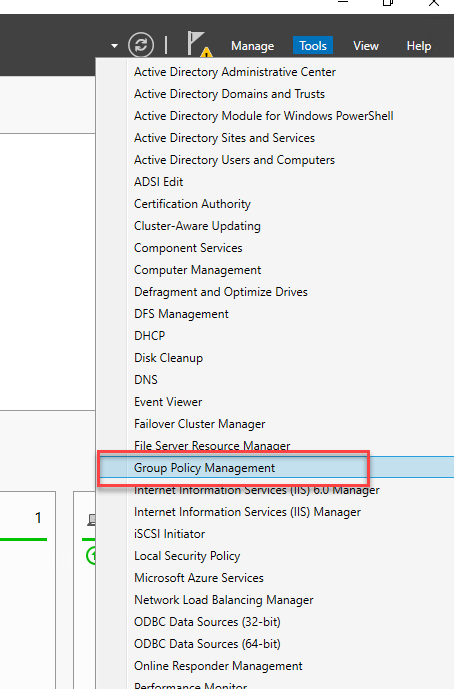
Within Group Policy Management:
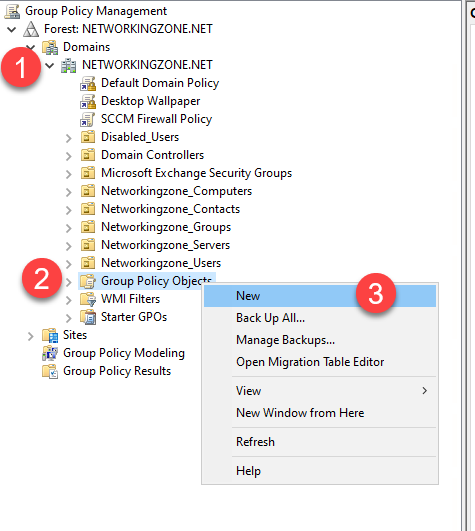
Expand the domain.
Right-click on Group Policy Objects.
Select New.
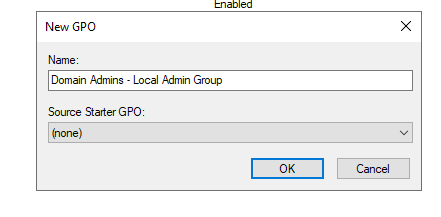
Select the desired name.
Select the created GPO, right-click, and select Edit.
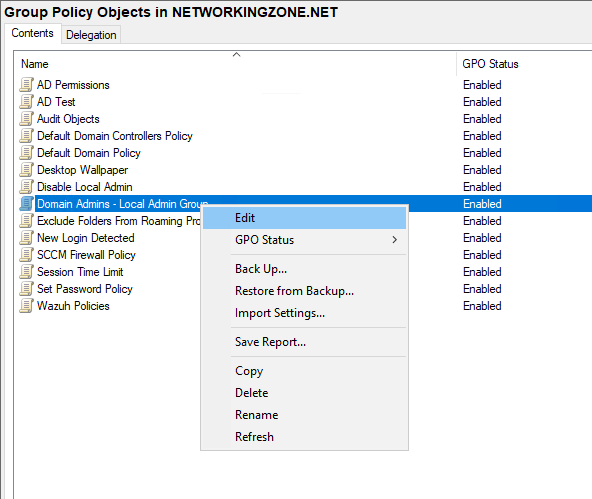
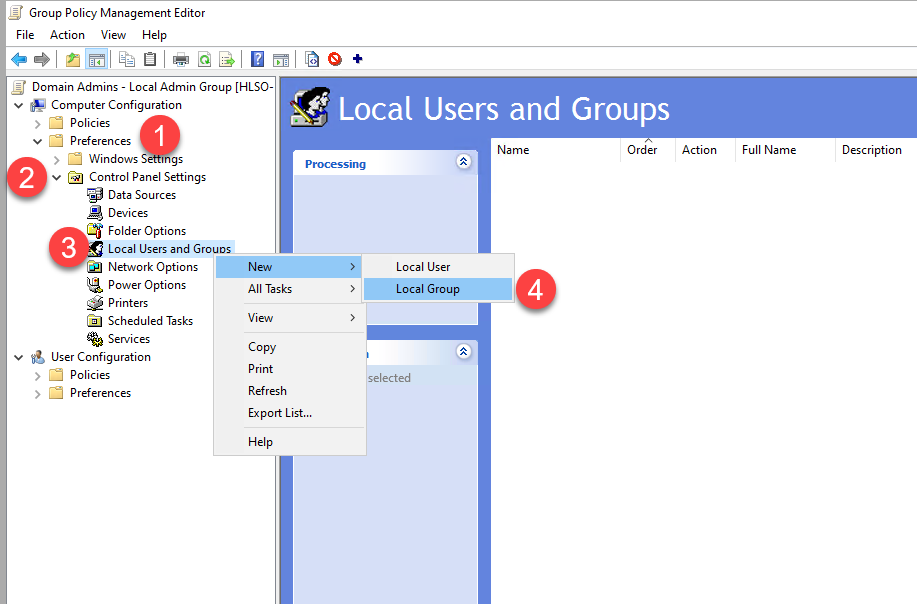
Within the editor:
Expand Computer Configuration
Expand Preferences
Expand Control Panel Settings
Right-click on Local Users and Groups, select New, and then Local Group
Within the Local Users and Groups editor:
Select the Update action
Select Administrators (built-in)
Select Add
Click on the ellipsis (…)
Verify that the Location field contains your domain name, then add the desired group. Note: Multiple groups can be added, separated by semicolons (;).
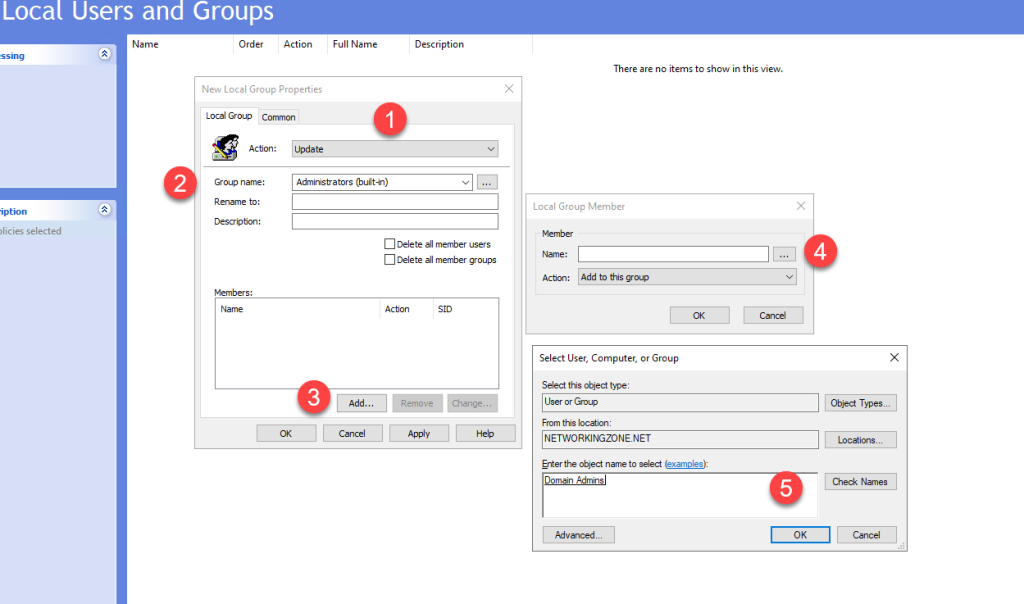
Once the groups are added, simply click OK.
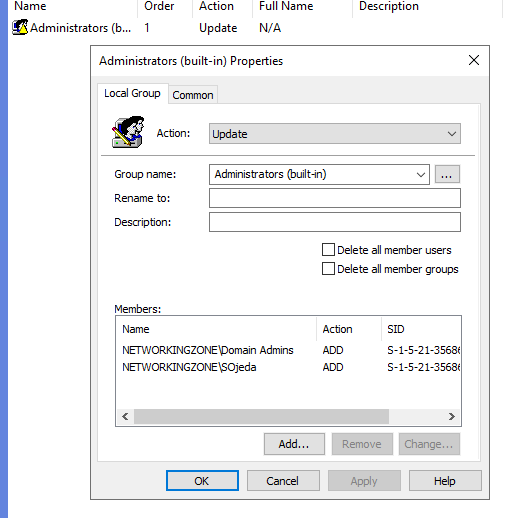
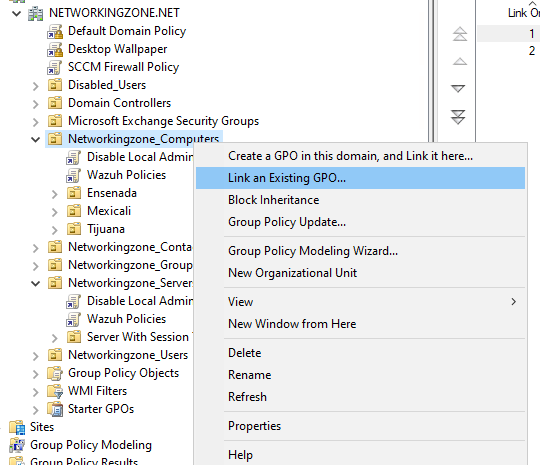
Once the GPO is created and edited, we can proceed to create a link between the GPO and the OU to which we want to apply it. To do this, simply select the OU of your choice, right-click, and select “Link an Existing GPO…”
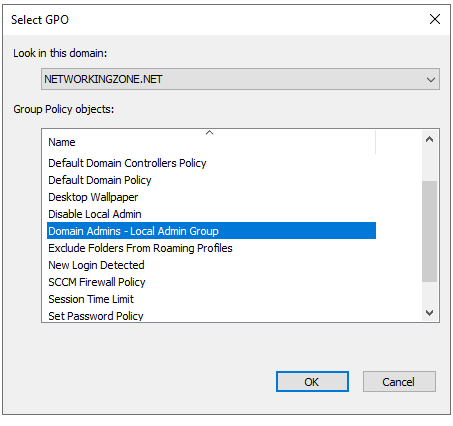
Select the GPO we just created.
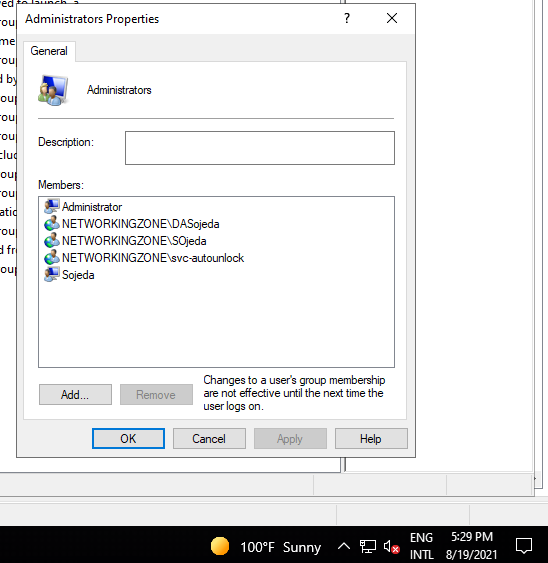
Now we can test it on our computer. To do this, I have removed the “domain admins” group from my local administrators group, as shown in the image.
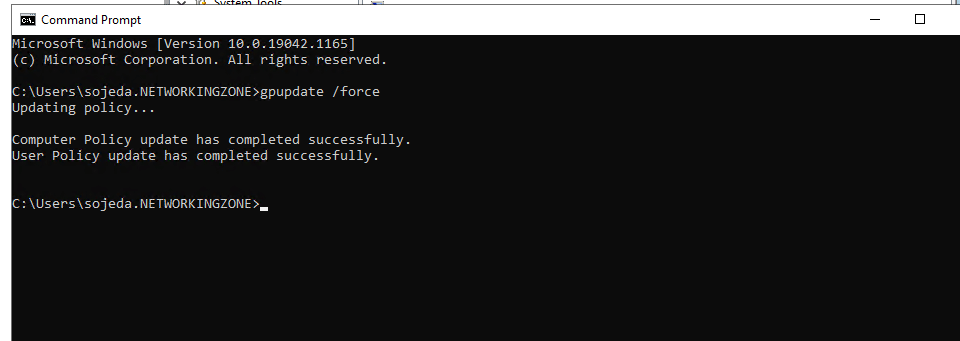
For this test, I forced the update of my domain policies using the command:
gpupdate /force