PowerShell script execution is disabled by default on domain-joined computers. If you attempt to run a script, you will receive a message stating that the policy is restricted.
Disallowed Scripts
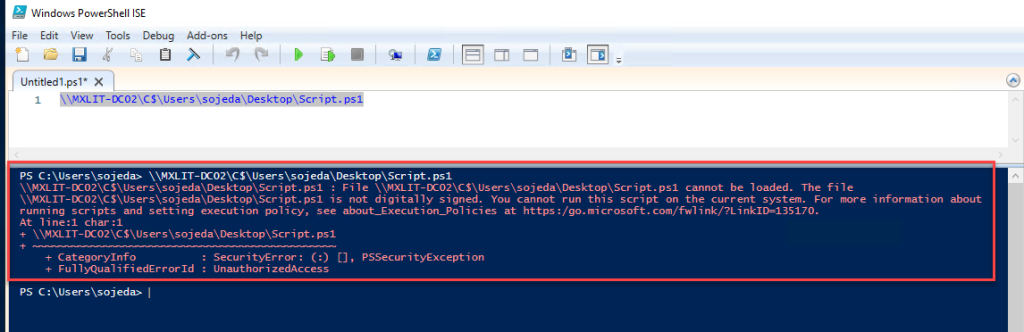
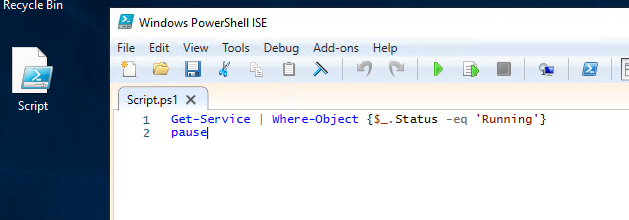
As administrators, we may want to implement scheduled tasks to perform certain automations, so it is necessary to be able to run scripts without restrictions.
While it’s true that we can manually modify these values within the computer or bypass the script as shown in the image.
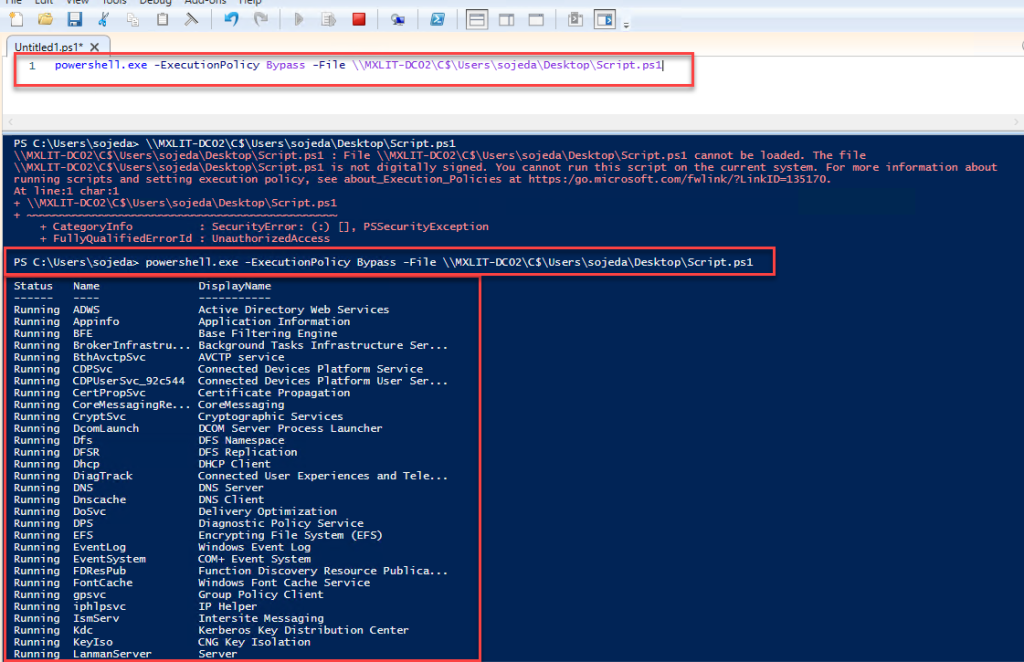
Here we’ll show you how to modify this option from a GPO. To do this, follow these steps:
Creating a GPO
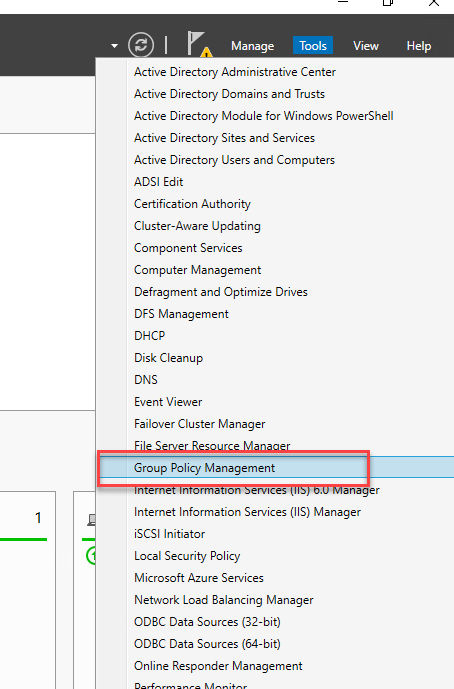
Go to Group Policy Management.
Create a new GPO.
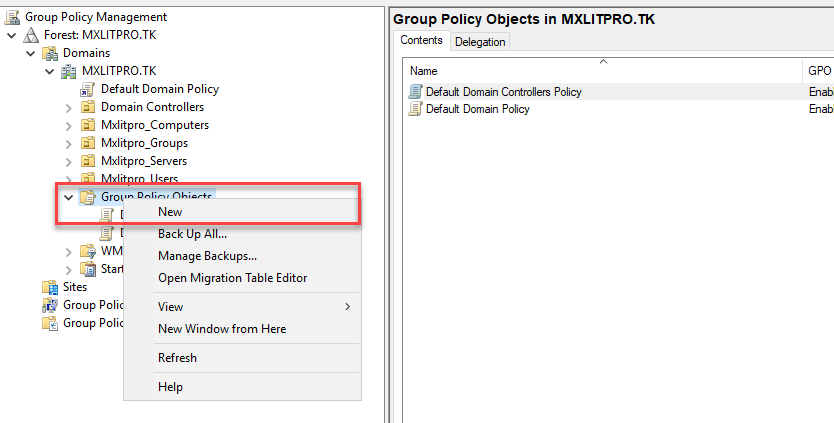
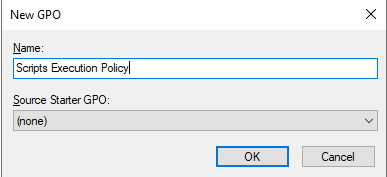
Give it a suitable name that reflects its purpose.
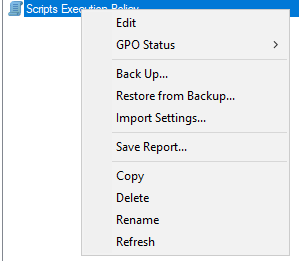
Right-click on the new GPO and select Edit.
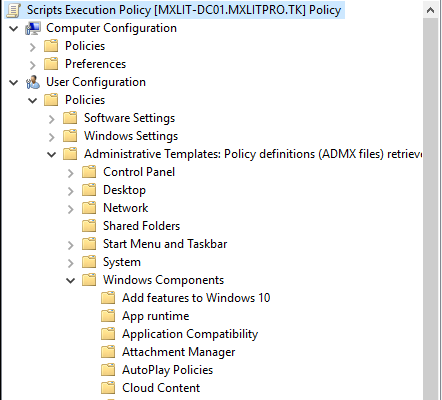
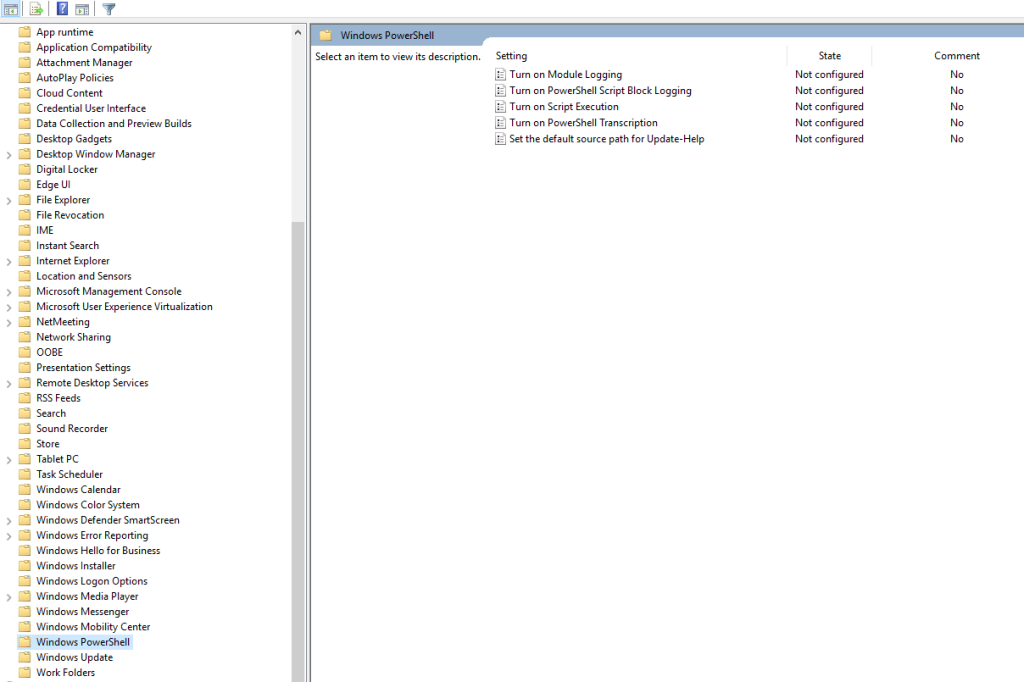
Expand User Configuration, Administrative Templates, Windows Components, and open Windows PowerShell.
Within Windows PowerShell, edit Turn on Script Execution.
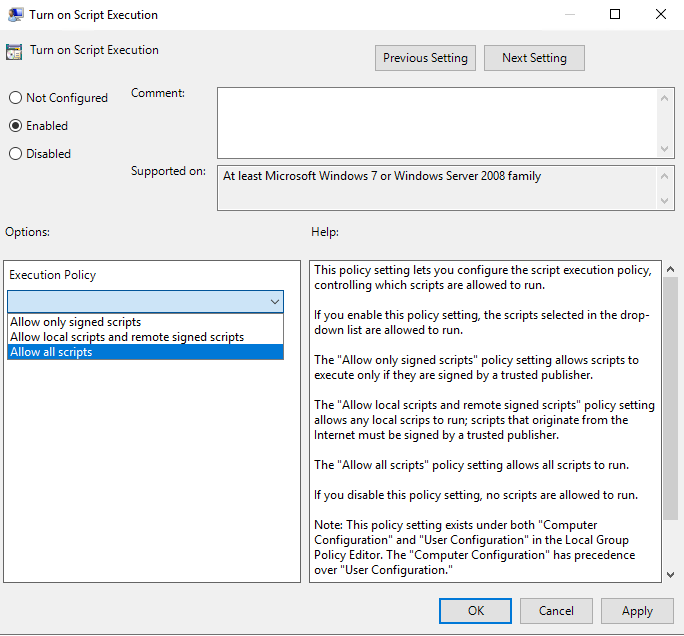
Enable and select Allow all scripts in the combo box.
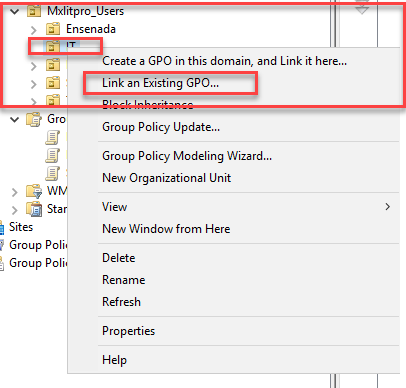
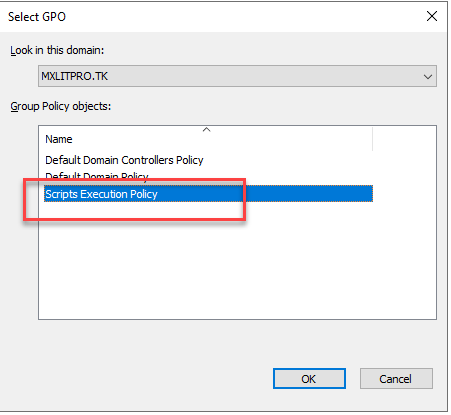
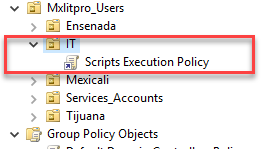
Once our new GPO is created, we can add it to our OU. Because this GPO is based on user configuration, we must add it to an OU where the users are located.
Assigning a GPO to an OU
Another thing we must consider is security. We shouldn’t allow all users to run scripts, so I will only apply this new GPO to the IT OU.
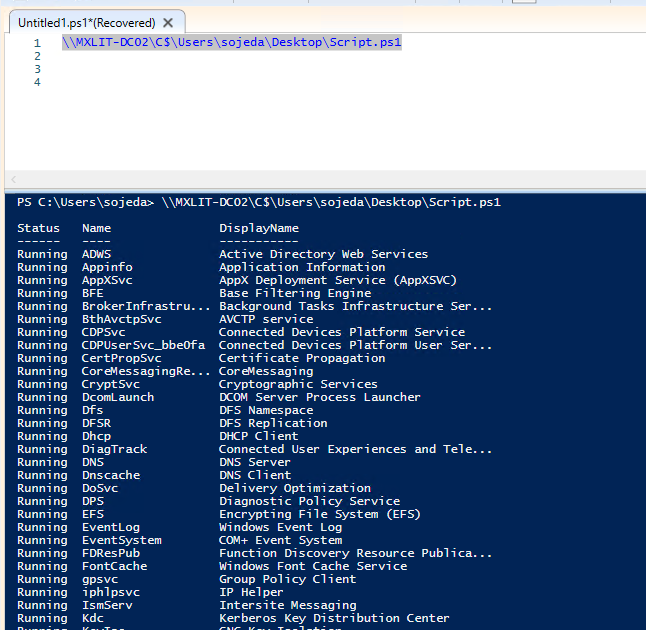
Now, if I run the script, I won’t have any problems.
Note!
Note: “For highly secure production environments, it is recommended to sign scripts and use ‘AllSigned’, but for labs or internal IT automation, ‘Allow all’ is sufficient.”