In this post, I will show you how to create a GPO to meet the minimum requirements for password policies.
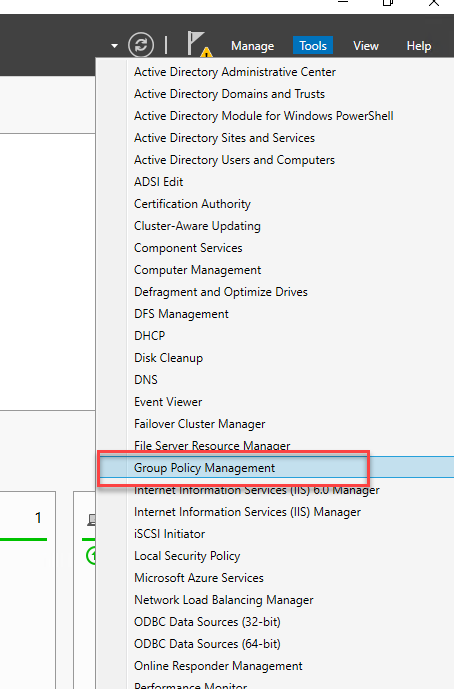
The first step is to access Group Policy Management.
Group Policy Management
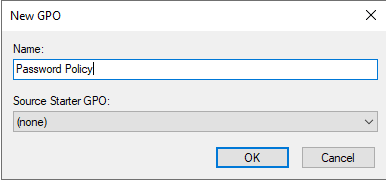
Right-click on Group Policy Objects and select New.

Give it a name related to what you want to do.
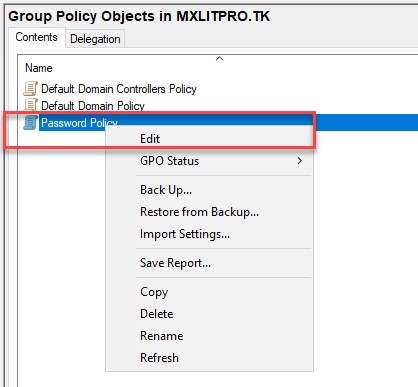
Select the created GPO, right-click, and select Edit.
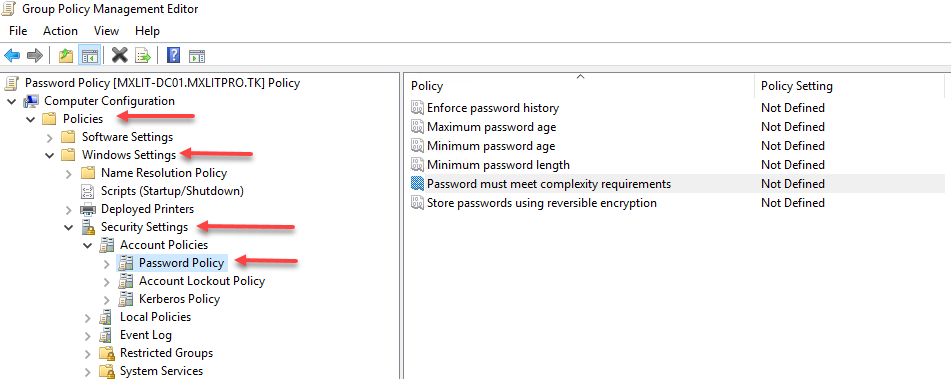
Within the computer settings, expand the following options: Policies, Windows Settings, Security Settings, Account Policies, and select Password Policy.
On the right, you will see the options you can configure.
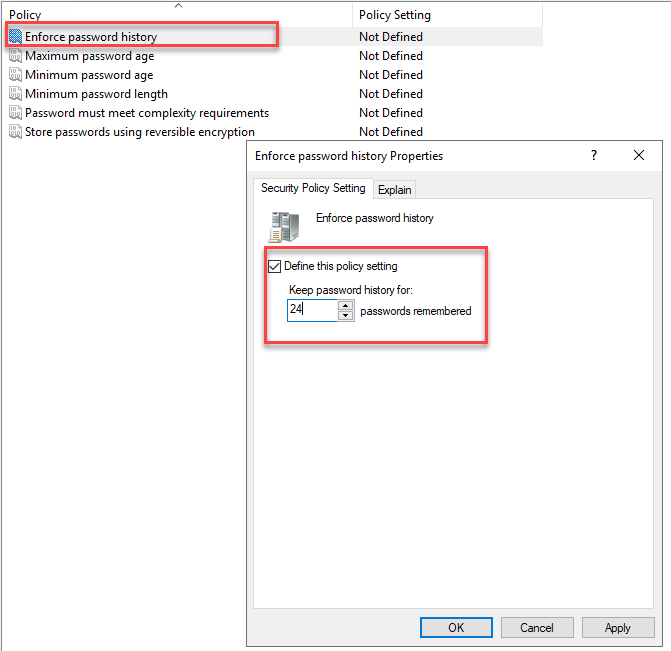
Enforce password history
Enabling this option means that the user will not be able to reuse a password until they have changed their password more than 24 times. This number is usually lower, between 4 and 6, but it all depends on the policies of each company.
Maximum password age
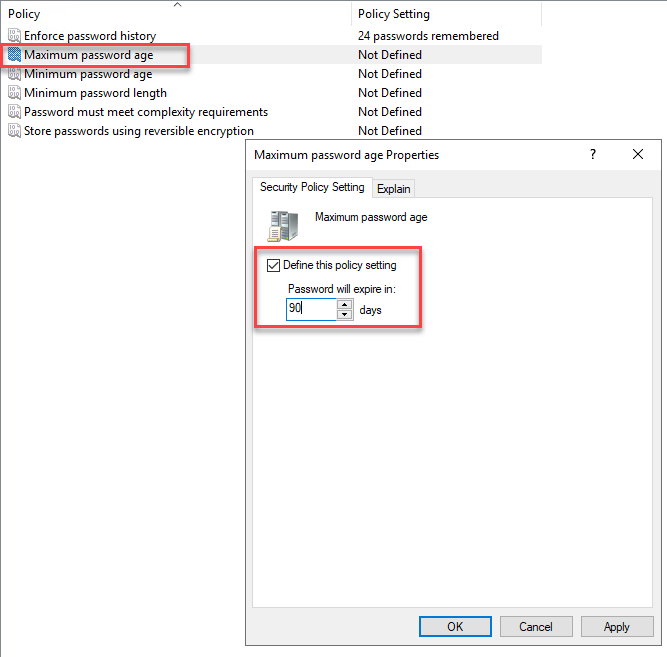
This option determines the time a password will be valid. If this policy isn’t defined, a password change will be required after a maximum of 42 days. In this case, I’ll select 90, meaning users will be required to change their password every 90 days.
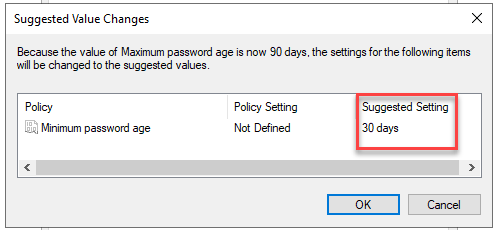
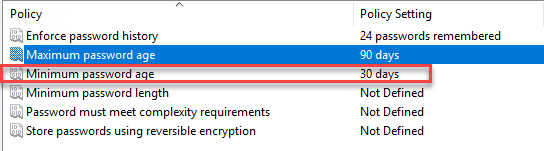
When I select the option described above and choose 90 days, it automatically suggests that the value for Minimum password age be 30 days.
This option means that if a user changes their password today, they won’t be able to change it again for 30 days. This option is recommended if you don’t want users to change their password multiple times a day until they end up with the same password for life.
password123, you know what I mean.
As I mentioned above, this option is enabled by default; otherwise, you will need to modify it.
Minimum password length
This option sets the minimum number of characters allowed in the password.
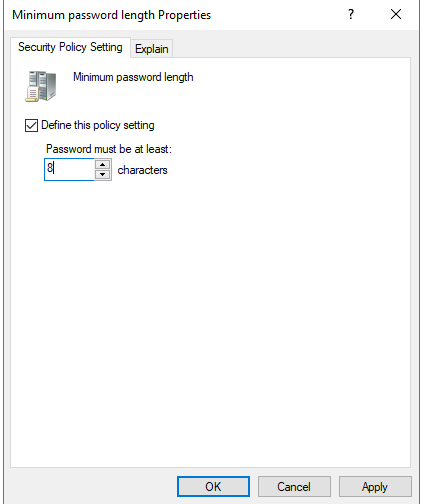
Password must meet complexity requirements
This means that a password must meet the following requirements:
- It cannot contain the user’s account name or parts of the user’s full name that exceed two consecutive characters.
- It must be at least six characters long.
- Contain characters from three of the following four categories: ** Uppercase English characters (A-Z) ** Lowercase English characters (a-z) ** 10-digit base (0-9) Non-alphabetic characters (e.g., !, $, #, %)
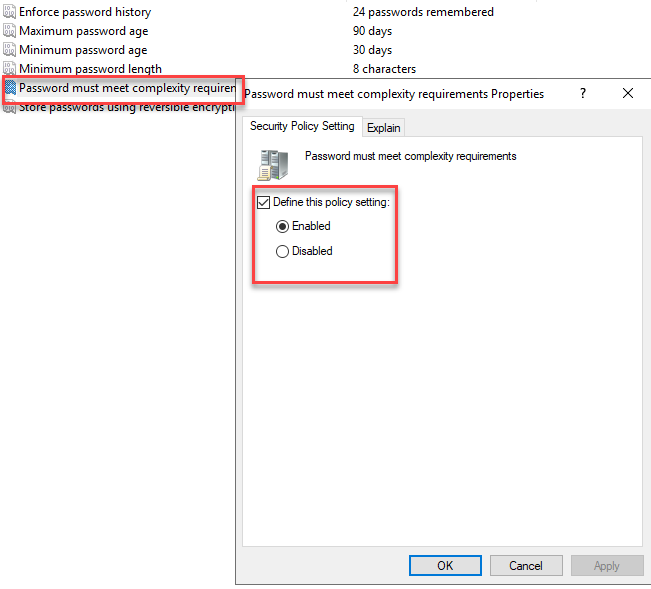
Once the requirements are defined, we can close the editor.
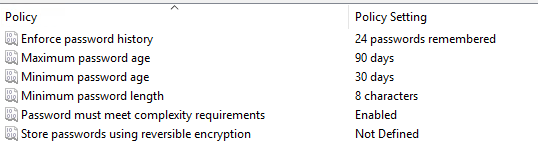
Link an Existing GPO
Select the OU where you want to apply your GPO. It can even be the root of your domain, but in my case, I will specifically select the Users OU.
Right-click and select Link an Existing GPO…
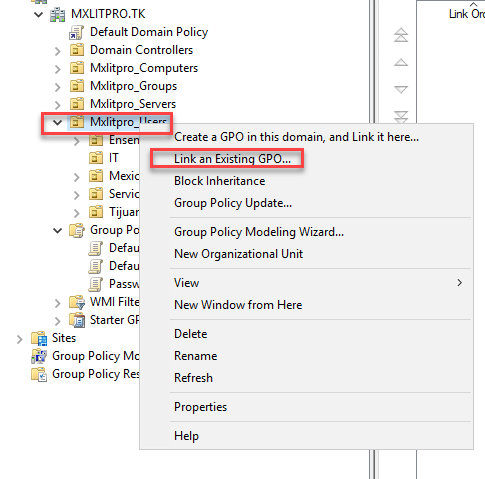
Select the GPO that was just created.
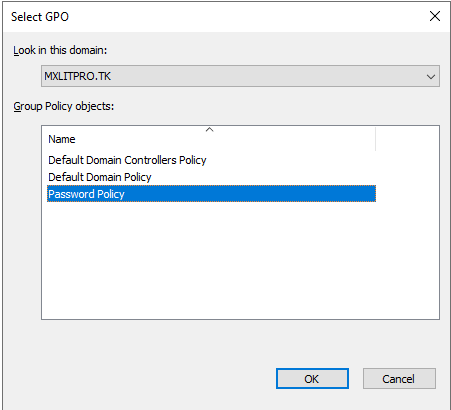
Now we’ll see that the GPO is linked to our OU.
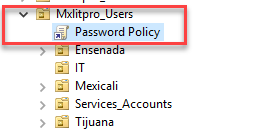
That’s basically all the steps you need to follow to configure password policies within your domain.