Security Procedure: Local Administrator Control
Some time ago, I was asked to find a method to implement certain security and control measures for users who are local administrators on each server. These measures required the following:
- Creation of Groups in AD: Create a security group in Active Directory for each server.
- Assignment of Permissions: Add the created group to the corresponding server with the local administrator role.
- User Migration: Find all current local administrators on the server and add them to the new AD group.
- Account Removal: Once the users are added to the AD group, remove them from the server’s local administrators group.
- Audit Log: Save a log of the users who are administrators on each server.
- Notification: Send an email with a report of the changes made.
The idea behind all of this is to have control and know which users are local administrators on the servers. We’re talking about more than 500 servers, and managing them one by one would be quite complicated.
After analyzing the problem, the best option was to create a PowerShell script and have it run daily as a scheduled task. In this post, I’ll show you step-by-step how to perform this task. This script is, let’s say, an “improved version” of the original script.
This script has six functions, which I’ll explain in each section.
Get-ADGroupName
Get-ADGroupName: This function is used to obtain the Active Directory group name of the selected server. The standard format for the group is: “IT - Local Administrator - SERVERNAME”. The function receives the variable $ServerName, which I’ll use in each of the remaining functions. It will ultimately return the correct group name if it exists in Active Directory.
Function Get-ADGroupName() {
    param($ServerName)
    $ADGroup = 'IT - Local Administrator - ' + $ServerName
    Get-ADGroup -Filter { name -eq $ADGroup } | ForEach-Object { $_.Name }
}
Set-ADGroupName
The Set-ADGroupName function creates the group name in Active Directory if it doesn’t already exist. It also adds a group description, the name according to the standard we use, and something very important to consider is the group’s scope. Active Directory has three scopes: Domain, Local, Global, and Universal. For this group, we must use the universal scope. Why? Well, let’s say we have several security groups on our servers, such as local administrators, and these groups have a universal scope. If we create our new groups with a global scope and then try to add groups with a universal scope to them, we simply won’t be able to. The universal scope supports the other scope types, and this is something to keep in mind. To avoid problems, create the universal scope as shown in the block below and add it to the corresponding path.
Function Set-ADGroupName() {
    param($ServerName)
    $DescriptionGroup = 'Members of this group are Administrators of ' + $ServerName
    $ADGroupName = 'IT - Local Administrator - ' + $ServerName
    New-ADGroup -Name $ADGroupName -GroupCategory Security -GroupScope Universal -DisplayName $ADGroupName -Path "OU=IT - Local Administrators - Servers Groups,OU=Restricted,OU=MXLITPRO_Groups,DC=MXLITPRO,DC=TK" -Description $DescriptionGroup
    Write-Host "Created the AD Group $ADGroupName" -BackgroundColor Black -ForegroundColor Green
}
Add-ADGroupName-To-Server
Add-ADGroupName-To-Server, this function will add the corresponding AD group to each server. There is an IF condition: when the script runs, it will attempt to connect remotely to each server. If it attempts to connect remotely to the server where it is running, it will create an error. Therefore, if this condition is met (if ($ServerName -eq $env:computername)), then it will only add the AD group to the local administrators group. As you can see, the function only receives the server name variable, and within the block, I am calling the function to obtain the AD group name. If the command is invoked on a remote server, I am directly sending the AD group name.
Function Add-ADGroupName-To-Server() {
    param($ServerName)
    if ($ServerName -eq $env:computername) {
        Add-LocalGroupMember -Group Administrators -Member (Get-ADGroupName -ServerName $ServerName) -ErrorAction SilentlyContinue
    }
    else {
        Invoke-Command -ComputerName $ServerName -ScriptBlock {
            param($ADGroup)
            Add-LocalGroupMember -Group Administrators -Member $ADGroup
        } -ArgumentList (Get-ADGroupName -ServerName $ServerName) -ErrorAction SilentlyContinue
    }
}
Get-LocalUsers-From-Server
Get-LocalUsers-From-Server, this function will retrieve all users or groups that are administrators within the server. Since I am only interested in obtaining users that belong to Active Directory and not local users, I added the condition Where-Object { $_.PrincipalSource -eq ‘ActiveDirectory’ }. In this block, I basically add the same IF condition in case I want to execute this block on the same server where it is running. In addition, I created a custom object that will help me form my CSV file where I can group the server name along with the user or group that is an administrator on each of the servers.
Function Get-LocalUsers-From-Server() {
    param($ServerName)
    if ($ServerName -eq $env:computername) {
           Get-LocalGroupMember administrators | Where-Object { $_.PrincipalSource -eq 'ActiveDirectory' } | ForEach-Object {
            New-Object psobject -Property @{
                Server     = $ServerName
                LocalAdmin = $_.Name
            }
        }
    }
    else {
        Invoke-Command -ComputerName $ServerName -ScriptBlock {
            Get-LocalGroupMember administrators | Where-Object { $_.PrincipalSource -eq 'ActiveDirectory' } |  ForEach-Object {
                New-Object psobject -Property @{
                    Server     = $env:computername
                    LocalAdmin = $_.Name
                }
            }
        }
    }
}
Remove-LocalUsers-From-Server
Remove-LocalUsers-From-Server, this function takes the server name and a user or group, basically it will remove the latter from the local administrators group, note that I also include the IF condition and that on the remote server I am only passing the user variable.
Function Remove-LocalUsers-From-Server() {
    param($ServerName, $LocalAdmin)
    if ($ServerName -eq $env:computername) {
        Remove-LocalGroupMember -Group Administrators -Member $LocalAdmin
    }
    else {
        Invoke-Command -ComputerName $ServerName -ScriptBlock {
            param($LocalAdmin)
            Remove-LocalGroupMember -Group Administrators -Member $LocalAdmin
        } -ArgumentList $LocalAdmin
    }
}
Send-Mail
Send-Mail, this function will be executed at the end of the script and will only send an email indicating where the logs are located.
Function Send-Mail() {
    $smtpServer = "outlook.mxlitpro.tk"
    $smtpFrom = "[email protected]"
    $smtpTo = "[email protected]"
    $messageSubject = "Users in local admin group"
    $message = New-Object System.Net.Mail.MailMessage $smtpfrom, $smtpto
    $message.Subject = $messageSubject
    $message.IsBodyHTML = $true
    $message.Body =
    "<font face='Arial', size=3>
    <br>
    <br>Users in local admin group
    <br>
    <br>Logs are located in the following path:
    <br>\\HERE YOUR PATH
    <br>
    </font>"
    $smtp = New-Object Net.Mail.SmtpClient($smtpServer)
    $smtp.Send($message)
    $smtp.Dispose();
}
Now, having the functions of our script, the first thing we must do is obtain all the servers. To do this, we will search for all servers with the OS being Windows within our selected OU. We will also need to create two empty arrays; one will be used to obtain all users or groups that are local administrators, and the other to know which servers were not online.
Clear-Host
$UsersInLocalAdminGroup = @()
$UnavailableServers = @()
$Servers = Get-ADComputer -Properties OperatingSystem -Filter * -SearchBase "OU=MXLITPRO_Servers,DC=MXLITPRO,DC=TK" | Where-Object { $_.OperatingSystem -like "*Windows*" }#Get all Servers that belong to the Server OU
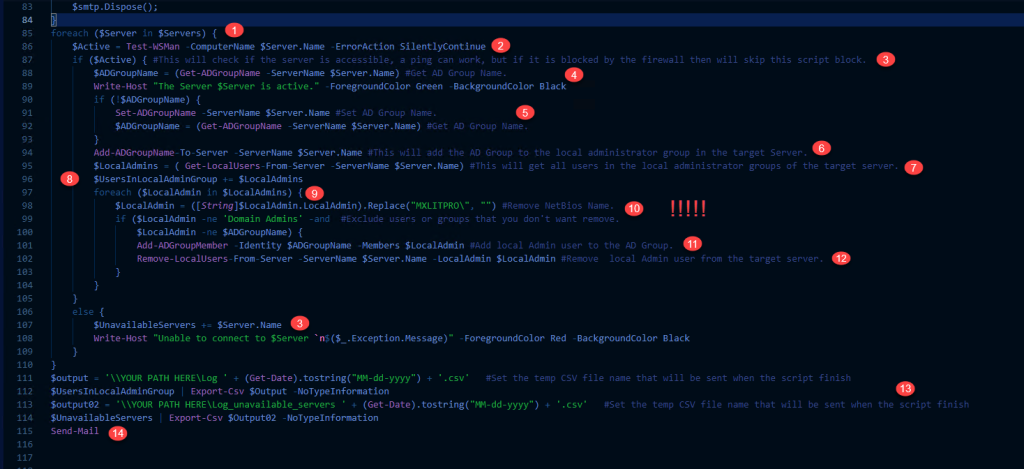
Now I will try to explain this entire block step by step, including an image as a guide.
Here I simply iterate through all the servers I obtained and stored in my variable.
Test-WSMan: This will check if the server is accessible. It can be replaced with a ping, and if the server responds, then enter the if condition. Note that Windows Server has the ICMPv4 protocol blocked by default, and this may not be the best way to verify that the server is active unless you know that the firewall is disabled on all servers.
If the above condition is met, the block will proceed. Otherwise, the server name will be added to the array of unavailable servers.
We will obtain the group name based on the server name.
If we don’t obtain the name because it’s a new server and the group doesn’t exist, we will create a new group and then obtain the name of the created group.
We will add the group as a local administrator on the server.
We will retrieve all local administrators and store them in the variable $LocalAdmins.
We will add everything contained in the variable $LocalAdmins to the array of local administrators.
We will iterate through each of the local administrators within the foreach loop.
Here, I essentially do two things: one is to remove the NetBIOS name, and the other is an IF condition. This step is extremely important because our variable $LocalAdmins contains Active Directory users and groups. It’s a given that the Domain Admins group will be included. At this point, within the IF variable, we must specify that it will only be true if the user or group is different from Domain Admins. Otherwise, when the block below executes, our server will be left without any Active Directory users or groups as administrators. Note: This happened to me during this review; however, I have a GPO to keep the Domain Admins group within the local administrators group.
Link here
In this step, the Active Directory user or group found in the $LocalAdmin variable will be added to the new Active Directory group.
Here, the Active Directory user or group in the $LocalAdmin variable will be removed from the local administrators group on the server.
Here, only the logs will be saved to the specified paths.
The function to send email is executed.
foreach ($Server in $Servers) {
    $Active = Test-WSMan -ComputerName $Server.Name -ErrorAction SilentlyContinue
    if ($Active) { #This will check if the server is accessible, a ping can work, but if it is blocked by the firewall then will skip this script block.
        $ADGroupName = (Get-ADGroupName -ServerName $Server.Name) #Get AD Group Name.
        Write-Host "The Server $Server is active." -ForegroundColor Green -BackgroundColor Black
        if (!$ADGroupName) {
            Set-ADGroupName -ServerName $Server.Name #Set AD Group Name.
            $ADGroupName = (Get-ADGroupName -ServerName $Server.Name) #Get AD Group Name.
        }
        Add-ADGroupName-To-Server -ServerName $Server.Name #This will add the AD Group to the local administrator group in the target Server.
        $LocalAdmins = ( Get-LocalUsers-From-Server -ServerName $Server.Name) #This will get all users in the local administrator groups of the target server.
        $UsersInLocalAdminGroup += $LocalAdmins
        foreach ($LocalAdmin in $LocalAdmins) {
            $LocalAdmin = ([String]$LocalAdmin.LocalAdmin).Replace("MXLITPRO\", "") #Remove NetBios Name.
            if ($LocalAdmin -ne 'Domain Admins' -and  #Exclude users or groups that you don't want remove.
                $LocalAdmin -ne $ADGroupName) {
                Add-ADGroupMember -Identity $ADGroupName -Members $LocalAdmin #Add local Admin user to the AD Group.
                Remove-LocalUsers-From-Server -ServerName $Server.Name -LocalAdmin $LocalAdmin #Remove  local Admin user from the target server.
            }
        }
    }
    else {
        $UnavailableServers += $Server.Name
        Write-Host "Unable to connect to $Server `n$($_.Exception.Message)" -ForegroundColor Red -BackgroundColor Black
    }
}
$output = '\\YOUR PATH HERE\Log ' + (Get-Date).tostring("MM-dd-yyyy") + '.csv'   #Set the temp CSV file name that will be sent when the script finish
$UsersInLocalAdminGroup | Export-Csv $Output -NoTypeInformation
$output02 = '\\YOUR PATH HERE\Log_unavailable_servers ' + (Get-Date).tostring("MM-dd-yyyy") + '.csv'   #Set the temp CSV file name that will be sent when the script finish
$UnavailableServers | Export-Csv $Output02 -NoTypeInformation
Send-Mail
Well, that’s it. Here we’ve learned how to do multiple things with a single script. As I said above, this will help us maintain control over who is the administrator, which can be very useful when managing hundreds of servers and wanting to have better control.