In this post, we’ll see how to create a virtual machine template that we can use to create other virtual machines.
I recommend updating Windows completely before creating the template. Once that’s done, we can proceed.
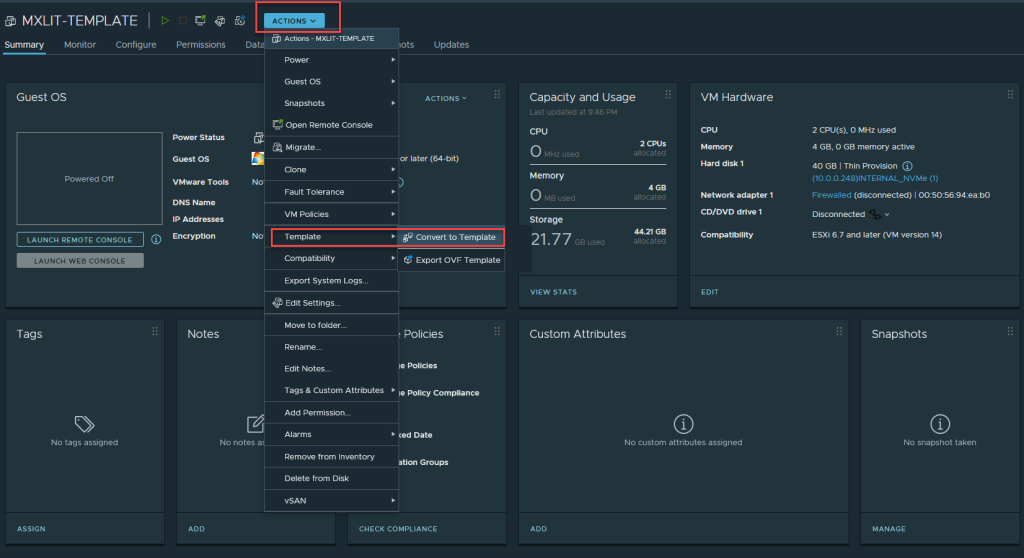
Select the virtual machine you want to convert into a template, click on Actions, select Template, and then Convert to Template.
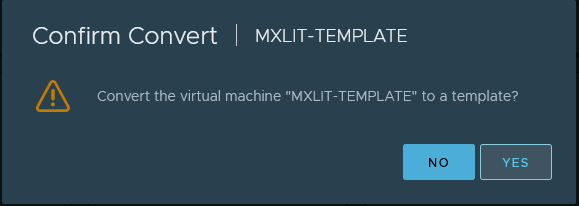
Accept the warning.
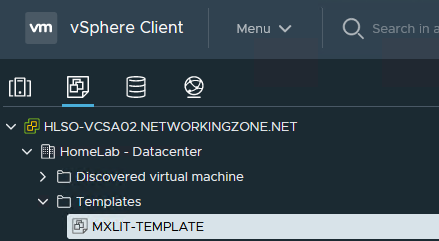
As you can see in the image, the template has disappeared from the resource pool.

The created template will now be located within the VMs and Templates tab.
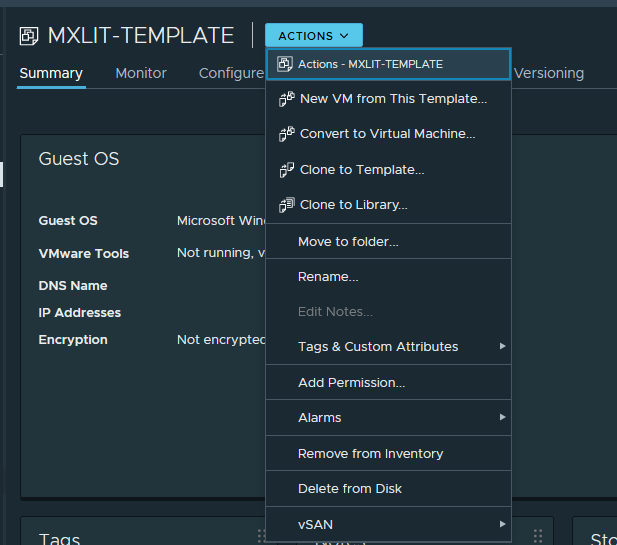
As you can see, the template actions can no longer be executed as before, but now we have other options such as creating a new VM from this template, converting this template back into a VM, cloning the template, etc.
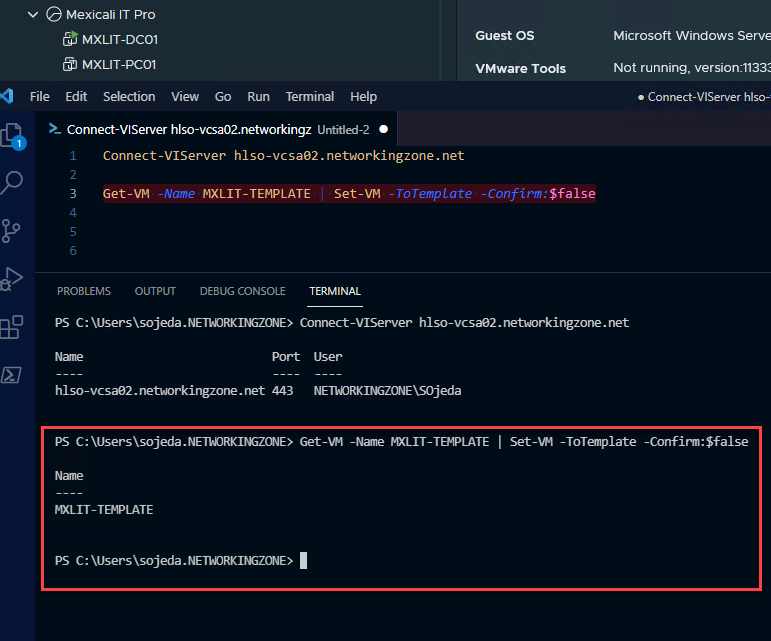
Now that we’ve seen how to perform the procedure using the graphical option in vCenter, let’s do it using PowerCLI. PowerCLI is basically PowerShell with VMware libraries.
The first thing we need to do is connect to the server. To do this, we run the following command:
Connect-VIServer YOUR-SERVER-NAME-HERE
The command above doesn’t include the username and password because I’m running the script from a user with privileges.
To pass the username and password, you can use this command:
Connect-VIServer YOUR-SERVER-NAME-HERE -User 'YOURUSER' -Password 'YOURPASSWORD'
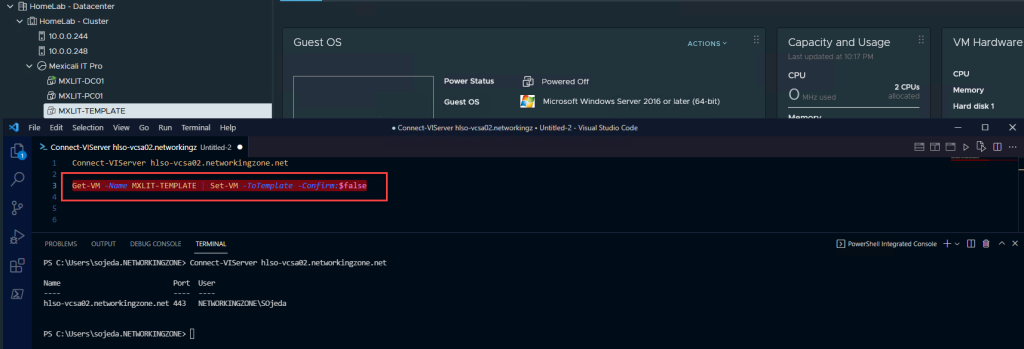
As you can see in the image, the command executed correctly.
Finally, simply close the connection to the server with the command below.