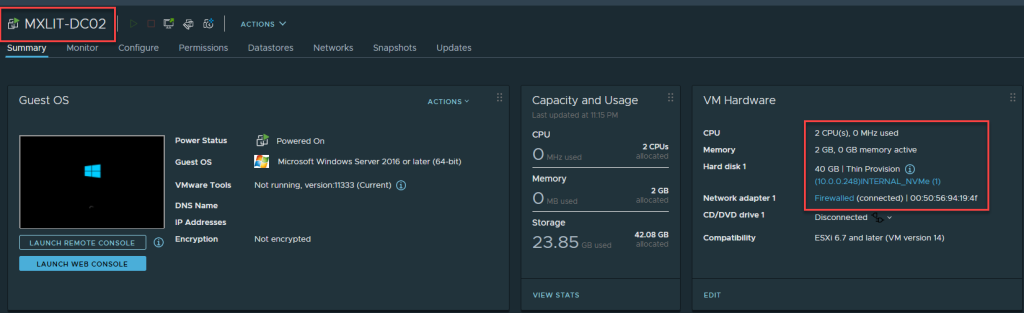
In this post, we’ll see how to create a new VM from a template. In previous posts, we saw how to create a VM from scratch; however, the ideal way is to create VMs from a template. Here, we’ll see how to perform this task using vCenter (graphical method) and PowerShell.
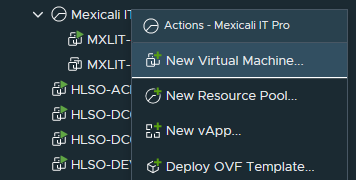
Right-click where you want to create the VM (in this case, I’ll use the resource pool I created earlier), then select New Virtual Machine….
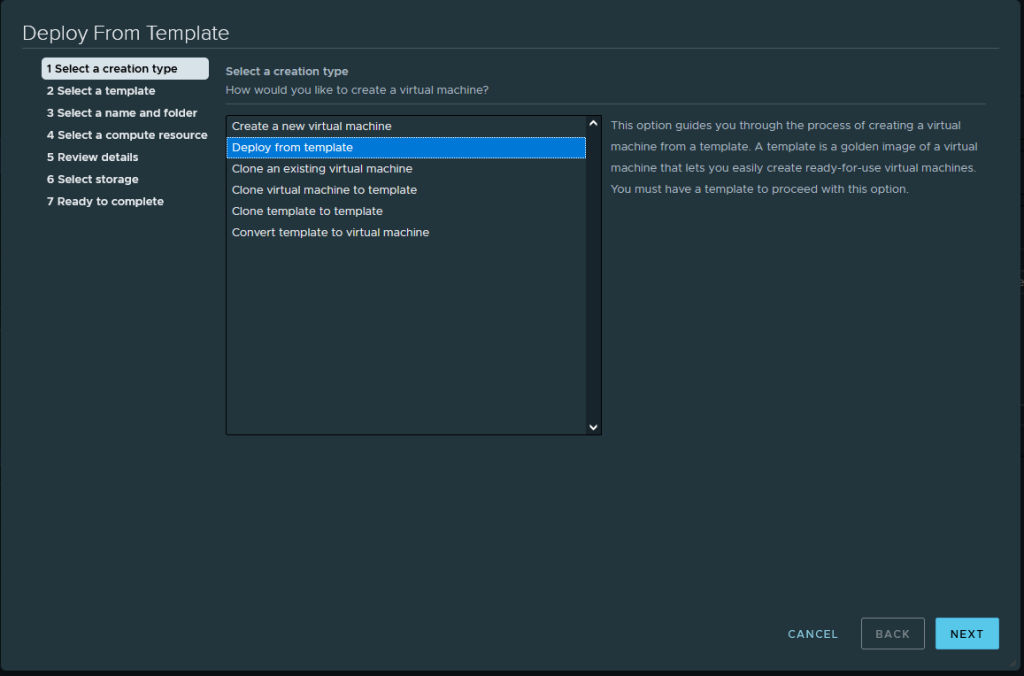
Select Deploy from template.
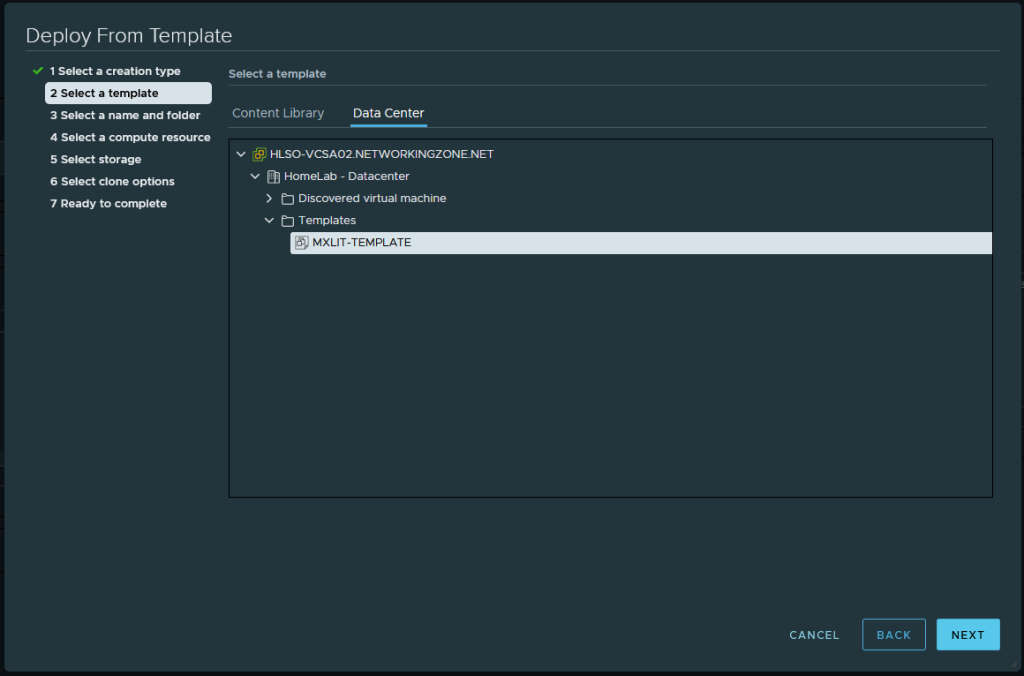
Select the desired template.
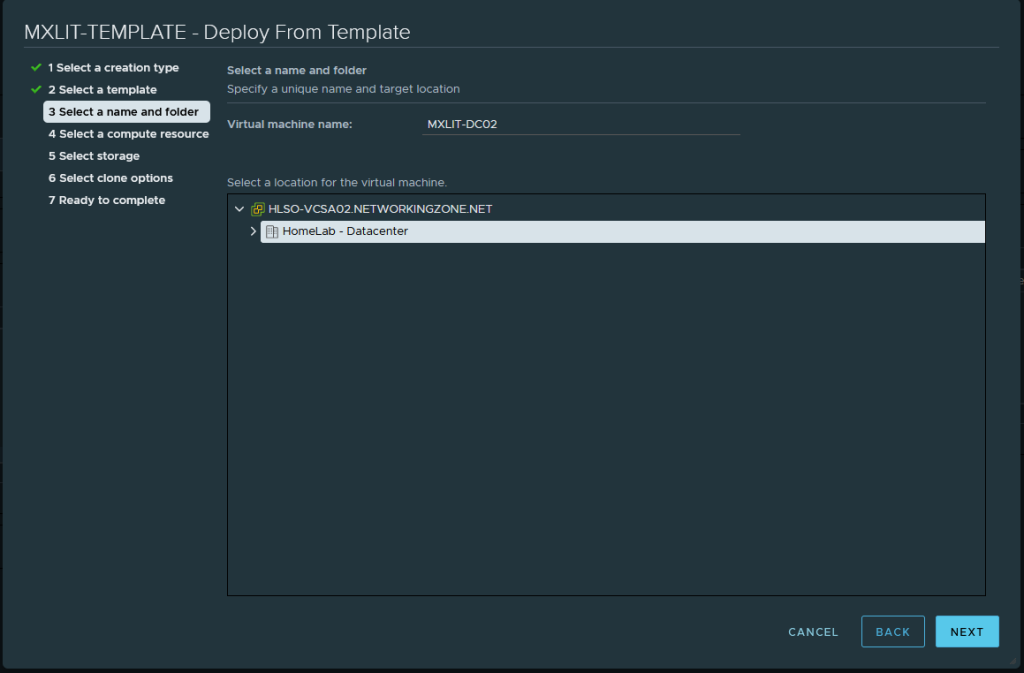
Assign a name to the new VM we will create and select the location.
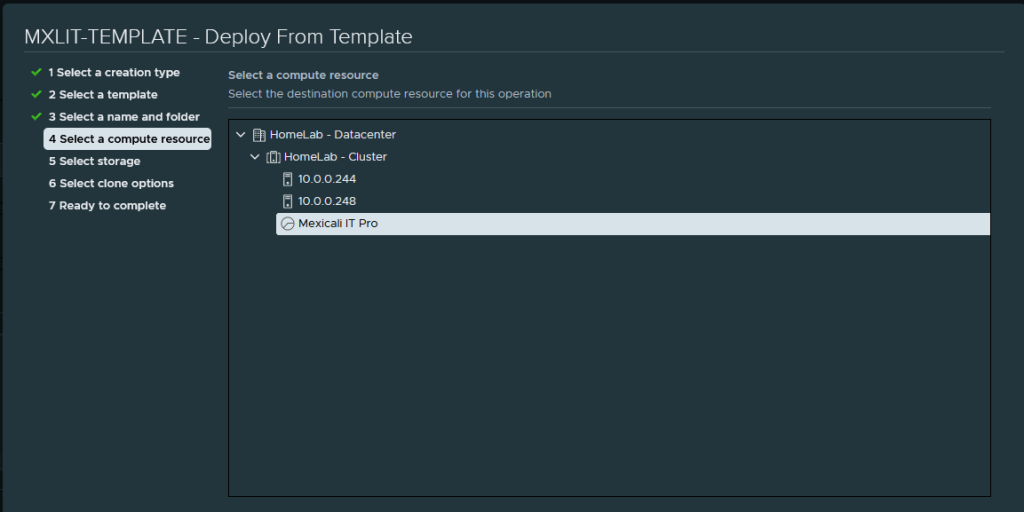
Select the compute resource we will use.
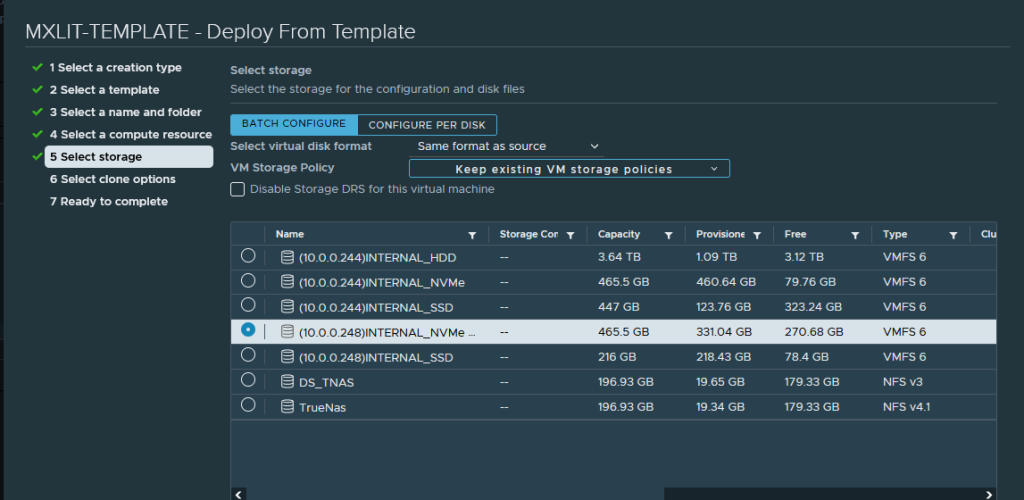
Select the storage.
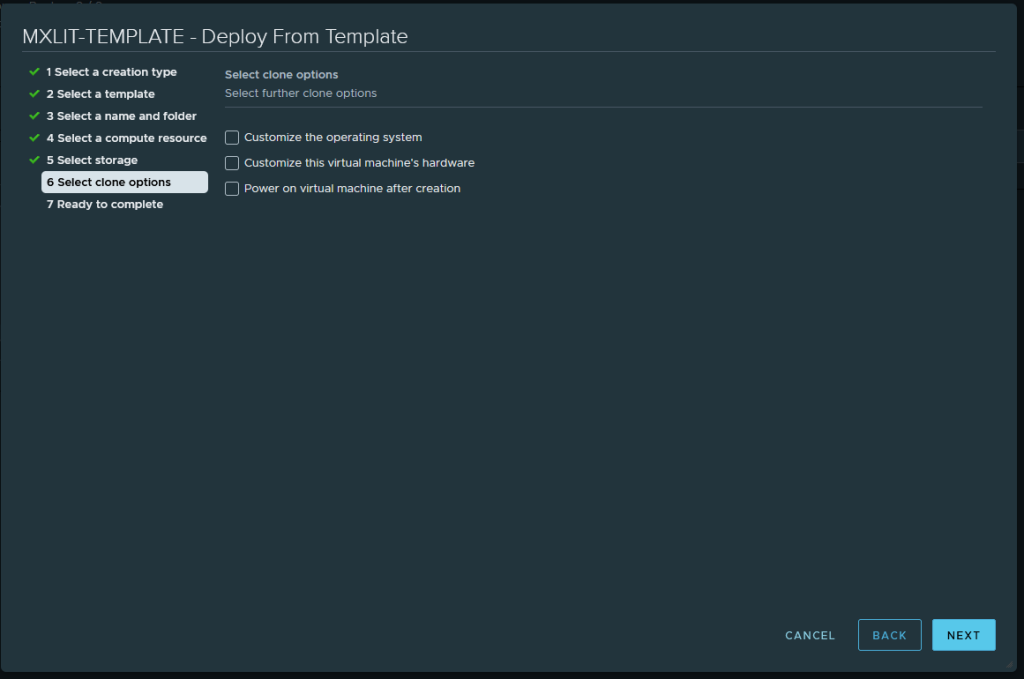
Note: At this point, we can edit the VM’s hardware before creating it. For example: My template is 4GB. Here, I can add more RAM, another hard drive, increase the initial hard drive size, assign more CPU, etc.
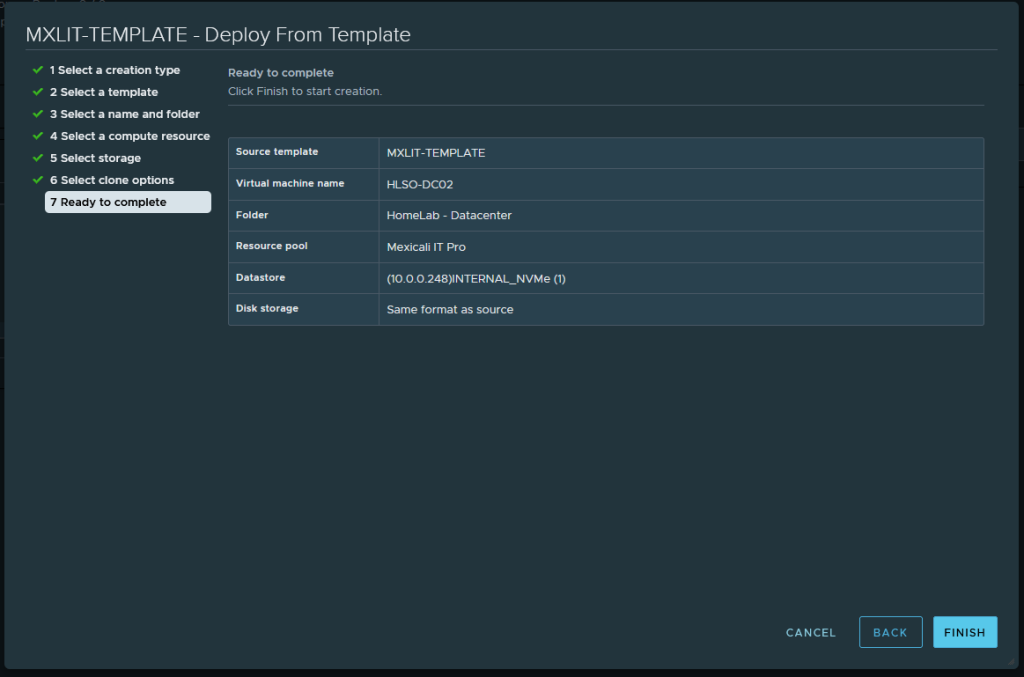
Finally, it will give us a summary of the new VM. Click “Finish.” When it’s finished, we’ll see that a new VM has been created.
Now we’ll do the same procedure, but this time from PowerShell. In the example below, I’ll follow the same procedure, only this time I’ll modify the amount of RAM assigned to the new VM.
For this example, I’ll be using a resource pool, but you can create the VM on a cluster or host, depending on what suits your needs. Just replace the $ResourcePool variable with $Cluster or $EsxiHost. The ResourcePool parameter accepts ResourcePool, Cluster, VApp or VMHosts.
$TemplateName = 'YOUR TEMPLATE NAME'
$EsxiHostName = 'YOUR HOST NAME'
$ClusterName = 'YOUR CLUSTER NAME'
$ResourcePoolName = 'YOUR RESOURCE POOL NAME'
$DataStoreName = 'YOUR DATA STORE NAME'
$vCenter = "YOUR VCENTER NAME"
Connect-VIServer -Server $vCenter
$Template = Get-Template -Name $TemplateName
$EsxiHost = Get-VMHost -Name $EsxiHostName
$ResourcePool = Get-ResourcePool -Name $ResourcePoolName
$Cluster = Get-Cluster -Name $ClusterName
$DataStore = Get-Datastore -Name $DataStoreName
$VM = New-Vm -Template $Template -Name 'YOUR VM NAME' -ResourcePool $ResourcePool -Datastore $DataStore -DiskStorageFormat Thin | Set-VM -NumCpu 2 -MemoryGB 2 -Confirm:$False
Start-VM -VM $VM -Confirm:$False
Disconnect-VIServer -Server $vCenter -Confirm:$false
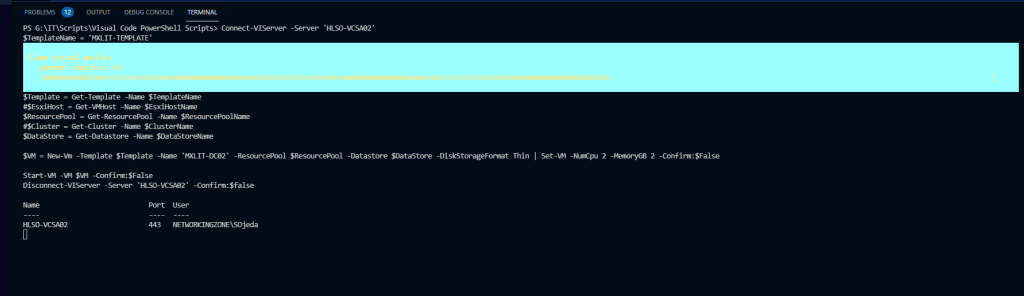
When we run the script, we see that there are no errors and a new VM is being created.
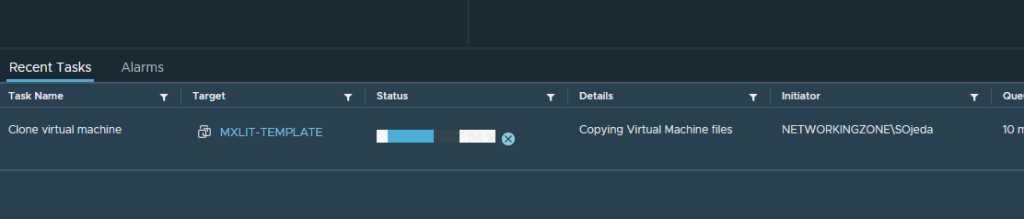
In the Tasks tab, we can see that it is running correctly.
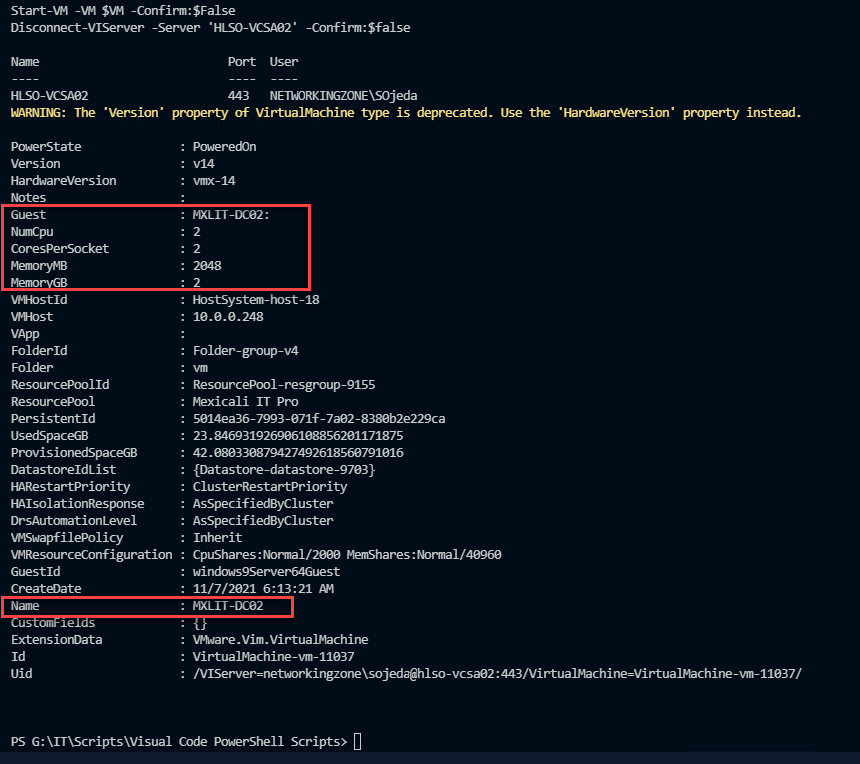
Upon completion, we see that the desired changes have been applied, including the change of RAM, CPU, hostname, and the selected resource pool.
In vCenter, we see that everything is as we configured it.