As we’ve seen in previous posts, the typical way to create new virtual machines is through templates. As administrators, we need to keep these templates updated. Having one or two templates isn’t a challenge or very time-consuming, but if you have several templates in different locations, such as: 3 templates in Mexicali, 3 in Tijuana, 3 in Ensenada, and another 3 somewhere else (just to name a few), this task can be a bit time-consuming since the procedure involves several steps.
Here’s an example of what we usually need to do:
- Convert the template back into a virtual machine.
- Start the virtual machine.
- Log in as an administrator, go to Control Panel, check for recent updates, accept them, apply them, and restart the computer.
- Once the steps above are completed, we need to convert that virtual machine back into a template and start the rest of the templates again.
In this post, we’ll see how to perform the above steps for all templates using PowerShell without having to do anything manually.
Automation is the way!
For this, we need to keep in mind that the templates must have the following:
VMware Tools installed.
PowerShell Version 4 or higher.
PSWindowsUpdate module in PowerShell.
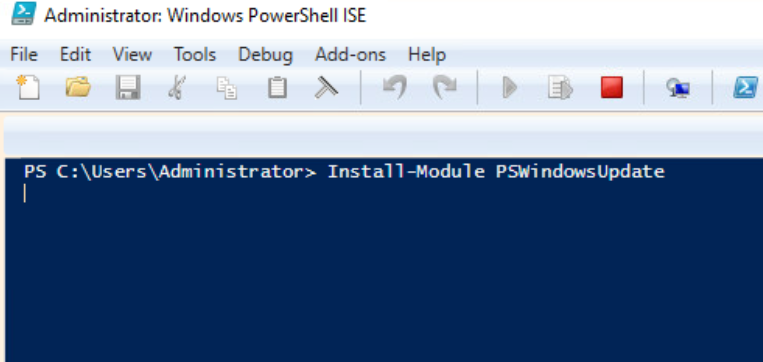
As I mentioned, the PsWindowsUpdate module is essential for this script to work. Installing it is very simple: just run PowerShell as administrator and execute the following command.
Install-Module PSWindowsUpdate
This is the script you can use to perform these tasks.
Connect-VIServer -Server 'YOUR VCENTER HERE'
$Templates = Get-Template | ForEach-Object {$_.Name}
foreach ($Template in $Templates) {
$Template
$Template
#Convert the Template to a VM
Set-Template -Template $Template -ToVM -Confirm:$False -RunAsync
Start-Sleep-Seconds 30
#PowerontheVM
Start-VM -VM $Template
Start-Sleep-Seconds 60
#GetCredentials
$User = 'Administrator'
$Password = ConvertTo-SecureString (Get-Content -Path 'YOURPASSWORD PATH HERE\Template_Credentials.txt') -AsPlainText -Force
$Credentials = New-Object -TypeName System.Management.Automation.PSCredential -ArgumentList $user, $Password
Invoke-VMScript -ScriptType PowerShell -ScriptText "Install-WindowsUpdate -MicrosoftUpdate -AcceptAll -AutoReboot" -VM $Template -GuestCredential $Credentials | Out-File -FilePath c:\temp\Windows_Updates.log -Append
Start-Sleep-Seconds 1800
Update-Tools -VM $Template -NoReboot
Restart-VMGuest -VM $Template -Confirm:$false
Shutdown-VMGuest –VM $Template -Confirm:$false
Start-sleep -s 120
Set-VM –VM $Template -ToTemplate -Confirm:$false
}
Disconnect-VIServer -Server '
VCENTER HERE

' -Confirm:$false
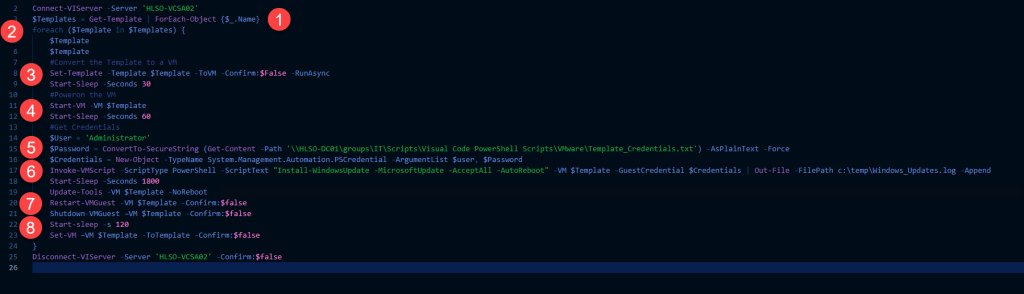
In the following image I will describe what this script does.
Okay, we already know that we first need to connect to our vCenter, so I haven’t highlighted it in the image.
Let’s begin.
- At this point, I store all the template names in the variable
$Templates. - I use a
foreachloop to iterate through the templates and apply the updates to each one. - I convert the template into a virtual machine. Here, I pause to allow the VMware process to finish.
- I start the virtual machine. Again, I pause to wait for Windows to start.
- At this point, I’m creating the credentials I’ll use to connect to the machine and run the code remotely. In my case, I’m storing the password in a
.TXTfile so it’s not visible in the code, but you can pass the password directly by simply removing everything within the parentheses and passing a variable containing the password. 6. Here I’m invoking a PowerShell script on the virtual machine. The text or code to be executed will be the parameters “Install-WindowsUpdate -MicrosoftUpdate -AcceptAll -AutoReboot”. I’ll also save the logs in my C:\Temp\Windows_Updates.log folder, which I can review later when the entire process is complete. Here again, I’m pausing for 30 minutes to wait for the updates to complete. This part may vary, so it’s up to you. To finish this step, I’m also updating VMware Tools. - Here you can restart the virtual machine.
- At this point, I shut down the virtual machine and convert it back into a template. Note: Since all this code is inside a foreach loop, it will perform the same procedure on all the remaining templates.
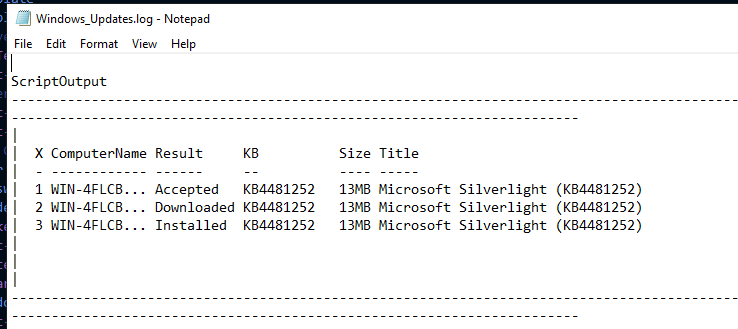
At the end, we will be able to Observe a log like the following, which shows the computer name, the result, the update, the size, and the title of the applied update.
Okay, as a final step, we just need to create a scheduled task that runs monthly, and then we won’t have to worry about this anymore.