In this post, I will show you how to configure the page file for Exchange Server 2013/2016 using best practices. The process is slightly different for Exchange Server 2019, but I will explain the differences in paging.
Recommended RAM and Page File Size for 2013/2016 Versions
Before continuing, please note the following:
For the Mailbox role, the minimum recommended RAM is 8GB.
For the Edge Transport role, the minimum recommended RAM is 4GB.
The maximum memory is 196GB.
To configure the page file, the following calculation must be performed: Total RAM + 10MB. That is, if you want to configure a single server with the Mailbox and Edge Transport roles using the minimum RAM (12GB), the page file will be: 12GB (12288MB) + 10MB = 12388MB. The maximum is 32GB; configuring a file larger than 32GB is pointless since this size will never be reached.
You can use the following table as a guide.
| RAM (GB) | RAM (MB) | Page File (MB) |
|---|---|---|
| 8GB | 8192MB | 8202MB |
| 12GB | 12288MB | 12388MB |
| 16GB | 16384MB | 16394MB |
| 24GB | 24576MB | 24586MB |
| 32GB | 32768MB | 32768MB |
| 64GB | 65536MB | 32768MB |
Recommended RAM and Page File Size for 2019 Versions
For the Mailbox role, the minimum recommended RAM is 128GB.
For the Edge Transport role, the minimum recommended RAM is 64GB.
The maximum RAM is 256GB.
The page file size is calculated differently, being 25% of the total RAM and a maximum of 64GB.
You can use the following table as a reference:
| RAM (GB) | RAM (MB) |
|---|---|
| 64GB | 16384MB |
| 96GB | 24576MB |
| 128GB | 32768MB |
| 160GB | 40960MB |
| 192GB | 49152MB |
| 256GB | 65536MB |
To configure the paging file, follow the steps below.
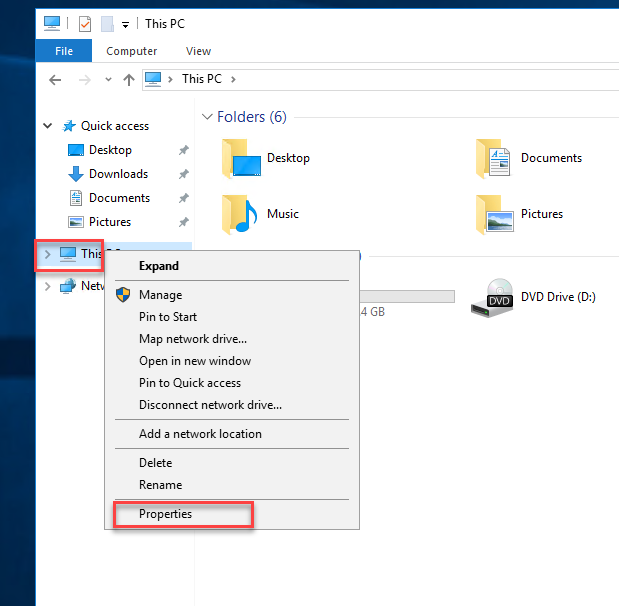
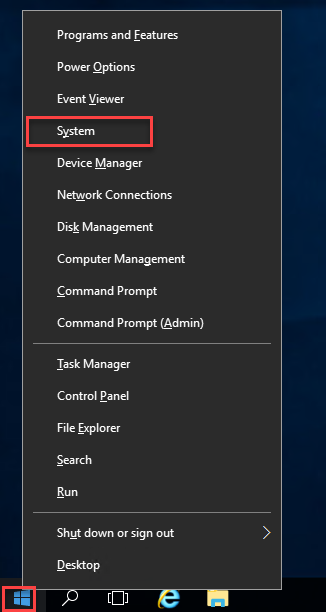
Right-click on “This PC” and then click on Properties, or right-click on the Windows Start menu and then click on “System”.
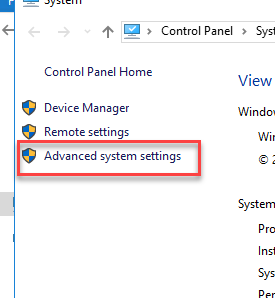
Click on “Advanced system settings”.
Click the “Advanced” tab and then click the “Settings…” button.
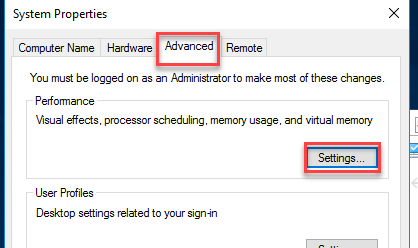
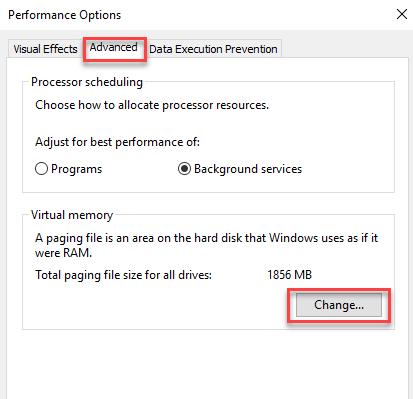
Click the “Advanced” tab and then click the “Change…” button.
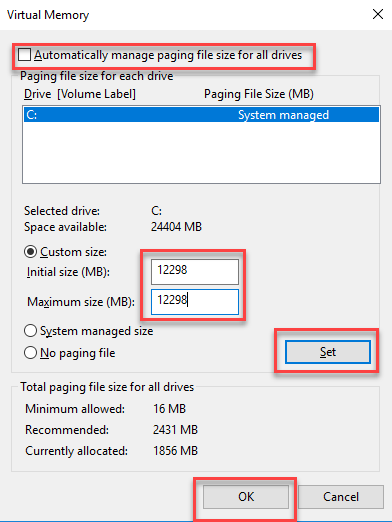
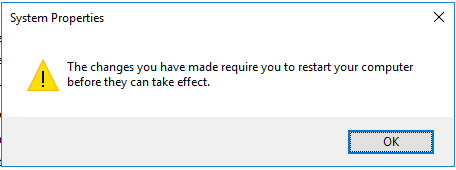
Uncheck “Automatically manage paging file size for all drives,” click “Custom size:” and enter the same value for both the initial and maximum sizes. Then click “Set” and “OK” until you close all the windows. When finished, you will be prompted to restart your system for the changes to take effect. Restart, and paging will be configured correctly.
You have now learned how to configure the paging file to be ready for the Exchange Server installation.
If you haven’t made these changes to your production server, I encourage you to read more on Microsoft’s blogs to follow best practices.