The SYSVOL directory is a folder on Windows domain controllers that contains information and data necessary for the logon system and other Active Directory functions to work correctly. SYSVOL is essential for domain controller replication and the consistency of Active Directory data across the domain.
When SYSVOL replication fails between domain controllers, it can cause serious problems with Active Directory functionality, such as the failure to create Group Policy Objects (GPOs). If these GPOs are not reflected across the different domain controllers, it can become a major issue.
To resolve this, we must determine which domain controller will act as the master, that is, the domain controller with the most up-to-date policies. The following fix will overwrite anything that doesn’t match. Let’s assume that DC01 has more recent policies than DC02 and DC03; then DC01 is more up-to-date and will act as the master for this purpose.
To fix this, several steps must be taken. We will force something called authoritative and non-authoritative synchronization.
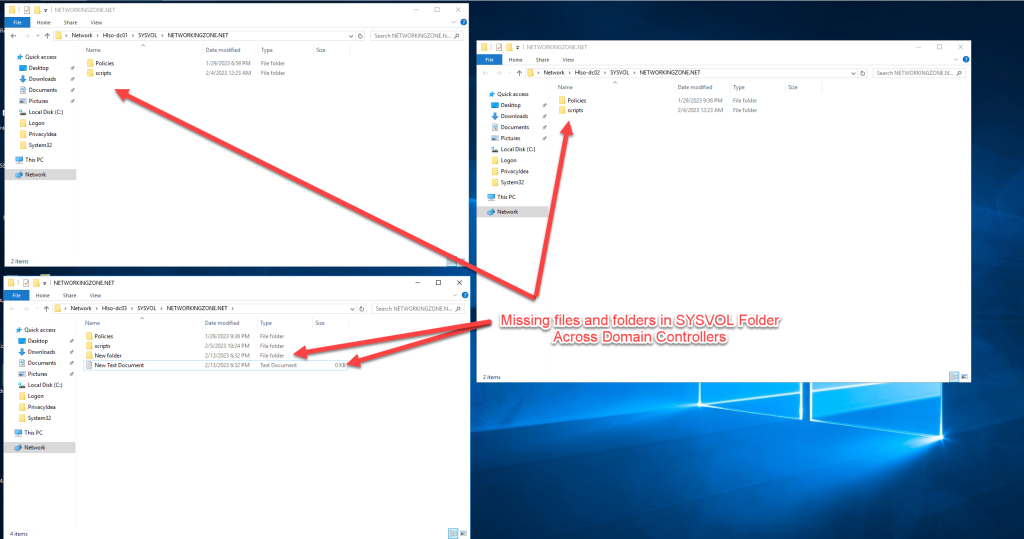
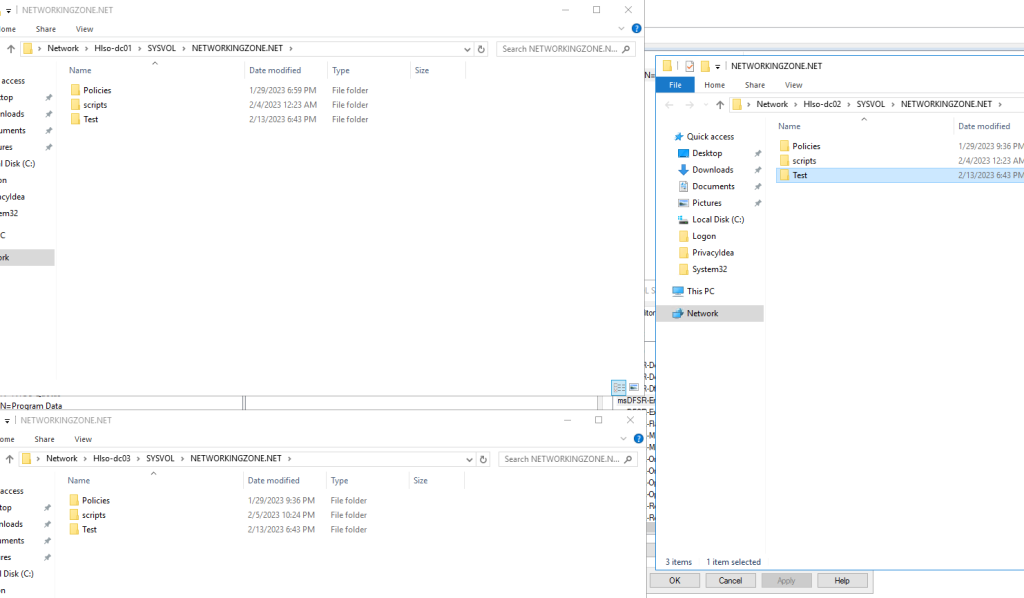
As shown in the image, DC03 created a test folder and .TXT file, but it is not replicating to the other domain controllers.
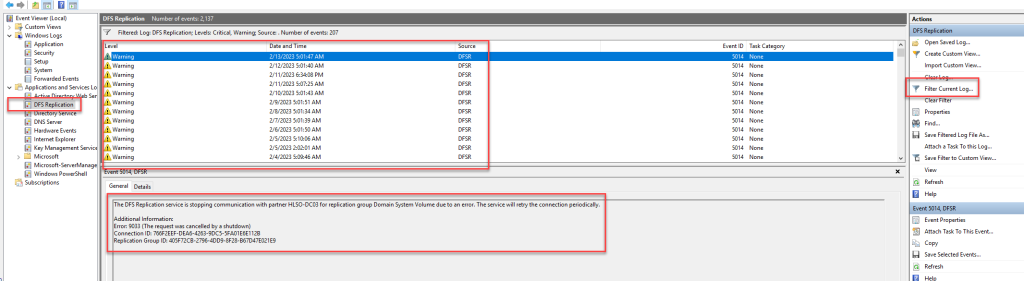
We can confirm the error by accessing the Event Viewer. If we filter the events, we can see that there are multiple errors related to DFSR.
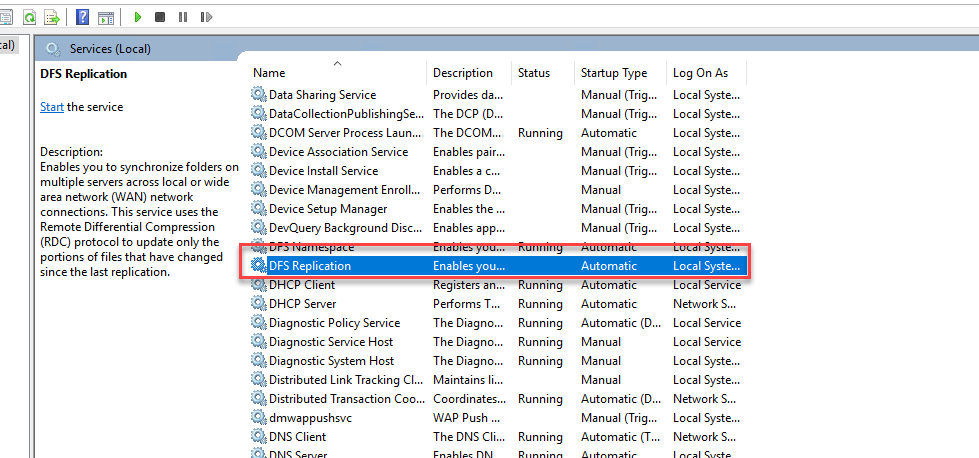
To do this, we will begin by stopping the DFS Replication service.
Note: We are assuming that the most up-to-date Domain Controller is DC01; however, this will depend on each specific situation.
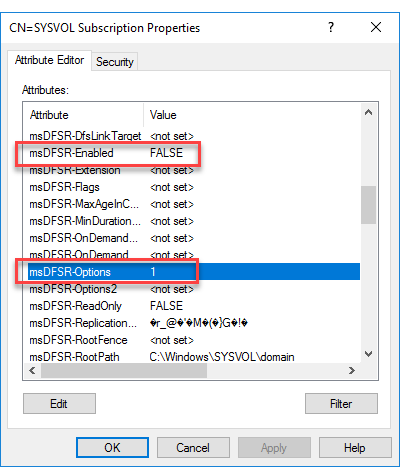
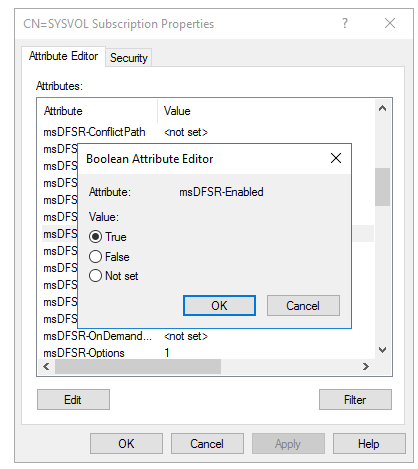
We access ADSI Edit and locate the most up-to-date Domain Controller. We double-click on CN=SYSVOL Subscription to open its properties. We will look for two attributes that we need to modify.
msDFSR-Enabled and msDFSR-Options
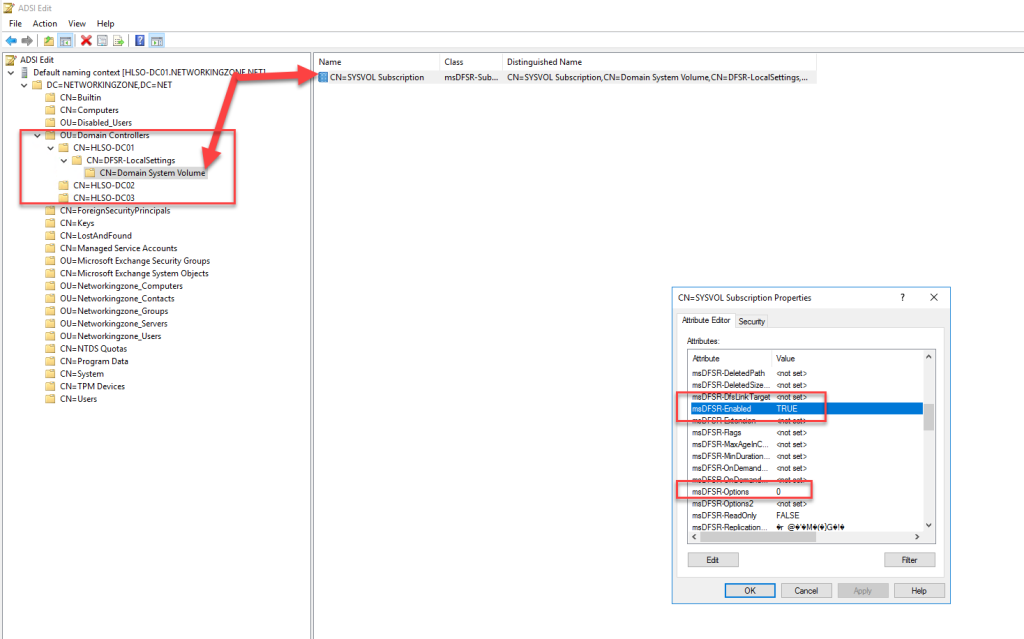
The following attributes should be set as follows:
- msDFSR-Enabled = False
- msDFSR-Options = 1
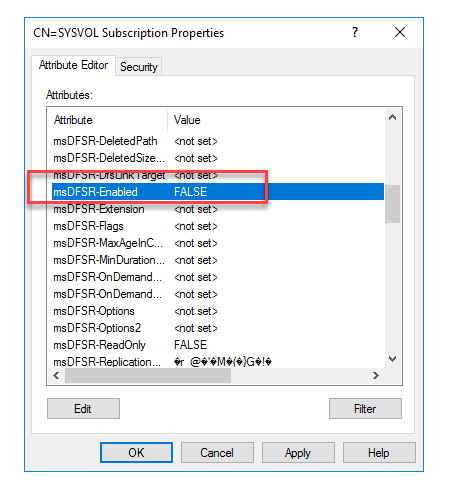
Access the CN=SYSVOL Subscription of the other domain controllers and change the msDFSR-Enabled attribute to FALSE.
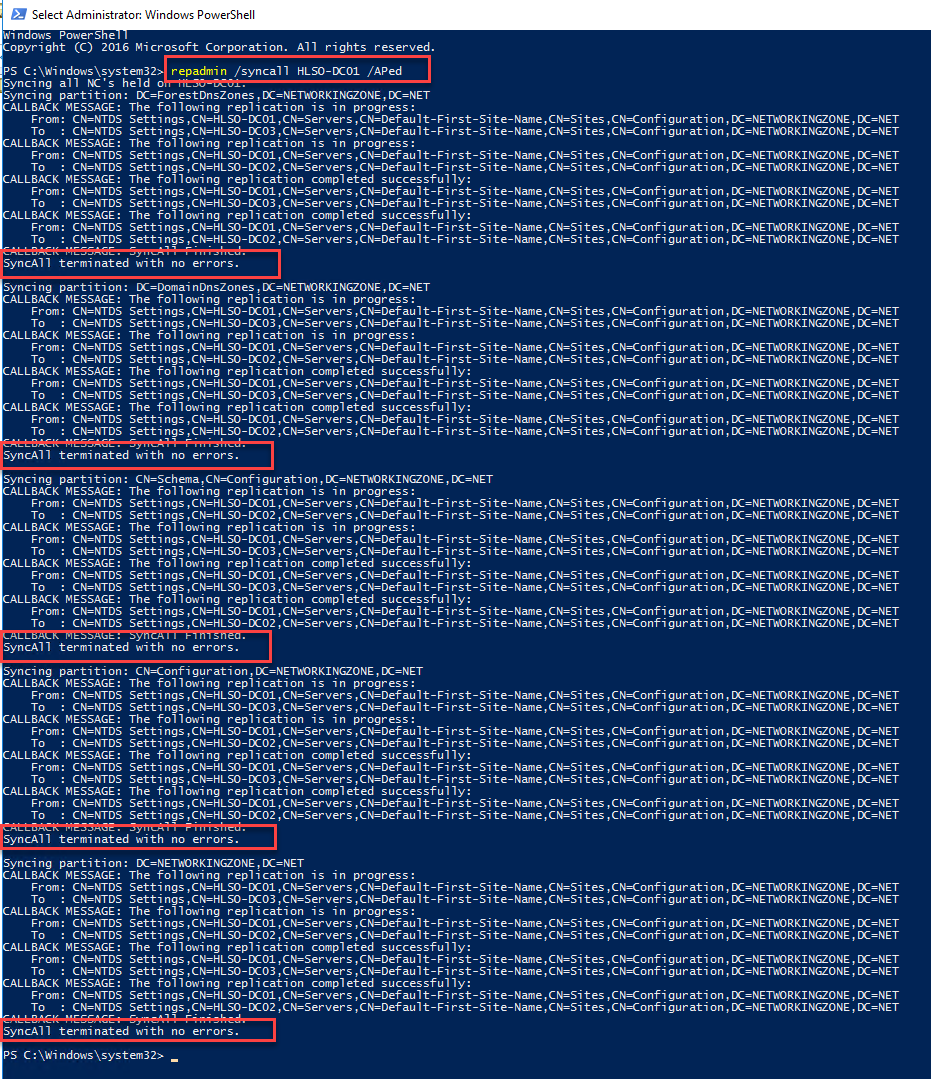
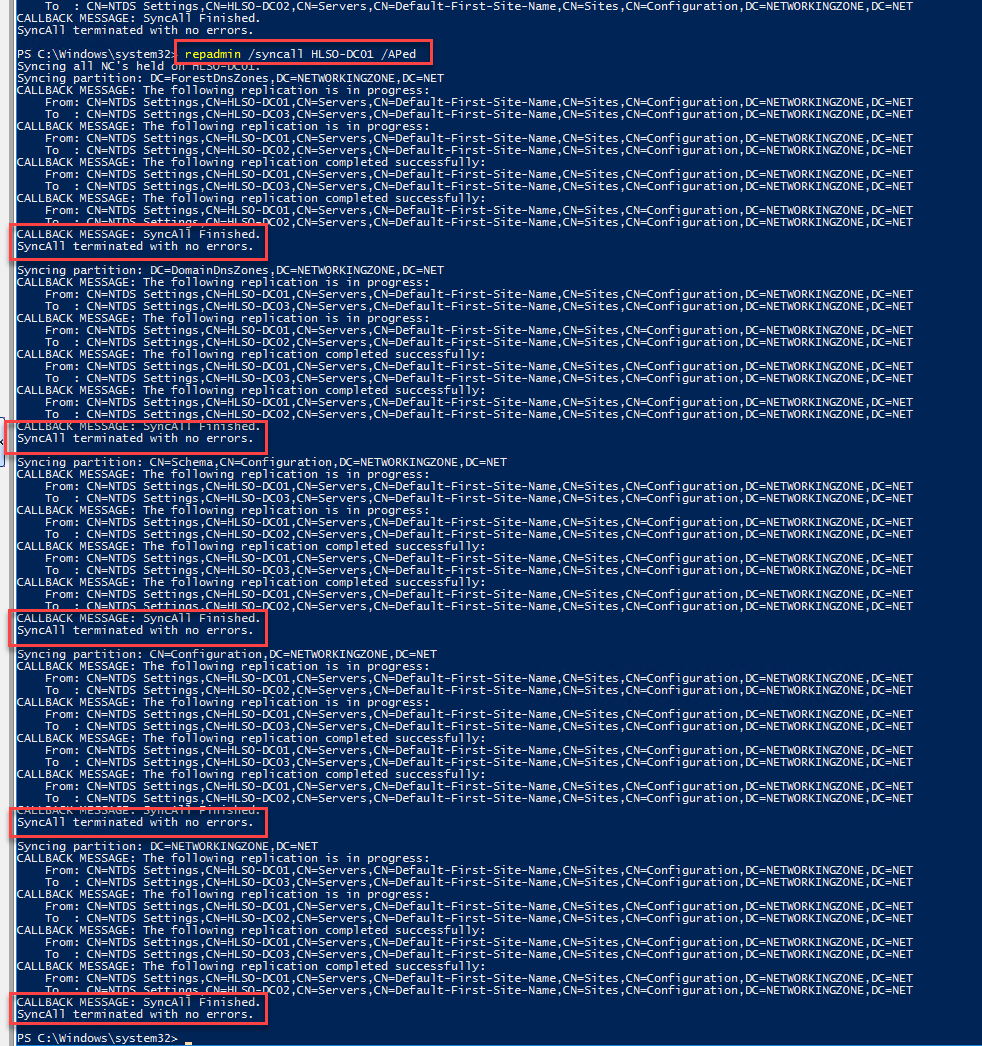
The next step is to open PowerShell as administrator and run the following command:
repadmin /syncall HLSO-DC01 /APed
After running the following command, verify that the synchronization completes without errors, as shown in the image.
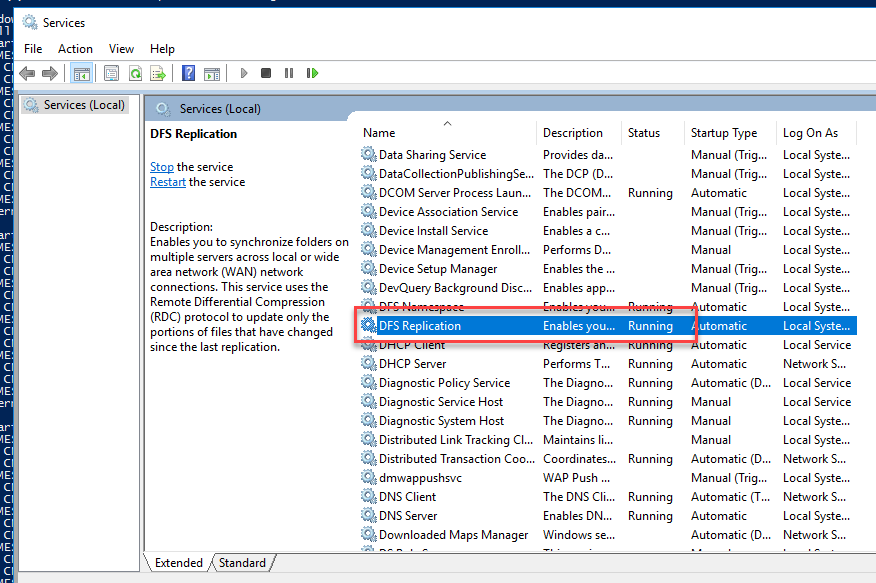
We return to the services and restart the DFS Replication service.
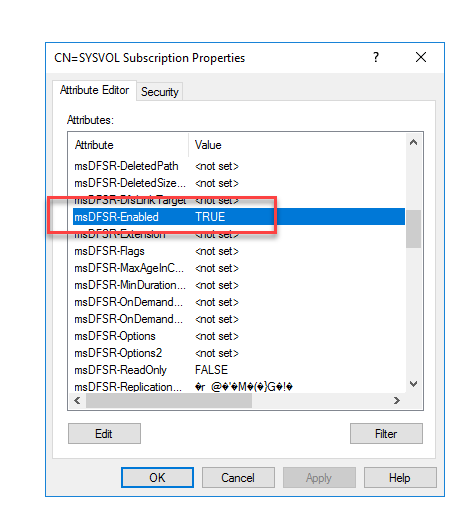
We return to ADSI Edit and change the msDFSR-Enabled attribute to TRUE on the primary domain controller.
We run the synchronization again and verify that it completes without errors.
We return to ADSI Edit and change the msDFSR-Enabled attribute to TRUE on the remaining domain controllers.
We stop and start the DFSR service on all domain controllers. We can use the following command.
Invoke-Command -ComputerName DC01, DC02, DC03 -ScriptBlock {Stop-Service DFSR}

Invoke-Command -ComputerName DC01, DC02, DC03 -ScriptBlock {Start-Service DFSR}

If we return to the Event Viewer and remove the filters, we can see that there are no longer any errors in DFSR.
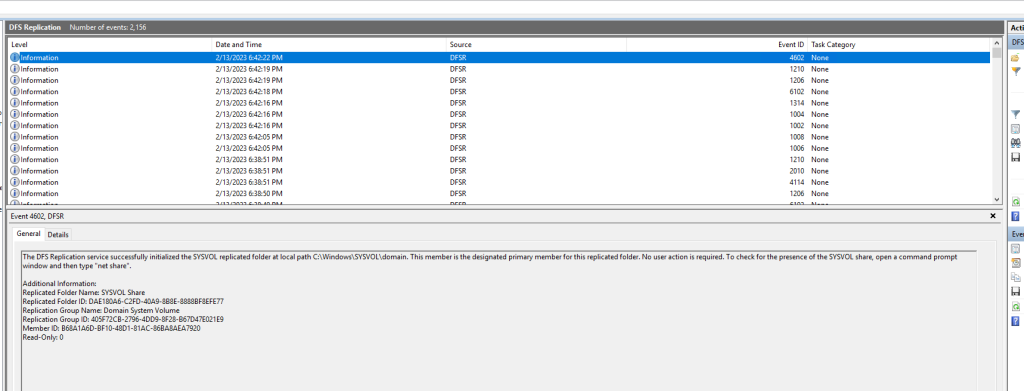
To confirm that everything is working again, we create a folder or file in one of the SYSVOL folders on any domain controller, and we should see that it replicates automatically.
By following the steps described above, we can repair the synchronization of the SYSVOL folders. I hope this short tutorial has been helpful.
The official documentation can be found at the following Microsoft link.