Ubuntu is one of the most popular and reliable Linux operating systems on the market, and one of its most widely used versions is Ubuntu 20.04 LTS (Long Term Support). However, the arrival of Ubuntu 22.04 LTS brings with it numerous improvements and advantages that make an upgrade worth considering. In this article, we will explore the reasons to upgrade from Ubuntu 20.04 LTS to Ubuntu 22.04 LTS, the advantages of using LTS versions, and detail the key improvements offered by the new version.
Advantages of LTS Releases
Ubuntu LTS releases, such as 20.04 and 22.04, offer significant advantages over regular releases:
Long-Term Support: LTS stands for “Long Term Support,” meaning you will receive security updates and bug fixes for an extended period. This ensures a more stable and secure system, especially for production or enterprise environments.
Greater Stability: LTS releases undergo extensive testing before release, helping to identify and fix critical issues, resulting in greater stability compared to intermediate releases.
Focus on Performance: LTS releases are designed to optimize performance and efficiency, resulting in a faster and more responsive system for the user.
Key Improvements in Ubuntu 22.04 LTS
Upgrading from Ubuntu 20.04 LTS to Ubuntu 22.04 LTS allows users to enjoy several improvements and new features, including:
Updated Kernel Version: Version 22.04 LTS comes with an updated kernel that includes performance improvements, support for newer hardware, and bug fixes.
GNOME 4.0: Ubuntu 22.04 LTS incorporates GNOME 4.0 as the default desktop environment, providing a more polished, intuitive, and modern experience.
Updated Applications: Pre-installed applications, such as the web browser, file manager, and software center, are updated to their latest versions, providing enhanced features and improved security.
Security Enhancements: The latest version of Ubuntu includes security patches and updates to protect the system against known threats.
- Improved Graphics Performance: Graphics performance and driver improvements have been made, allowing for better support for games and graphics-intensive applications.
Update Period Details Table
| Ubuntu Version | Release Date | End of Regular Support | End of Extended Support |
|---|---|---|---|
| 20.04 LTS | April 2020 | April 2025 | April 2030 |
| 22.04 LTS | April 2022 | April 2027 | April 2032 |
Requirements and Recommendations Before Upgrading
Before upgrading from Ubuntu 20.04 LTS to Ubuntu 22.04 LTS, it is important to follow these requirements and recommendations:
Data Backup: Make a complete backup of your important data to avoid data loss in case of any problems during the upgrade.
Check System Requirements: Make sure your hardware meets the minimum requirements for version 22.04 LTS.
Update Packages: Before upgrading, make sure your system is fully updated using the commands
sudo apt updateandsudo apt upgrade.Check Software Compatibility: Make sure the applications you regularly use are compatible with the new version of Ubuntu.
Stable Internet Connection: Ensure you have a stable internet connection during the upgrade to avoid download problems and corrupted packages.
Once you have backed up all your data, or taken a snapshot if you are running Ubuntu in a virtualized environment, proceed with the following steps.
Apply pending updates
To list the packages that can be updated, run the following command.
sudo apt list --upgradable

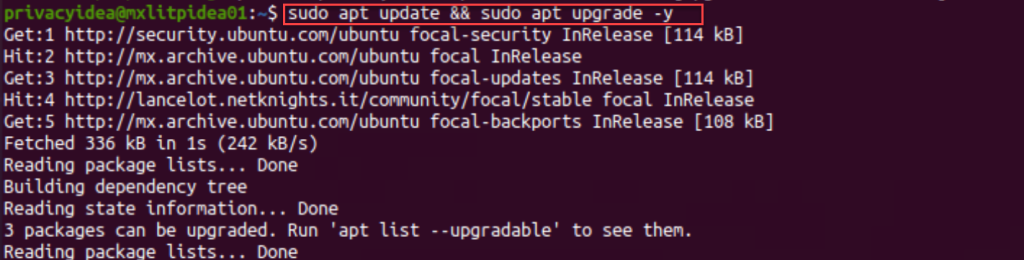
Then run the following command:
sudo apt update && sudo apt upgrade -y
Reboot Ubuntu
sudo reboot

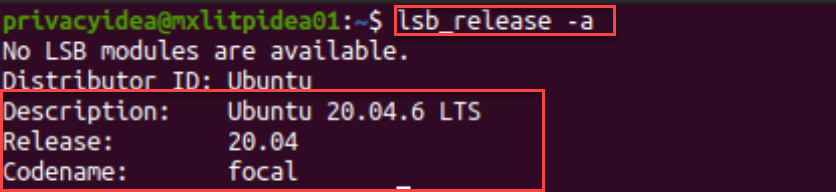
You can check the current release with the following command. As you can see, the version being run is 20.04.6 LTS.
lsb_release -a
Start the upgrade
To start the upgrade process, run the following command and enter your password.
sudo do-release-upgrade

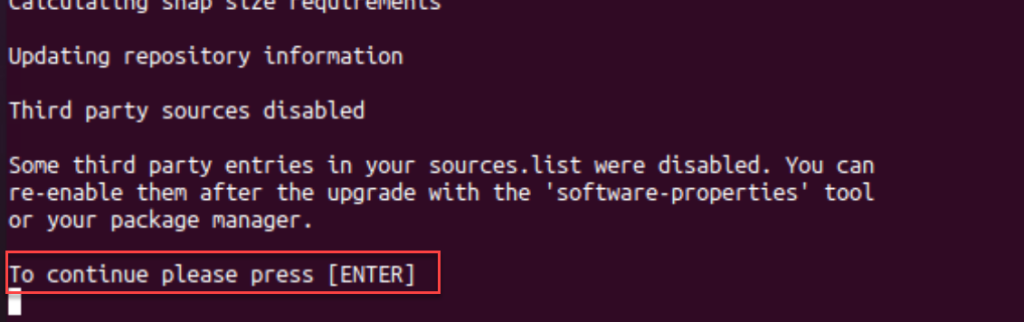
In the next step, you will be informed that third-party entries within the file will be disabled.
Source.list, this is because the entries for “focal” will be updated to “jammy”. Press Enter to continue.
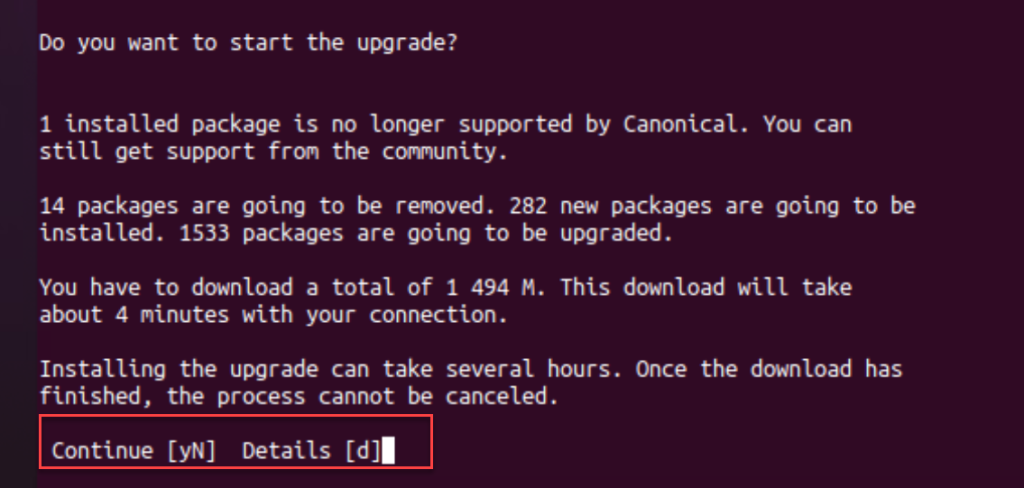
You will be asked if you want to start the upgrade. Press Y to continue.
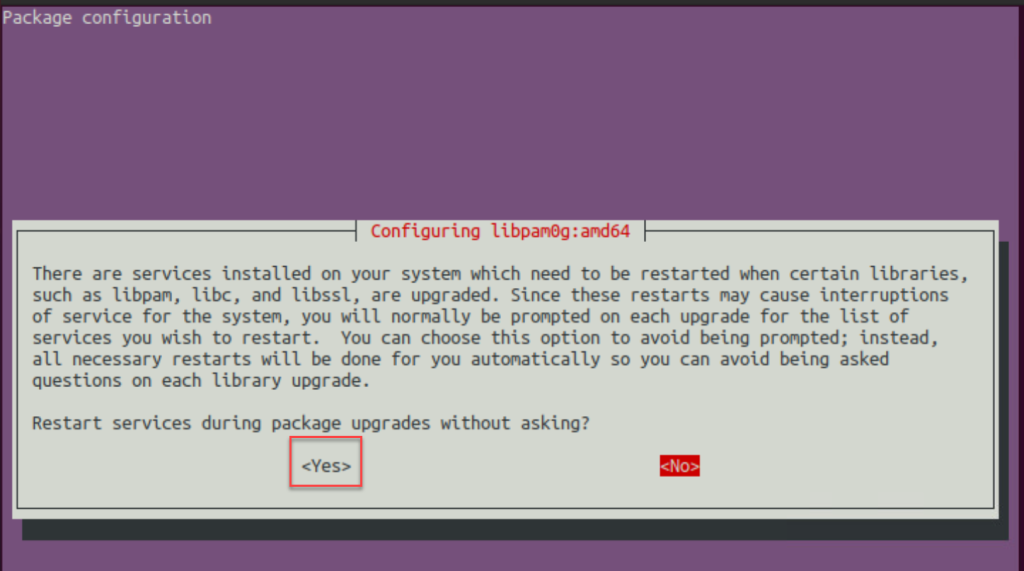
At a certain point, it will ask if you want to restart the services during the upgrade without prompting you. Select “Yes” and continue.
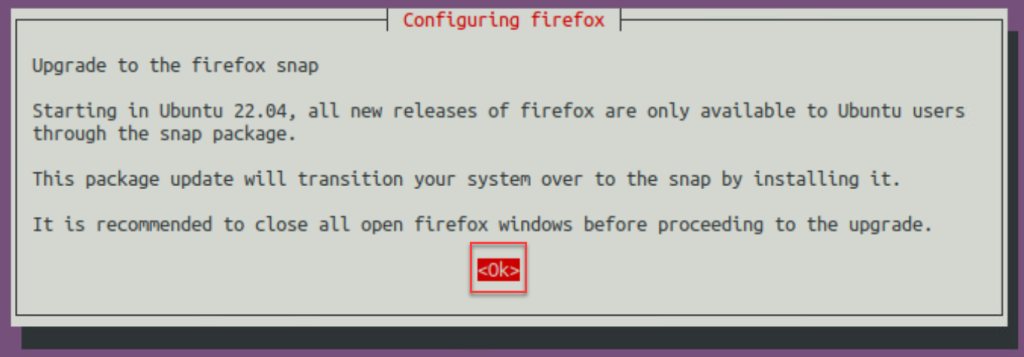
Select OK if you have a Firefox prompt.
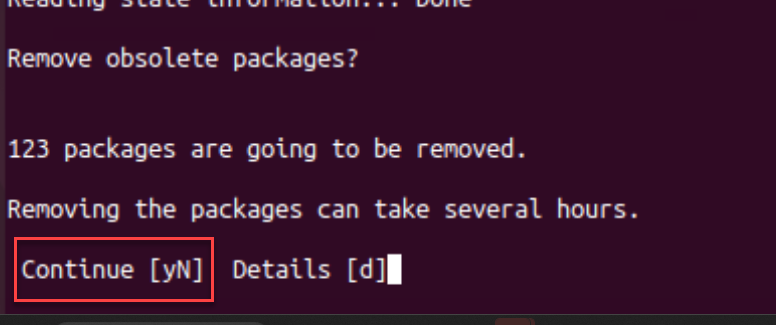
Again, press Y to continue with the installation. This part will remove obsolete packages.
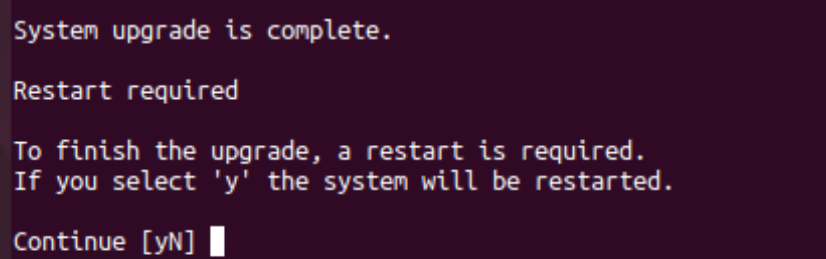
Once it has finished, you will be asked to restart the system. Press “y” to continue.
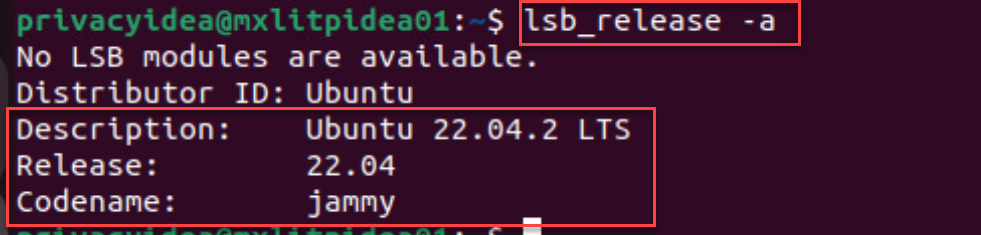
After restarting and logging back in, run the command “lsb_release -a” again. If everything went well, you will see that the release is 22.04 with the codename jammy.
As a final step, you’ll need to reactivate the repositories that were deactivated during the upgrade process. You can open and edit the /etc/apt/source.list file. To deactivate them, simply remove the # at the beginning of each line.
/etc/apt/source.list
As you can see, upgrading from Ubuntu 20.04 to Ubuntu 22.04 is a simple process that requires only a few commands.