Schema Extension Context
1. Upgrading to a Newer Version of Windows Server
When you add a new domain controller with a newer version of Windows Server (for example, Windows Server 2016, 2019, 2022, or 2025) to a domain that already has domain controllers running an earlier version (for example, Windows Server 2012 R2 or 2016), the Active Directory schema needs to be extended to support the new features and changes that come with the new operating system version.
This is done using adprep.
2. Extending the Schema and Versions
My initial reference to Windows Server 2025 was a typo. The process for extending the schema doesn’t change significantly between recent versions of Windows Server (for example, from 2016 to 2019 to 2022), but it should have been mentioned in the context of Windows Server 2019 rather than 2025.
BEFORE PROCEEDING, BACK UP THE SERVER
Steps to extend the Active Directory schema when adding a new server with Windows Server 2019:
1. Prepare the schema with adprep
When you add a new server with Windows Server 2019 to an existing domain with Windows Server 2012 or earlier, you must extend the Active Directory schema to support the new features.
- Insert the Windows Server 2019 installation media or mount the ISO image on the server that will run the new DC.
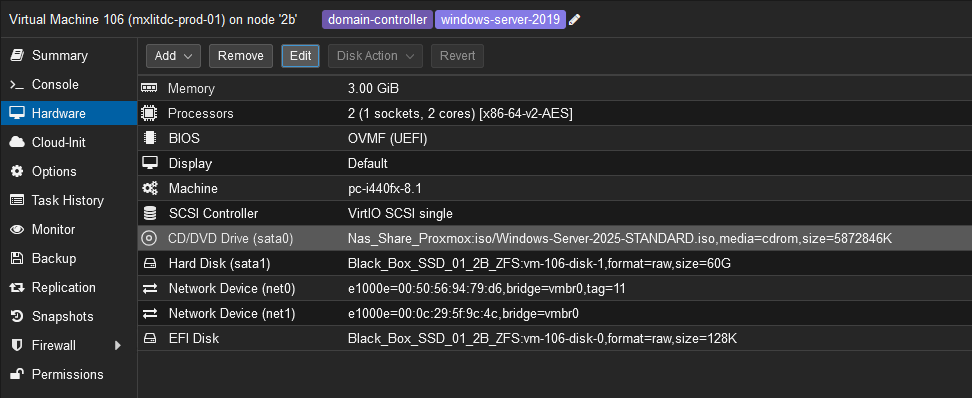
Open a Command Prompt window with administrator privileges on the server that will perform the schema extension.
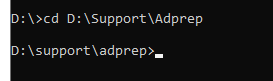
Navigate to the
Support\Adprepdirectory within the Windows Server 2019 installation media:
cd D:\Support\Adprep
- Note: Replace
D:with the drive letter of your Windows Server 2025 installation.
- Run the following command to extend the schema:
adprep /forestprep
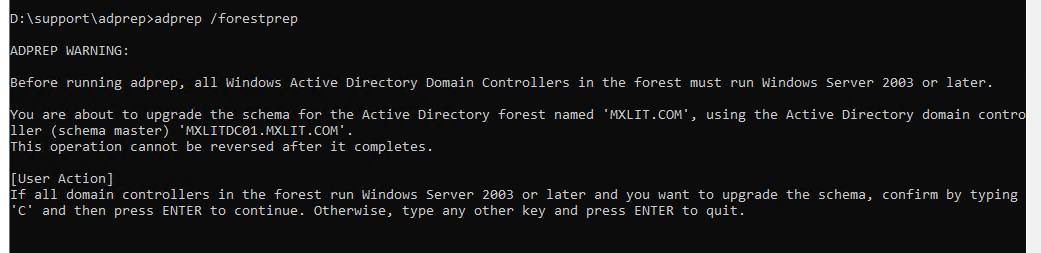
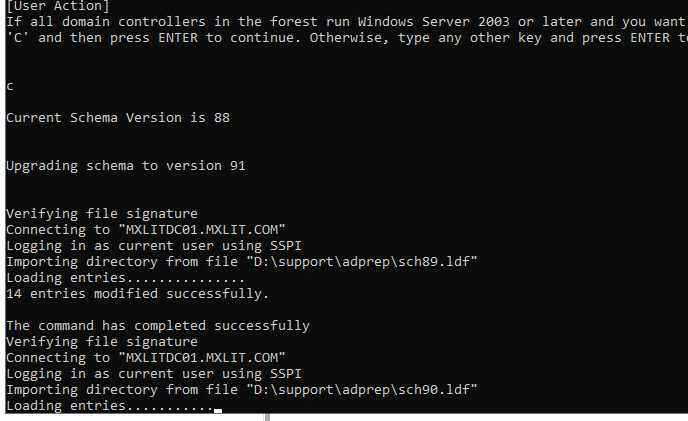
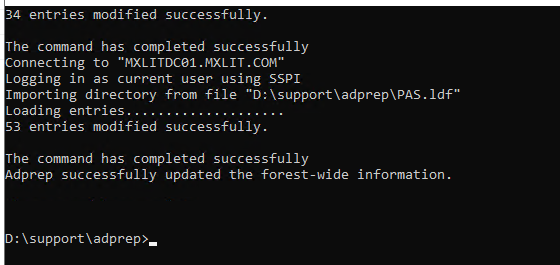
- This command extends the Active Directory schema to support the new features of the Windows Server version.
2. Extending the Domain
After extending the schema, you must ensure that the domain is ready to support the new Windows Server 2019 domain controller. Run the following command:
adprep /domainprep
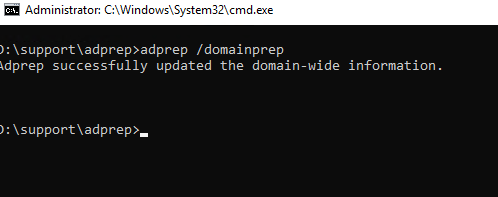
This step configures the domain to be compatible with the new server.
**3. Verify Schema Extension
Once you have run the commands adprep /forestprep`** and adprep /domainprep`**, you can verify that everything is in order with the following command:
repadmin /showrepl
If you see the following message:
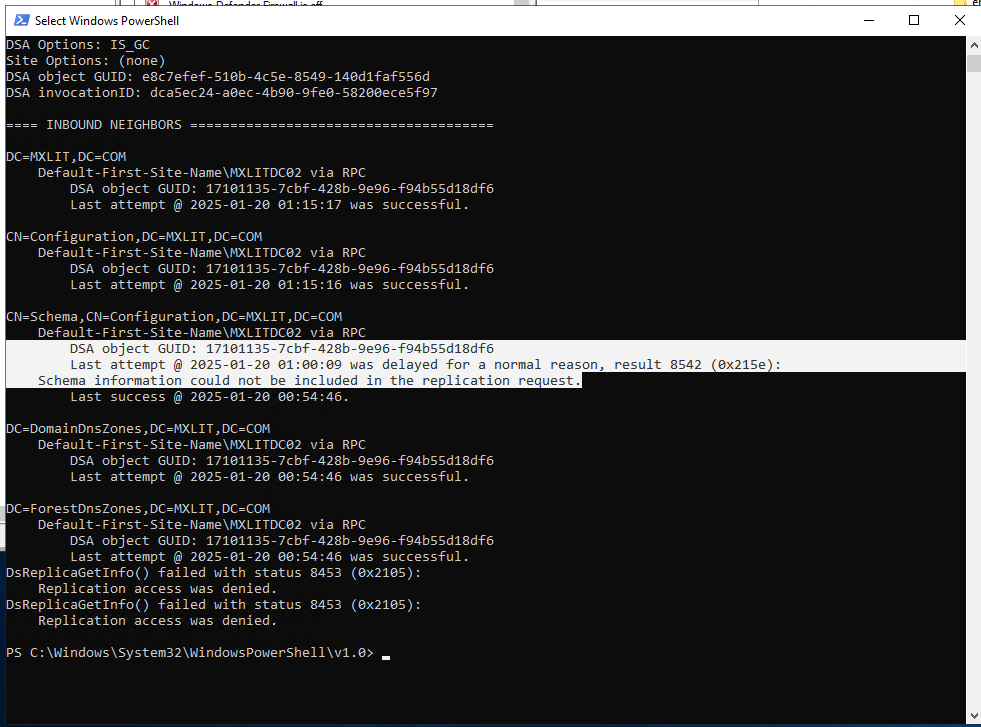 Make sure all your DCs are using the new schema.
Run the following command on all DCs:
Get-ADObject (Get-ADRootDSE).schemaNamingContext -Property objectVersion
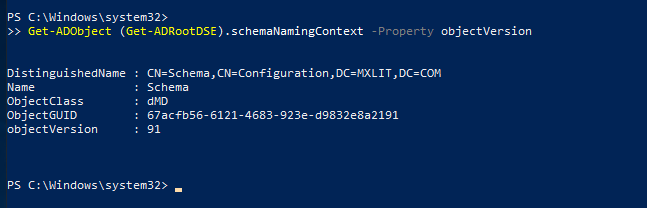
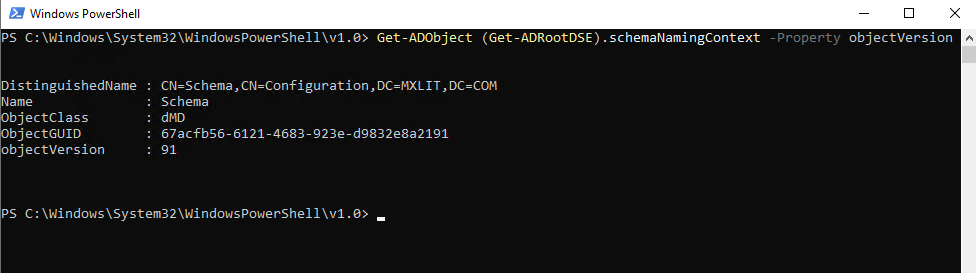
The version of the schema must be the same.
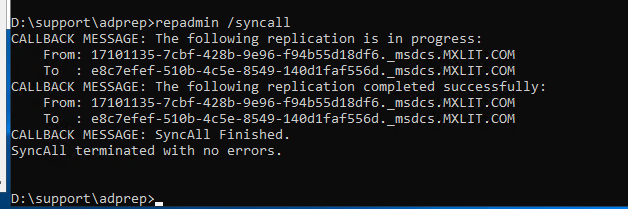
Verify that replication occurs without problems
repadmin /syncall
Why is this extension important?
When adding domain controllers with a newer version of Windows Server, some features of the newer version may not be compatible with the older schema, and adprep makes the necessary modifications to ensure compatibility.
For example:
New features in Active Directory, such as security features, group management, or replication capabilities, may require additional fields in the Active Directory schema.
Changes to the Active Directory database that allow for new configurations or improved performance.
The functionality of Windows Server 2019 and later versions may require adjustments to the domain controller settings.
What happens if you don’t extend the schema?
If you don’t run adprep and extend the schema before adding a new domain controller with a newer version of Windows Server, you may encounter several problems:
Lack of compatibility: The new domain controller might not be able to replicate correctly with existing domain controllers.
Active Directory replication errors: This can occur because the AD schema is not compatible with the new changes introduced by the newer version of Windows Server.
Inability to use new features: Some of the more advanced features of Windows Server 2019 or later versions might not be available if the AD schema is not up to date.
Conclusion
Extending the Active Directory schema is a necessary step when adding a new domain controller with a newer version of Windows Server (such as 2019). This isn’t necessary if all your domain controllers are already on the same version, and I mentioned it incorrectly in the context of Windows Server 2025. Thank you for pointing that out!